
Multiple Subscriptions Per User Add-on lets you set up Multiple Subscription Level Blocks and also allows members to sign up for more than one subscription plan (one per block).
The Multiple Subscriptions Per User add-on is available starting with an Agency or Pro license.
After purchasing a paid version of Paid Member Subscriptions, you can check the following guide on how to install Paid Member Subscriptions.
After installing the Pro or Agency version, to activate The Multiple Subscriptions Per User add-on, go to Dashboard → Paid Member Subscriptions → Add-ons → Multiple Subscriptions Per User Add-on and click activate.
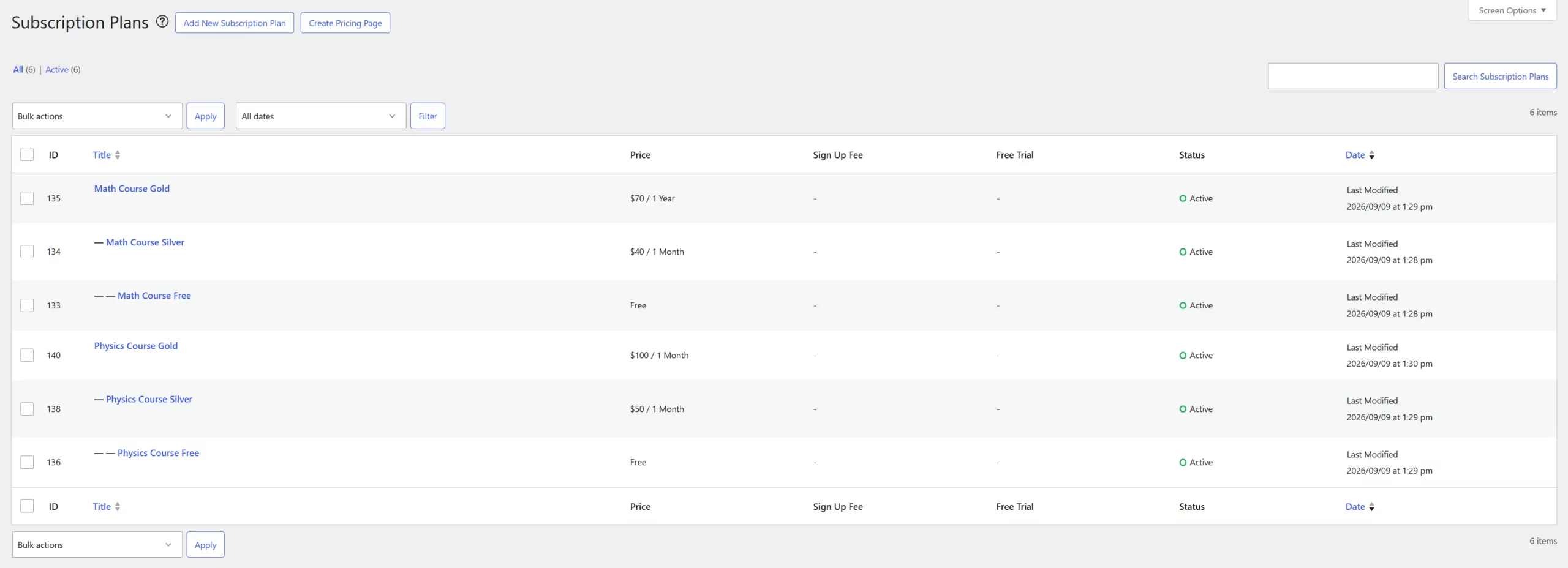
By default, inside the Paid Member Subscriptions plugin, you can create a Subscription Plan by going to Paid Member Subscriptions → Subscription Plans → and clicking on the “Add New” button. The plan created will be your Parent Subscription Plan, and all other plans will be Upgrades or Downgrades of the Parent Plan.
After you install and activate the Multiple Subscriptions per User add-on, you will be able to set up different Subscription Level Groups.
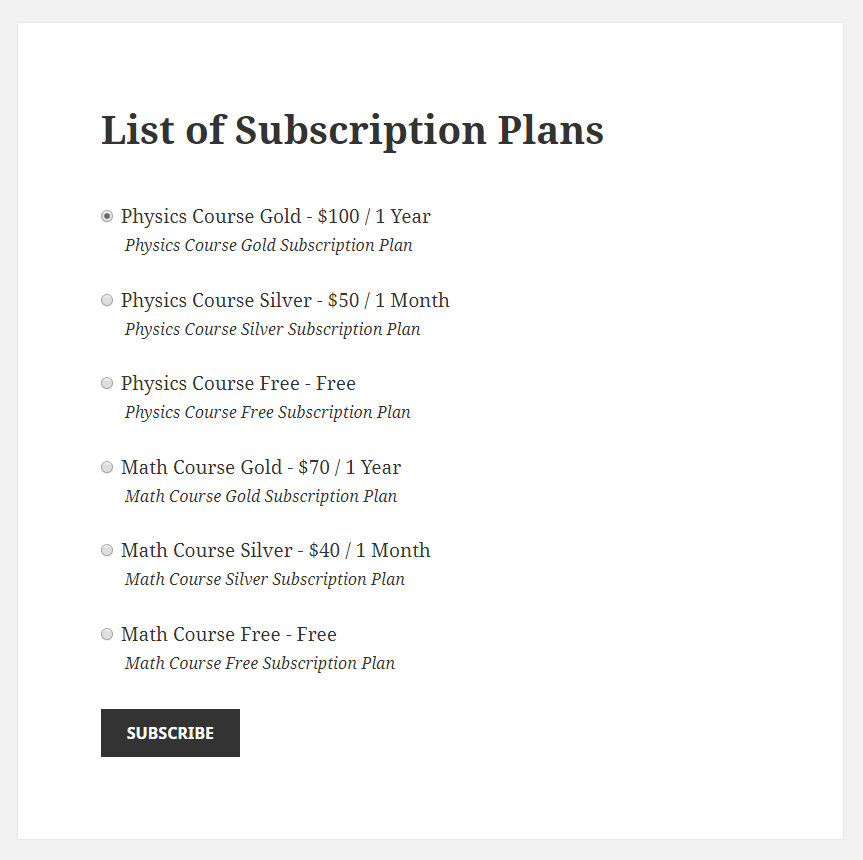
In our case, the Math Course Gold Subscription Plan represents a Level Group, and the Physics Course Gold Subscription Plan represents another Level Group.
The Subscription Level Group can contain one Subscription Plan or Multiple Subscription Plans.
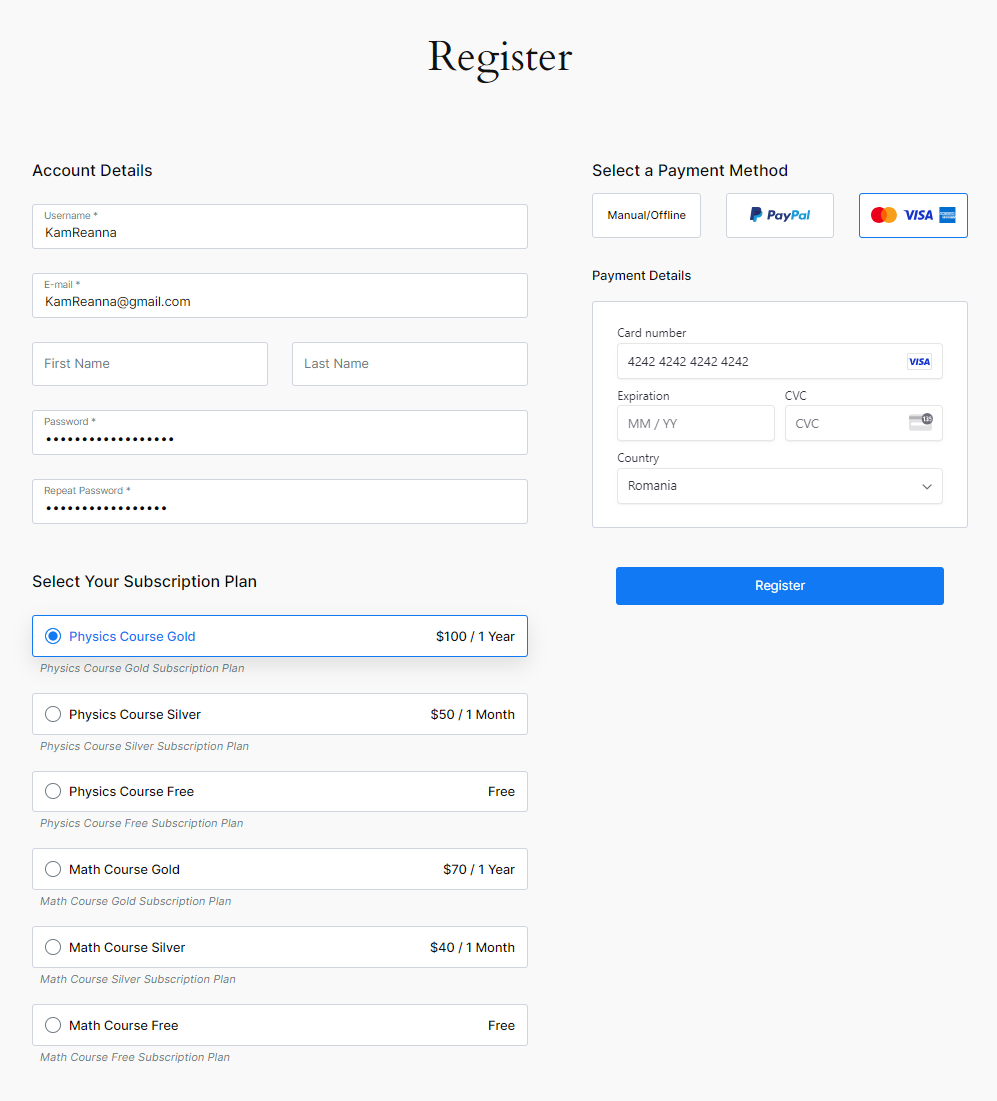
At Registration, users will be able to select and purchase only 1 Subscription Plan from a specific Subscription Level Group. In our case, the user can purchase a Subscription Plan from the Psychics Group or from the Math group.
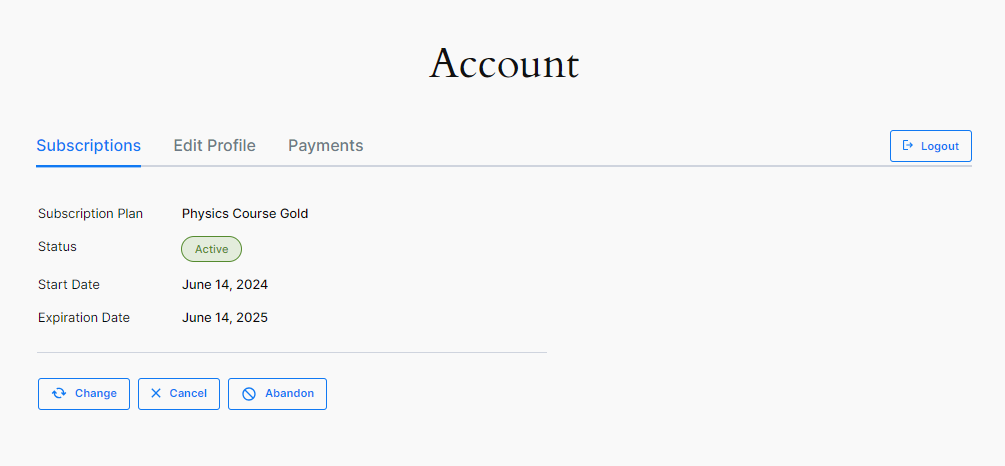
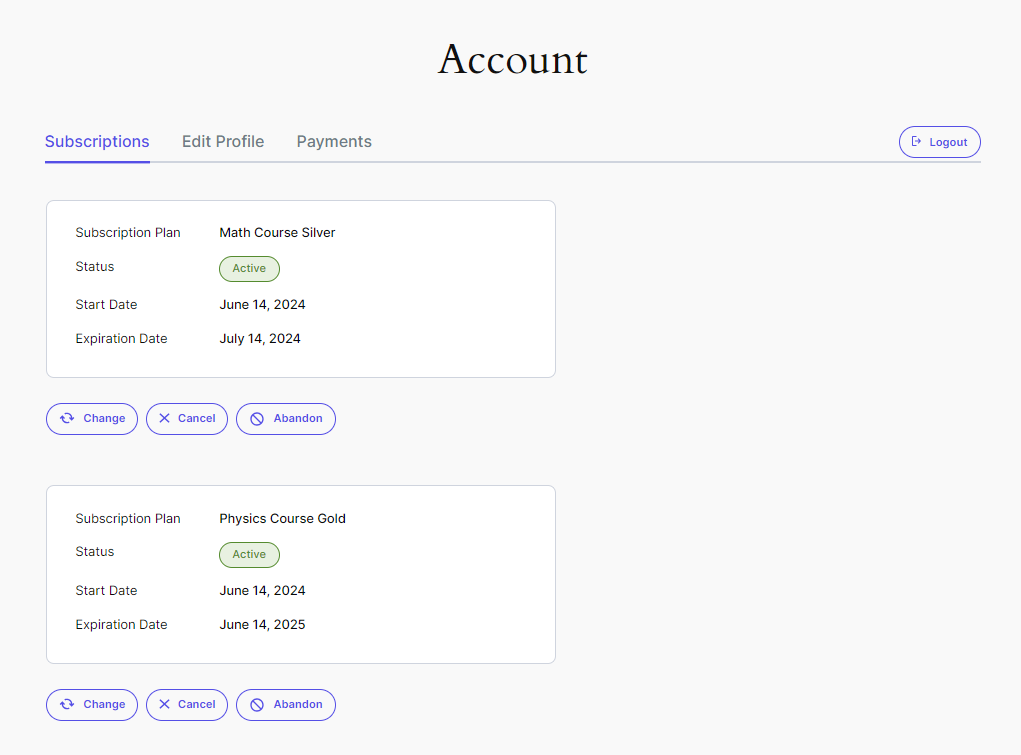
The user will be able to view the purchased Subscription Plan after logging into his Account.
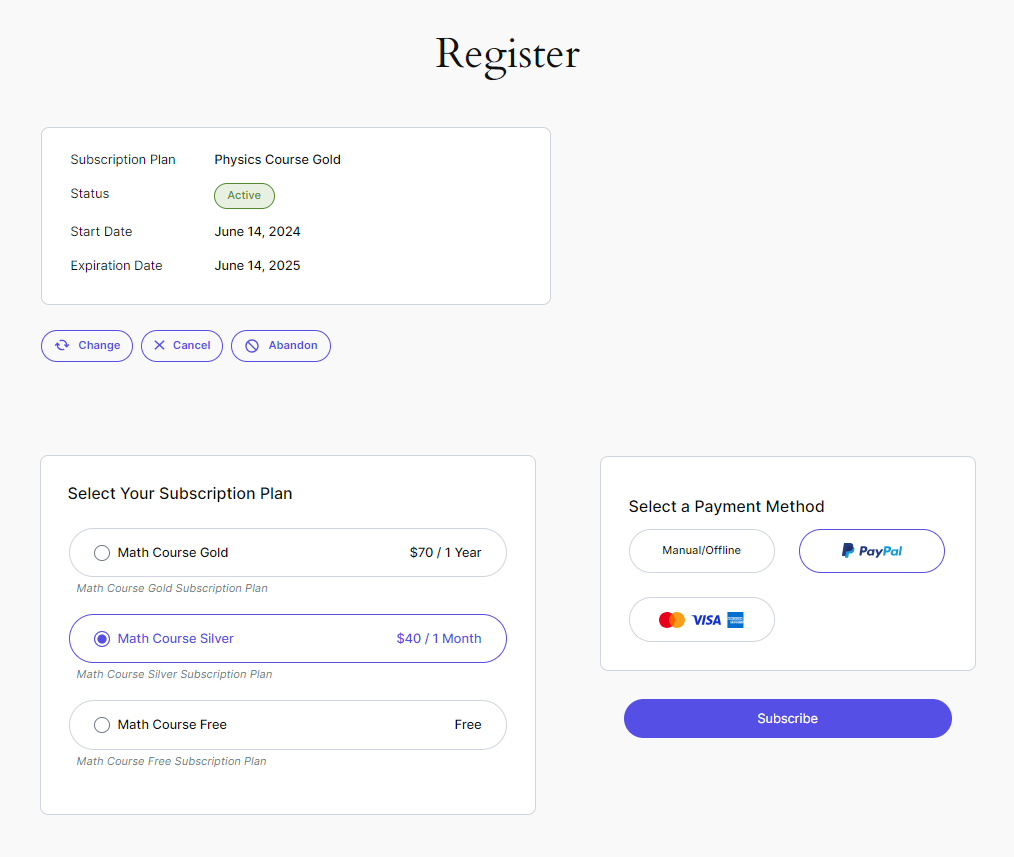
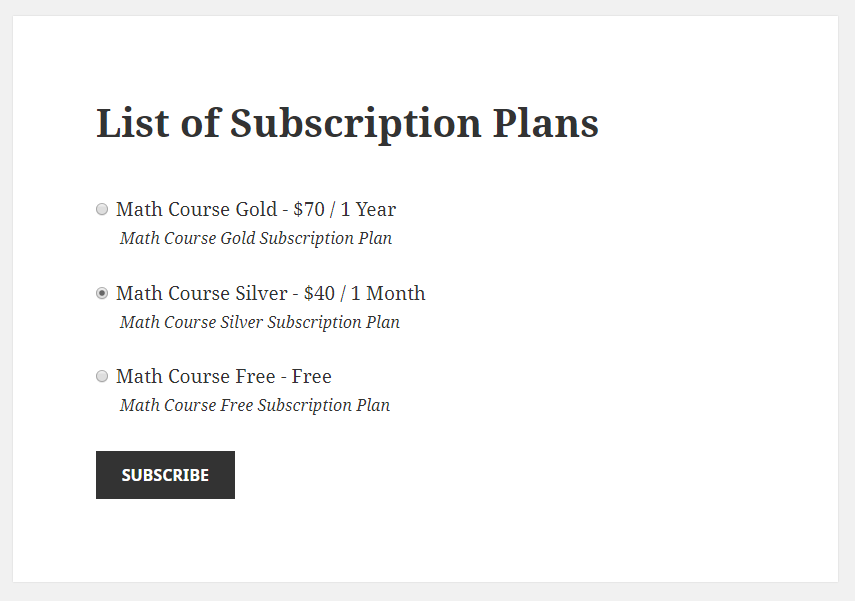
Logged-in users will be able to purchase another Subscription Plan from the other group if they go to the List of Subscription Plans page where you added the [pms-register] shortcode.
In our case, at Registration, we Subscribed to the “Physics Course Gold” Subscription Plan and now we want to purchase the “Math Course Silver” Subscription Plan.
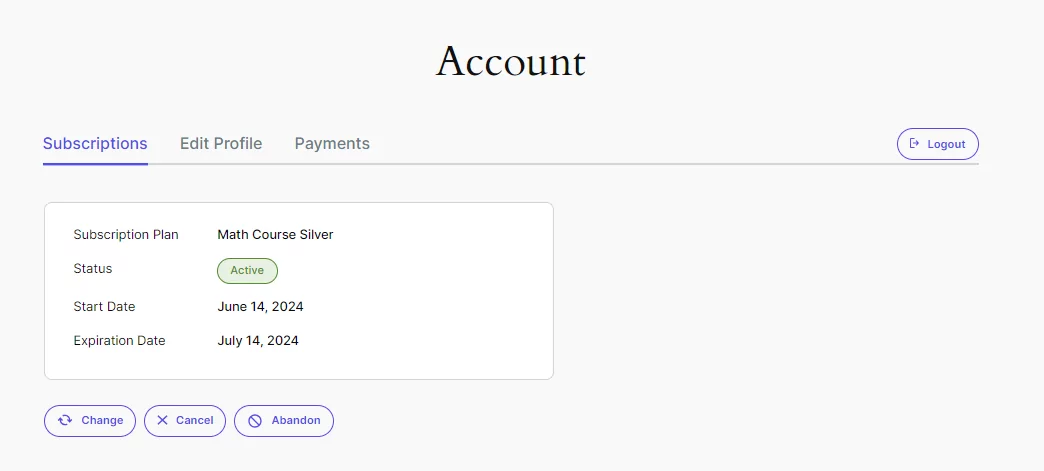
This is how the Account looks like after the user purchased the “Math Course Silver” Subscription Plan.
As an Admin, if you go to Paid Member Subscriptions Members, you will be able to view and edit your existing members, and you can also add new members.
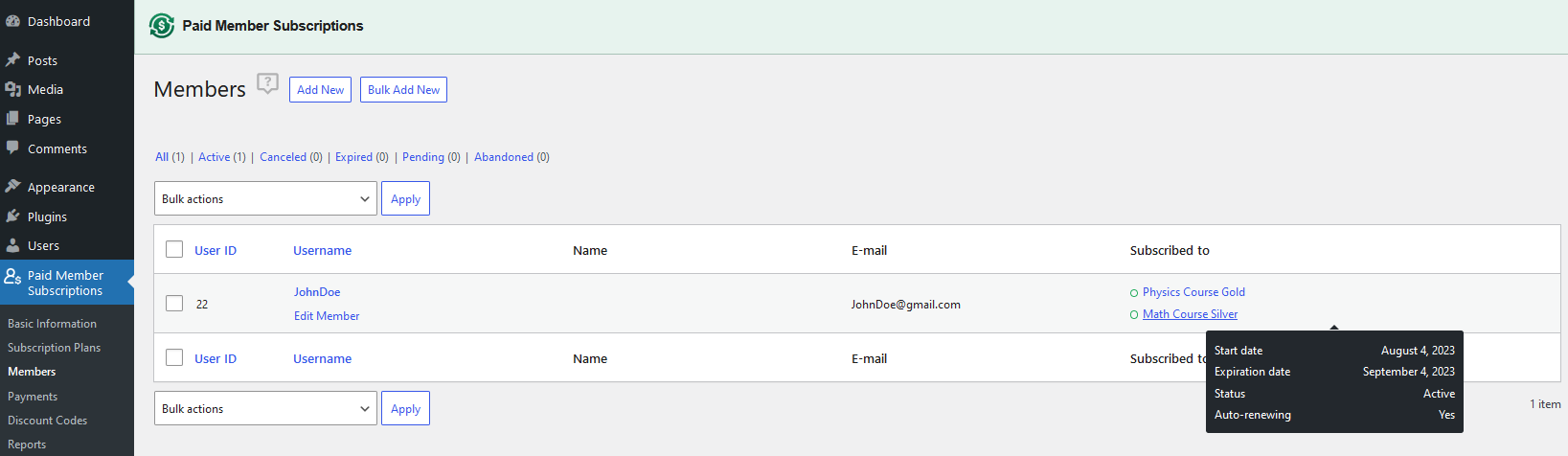
To edit a member, hover the cursor over the user and click on the “Edit Member” link displayed below the username. This will take you to the Edit Member Panel page where you can edit the purchased Subscription Plans, and you can also view the payments done by that user.
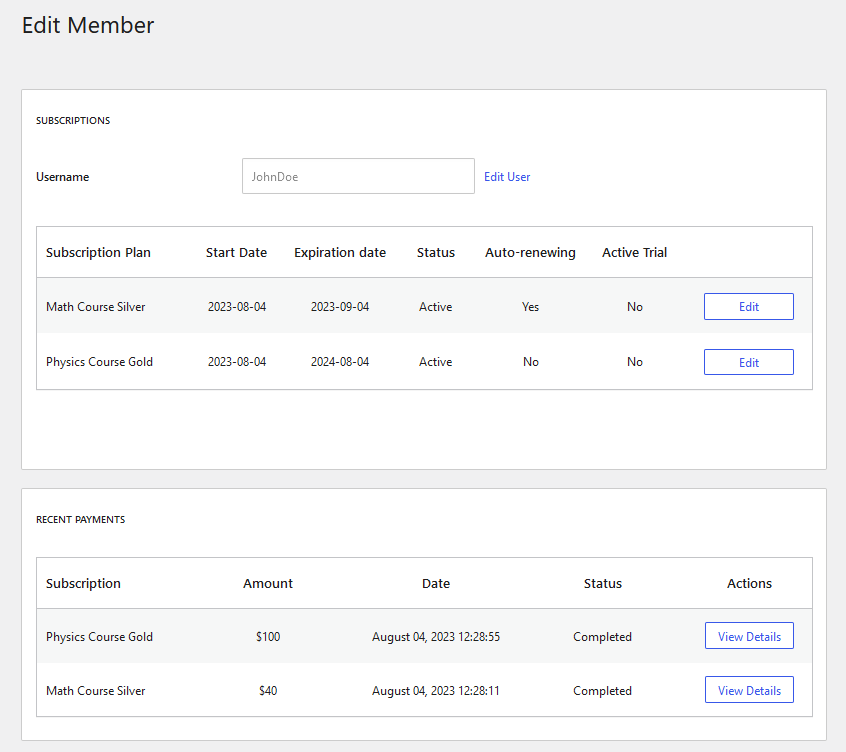
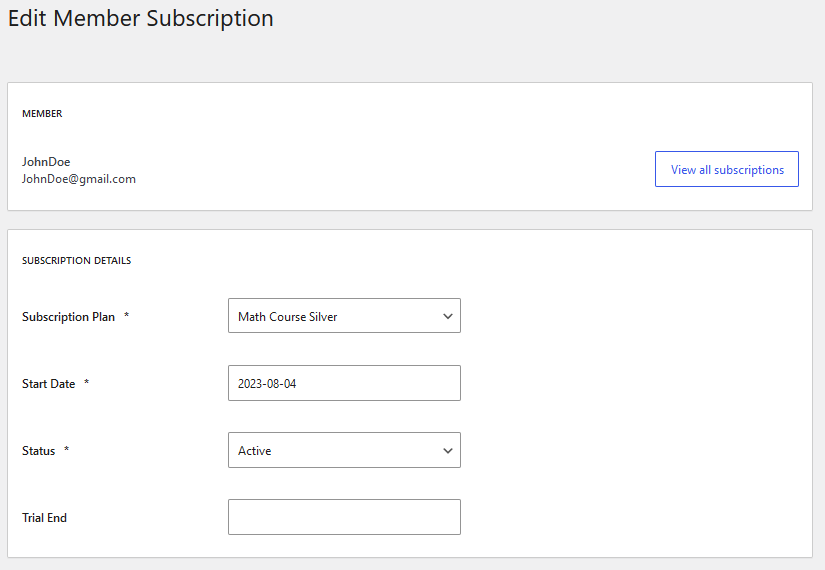
By clicking on the “Edit” button, you can edit the Subscription Plan, the Start Date, Expiration Date, Status (Active, Canceled, Expired, Pending), and you can also delete the Subscription Plan.
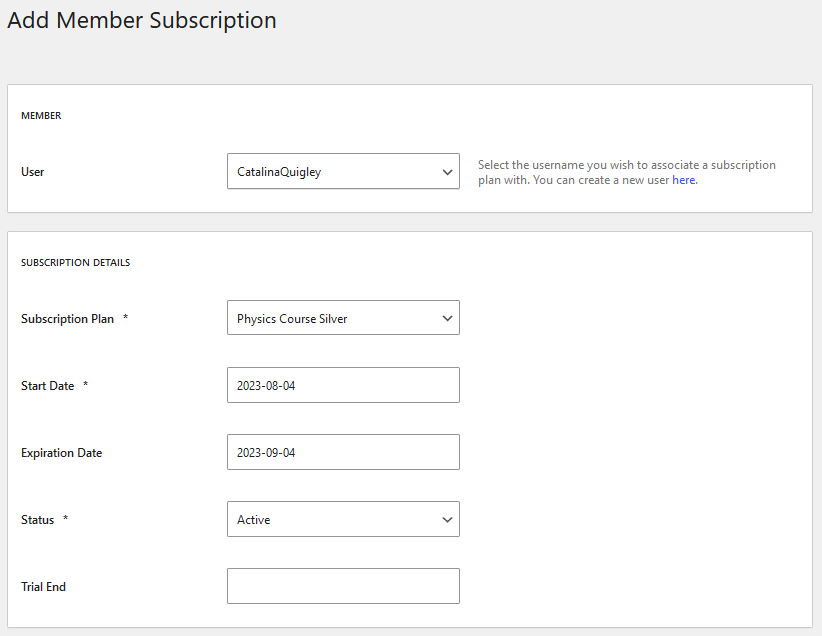
You can add a Subscription plan to a registered user, that didn’t subscribe yet, by clicking on the “Add new” button. This will take you to the “Add Member Subscription” page where you will be able to select a registered user and add a subscription plan to its account.
The last step is to confirm and make the registered user a member by clicking on the “Add Subscription” button.
On our domain, we can have 3 types of users:
Any user can register and subscribe by purchasing a Subscription Plan if they use the Paid Member Subscriptions Registration form.
Registered users who didn’t purchase a Subscription Plan will be able to subscribe, in order to become a Member, if they log in and go to the List of Subscription Plans page where you added the [pms-subscriptions] shortcode.
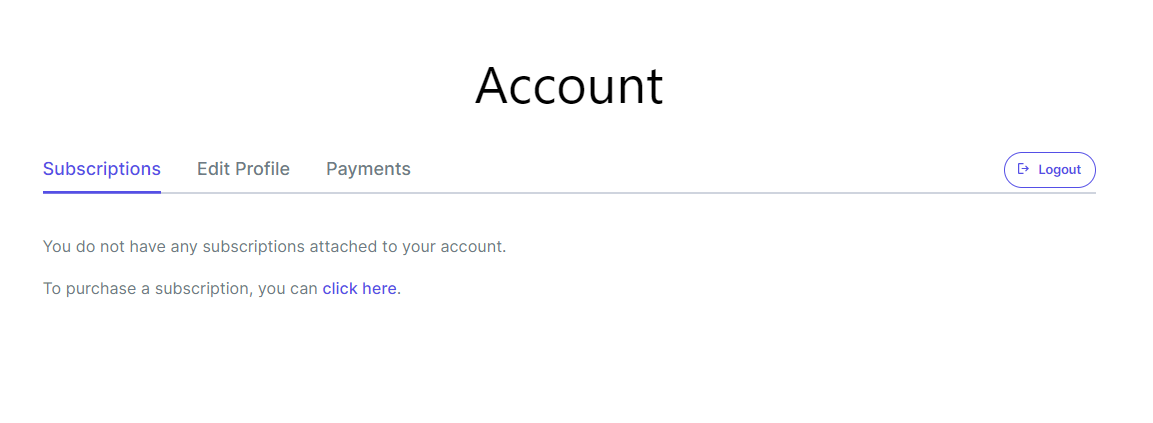
From the list, they can choose which Subscription Plan they would like to purchase.
Members can subscribe to a new Subscription Plan if they access the List of Subscription Plans page where you added the [pms-subscriptions] shortcode.
When logged in and on the List of Subscription Plans page, they will be able to purchase a new Subscription Plan from a different Subscription Level Group.
Members can upgrade, cancel, or abandon any Subscription Plan from their account.
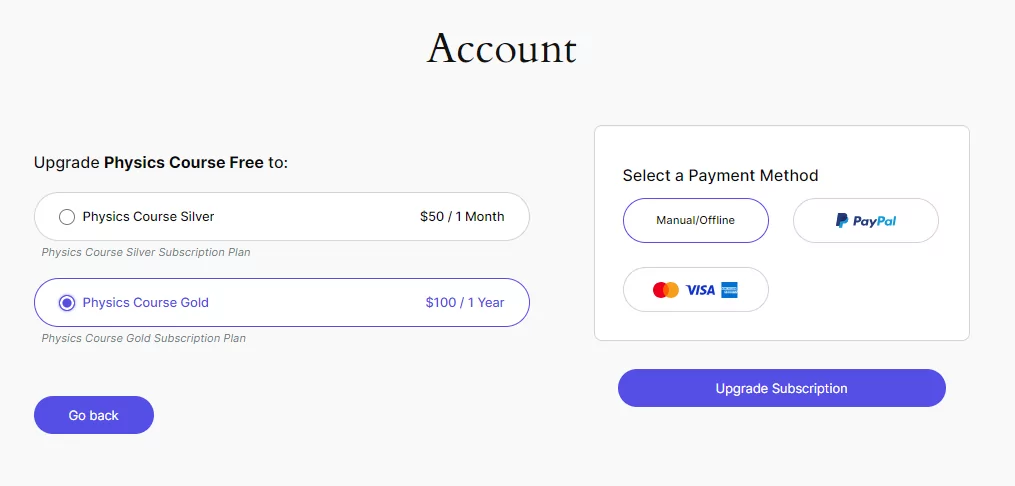
In order to upgrade the Subscription Plan the user will need to Login → Access his Account → Click on the “View Details” link displayed next to the Subscription Plan → Click on the Upgrade Link.
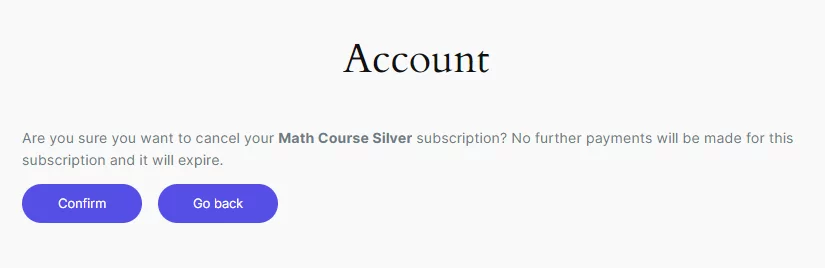
In order to cancel the Subscription plan, the user will need to Log in -> Access his Account -> click on the “View Details” link displayed next to the Subscription Plan -> Click on the Cancel Link.
Canceling the Subscription Plan will stop any further payments, and the user will still have access to restricted content until the expiration of the Subscription Plan.
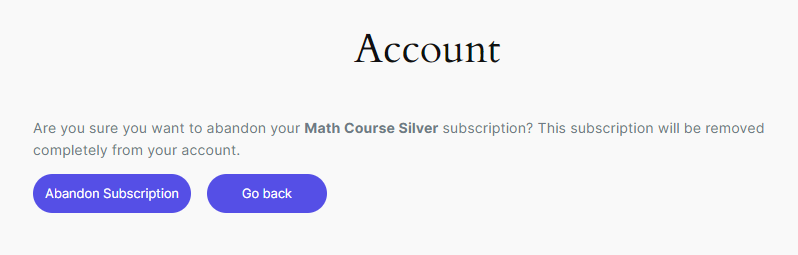
In order to abandon the Subscription Plan, the user will need to Log in → access their account → click on the “View Details” link displayed next to the Subscription Plan → Click on the Abandon Link.
Abandoning the Subscription Plan will completely remove the Subscription Plan from the account. The user will not have access to restricted content, but they will still be a registered user.

Accept (recurring) payments, create subscription plans and restrict content on your website. Easily setup a WordPress membership site using Paid Member Subscriptions.
Get Paid Member SubscriptionsCombine the power of Profile Builder with Paid Member Subscriptions to set up user registration, memberships, and recurring revenue.
Get 25% off with the bundle