Table of Contents

Navigation Menu Filtering Add-on lets you decide which Pages or Posts are visible in the Menu. You can allow only Members who subscribed to a Subscription Plan to see certain Menu Items or only Logged Out Users, but you can also make the Menu Items visible to everyone.
Navigation Menu Filtering is a Basic add-on, available with a Paid Member Subscriptions Basic, Pro, or Agency license only.
After purchasing a premium version of Paid Member Subscriptions, you can check the following guide on how to install Paid Member Subscriptions.
After installing the Basic, Pro, or Agency version, to activate the Navigation Menu Filtering add-on, go to Dashboard → Paid Member Subscriptions → Add-ons → Navigation Menu Filtering Add-on and click activate.
After you install and activate the Navigation Menu Filtering add-on, go to Dashboard → Appearance → Menus. If you don’t have a menu, you will need to create one by giving it a name and by clicking on the “Create Menu” button.
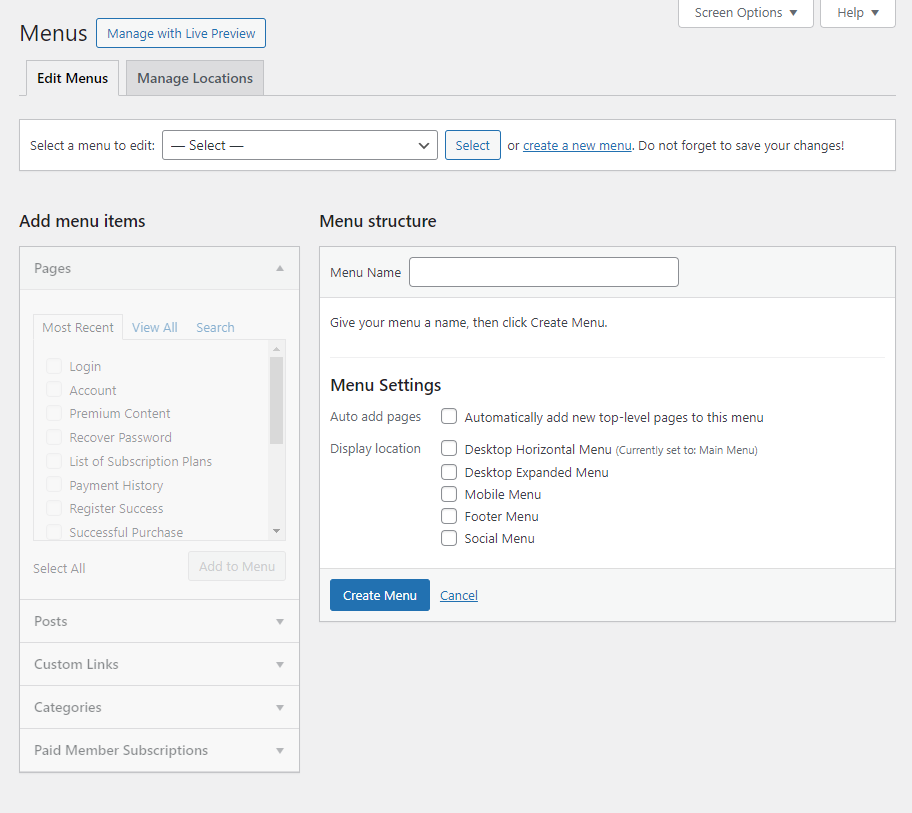
After we create our Menu, we can make it our Primary Menu, and also we can add Menu Items from the left side by checking them and clicking on the “Add to Menu” button.
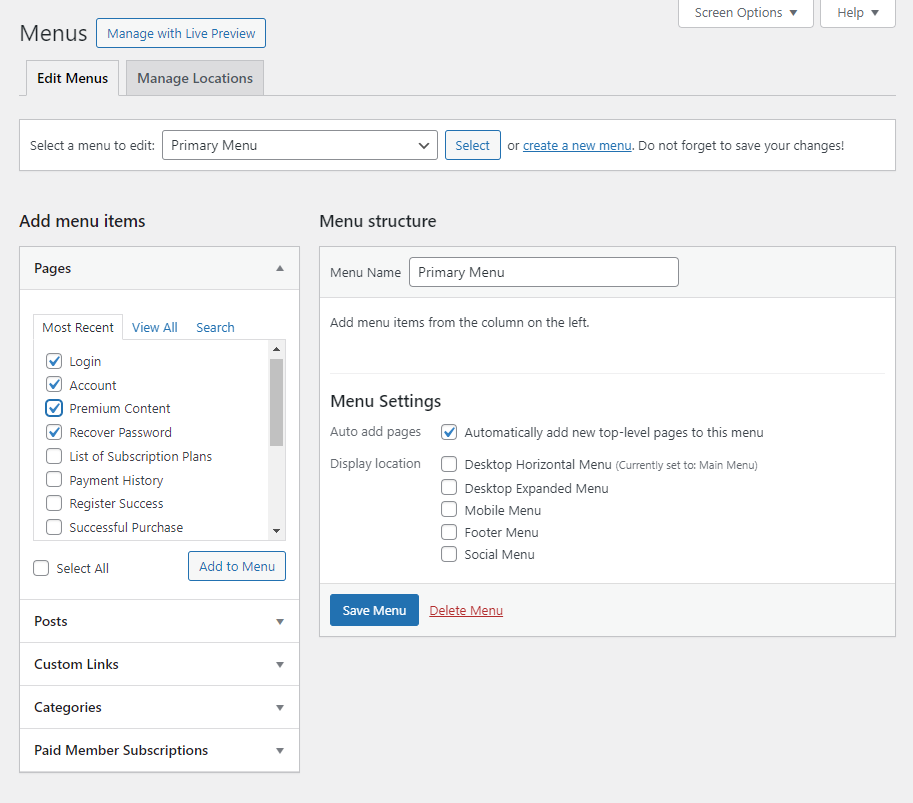
To finish and to save our Menu, we need to click on “Save Menu”. Now all the Menu Items are displayed inside our Menu, and we can use the Navigation Menu Filtering settings to filter them.
You will notice that each Menu Item has appeared in the form of a tab. To view the Navigation Menu Filtering Options, you will need to click on the Menu Item to expand it.
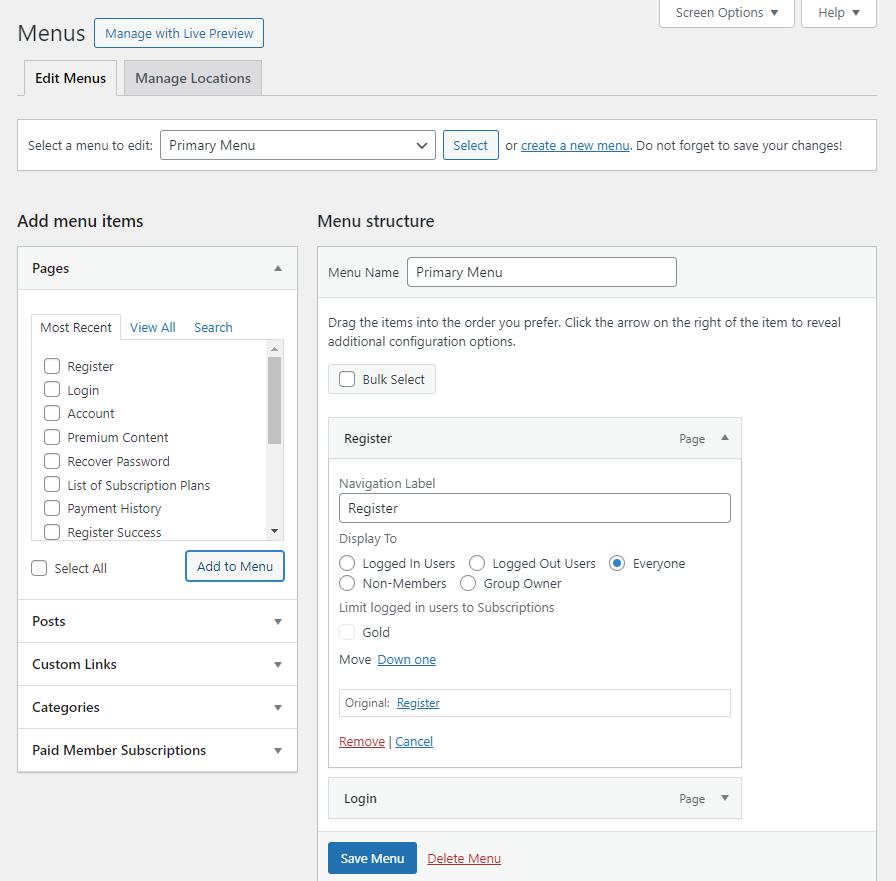
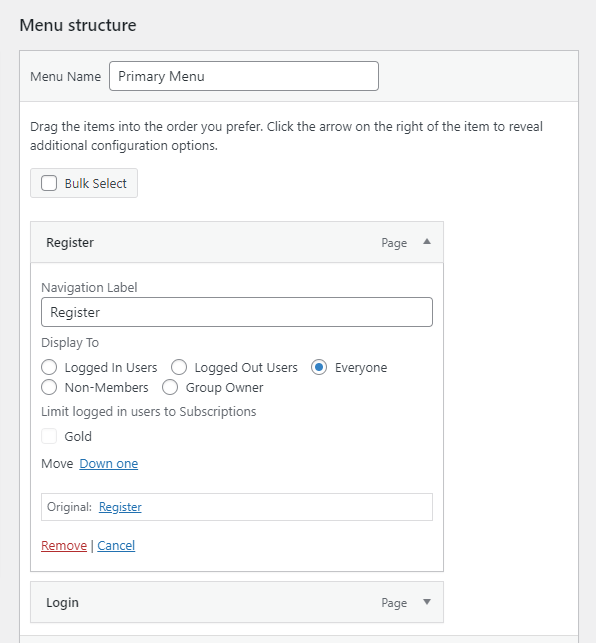
The Navigation Menu Filtering settings are:
Selecting the “Everyone” option inside a Menu Item will trigger the default behavior which is to display it regardless of the user’s login status.
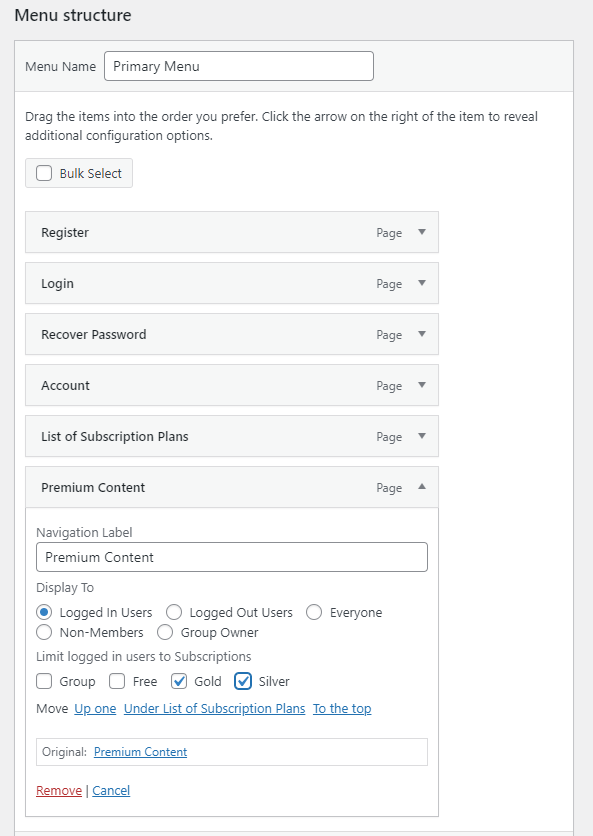
In the example below, I’m going to set the “Premium Content” Menu Item to be displayed in the Menu only for Members who subscribed to the Gold or Silver Subscription Plan. To do this, I selected the radio button “Logged In Users”, and after that, I ticked the Gold and Silver Subscription Plan checkboxes.
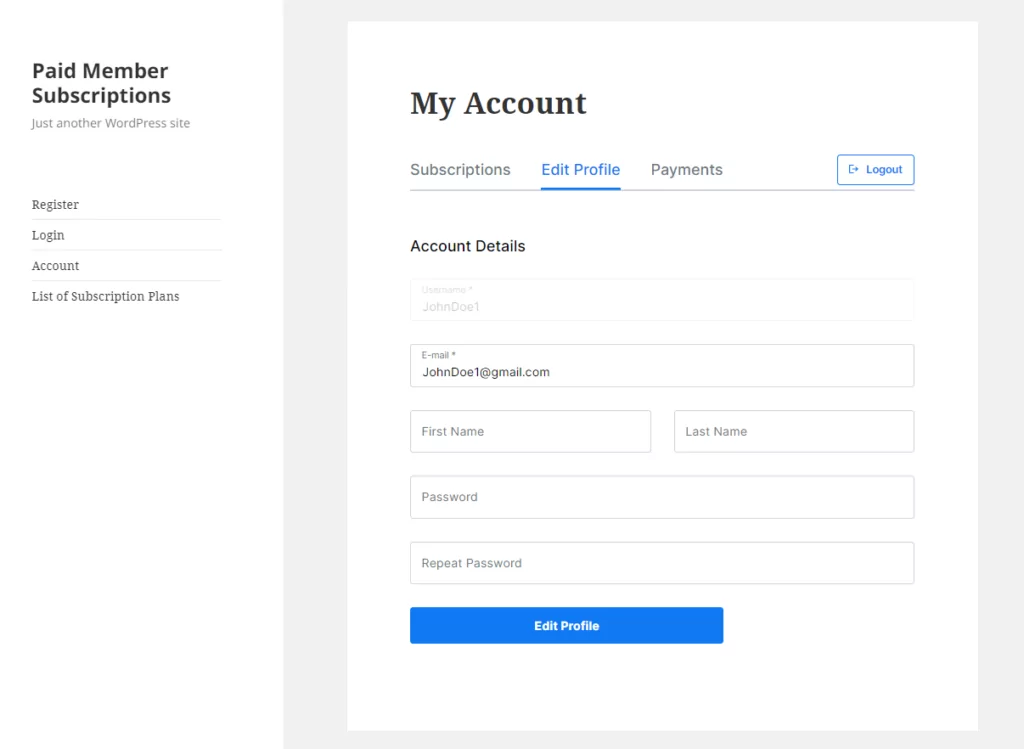
This is how the Menu looks for the Logged Out User and for the Logged In User who didn’t subscribe to the Gold or Silver Subscription Plans.
The “Premium Content” Menu Item is not displayed inside the Menu.
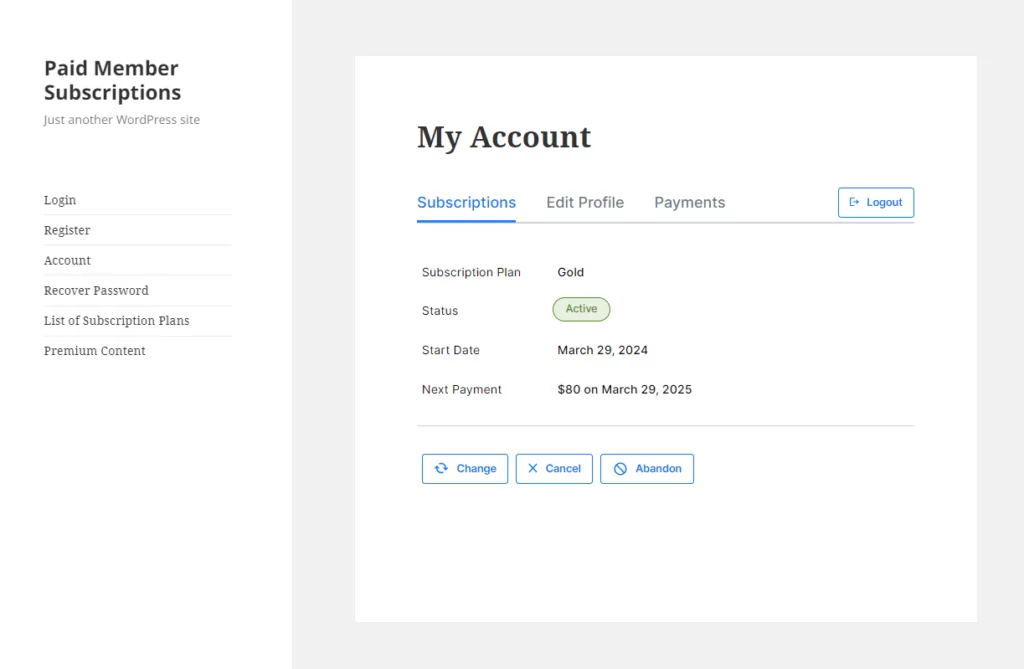
This is how the Menu looks for the logged-in member who subscribed to the Gold or to the Silver Subscription Plans.
The “Premium Content” Menu Item is displayed inside the Menu.
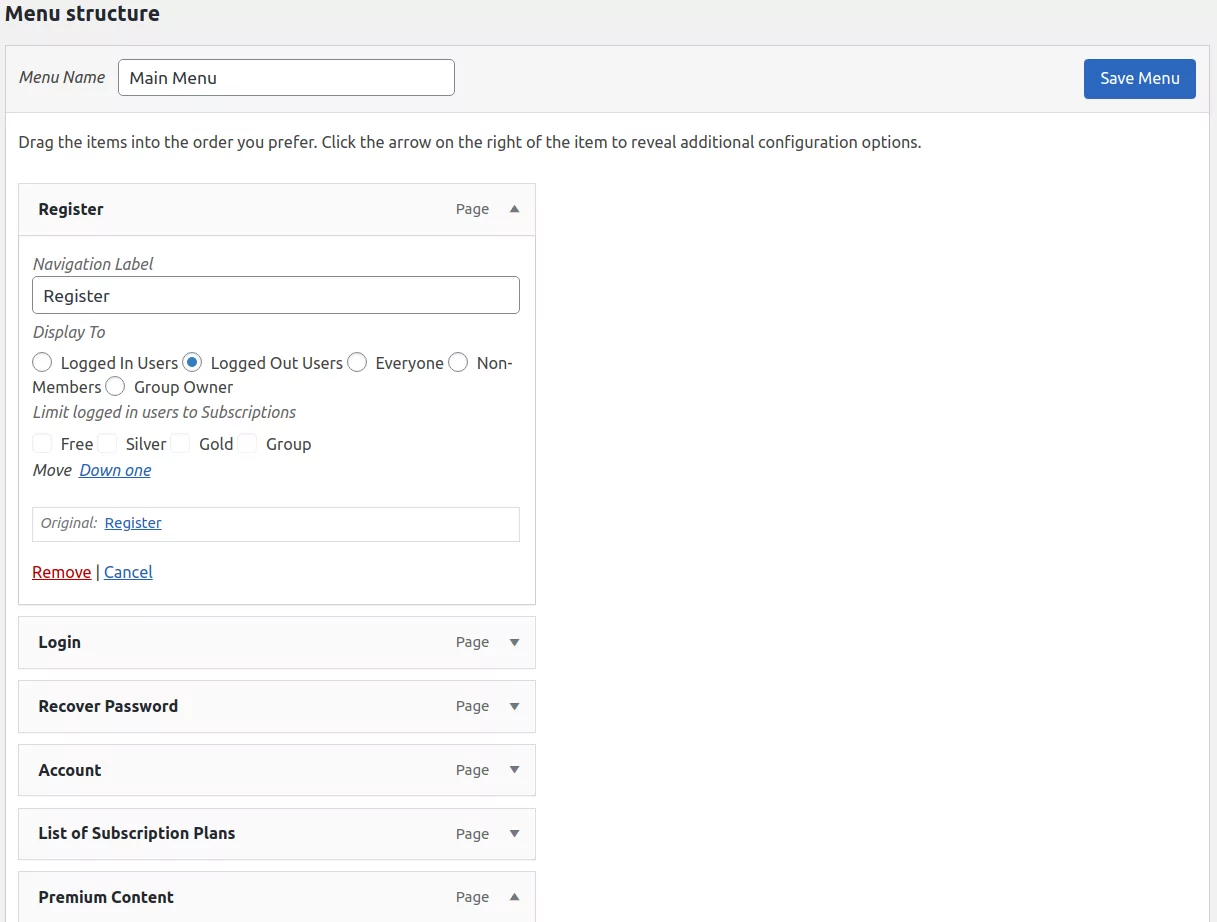
In the example below, I’m going to set the “Register” Menu Item to be displayed in the Menu only for Logged Out Users. To do this, I selected the radio button “Logged Out Users”. Notice how the Subscription Plans are grayed out, meaning that these options are not relevant in this context.
This is how the Menu looks for the Logged Out User. The “Register” Menu Item is displayed inside the Menu.
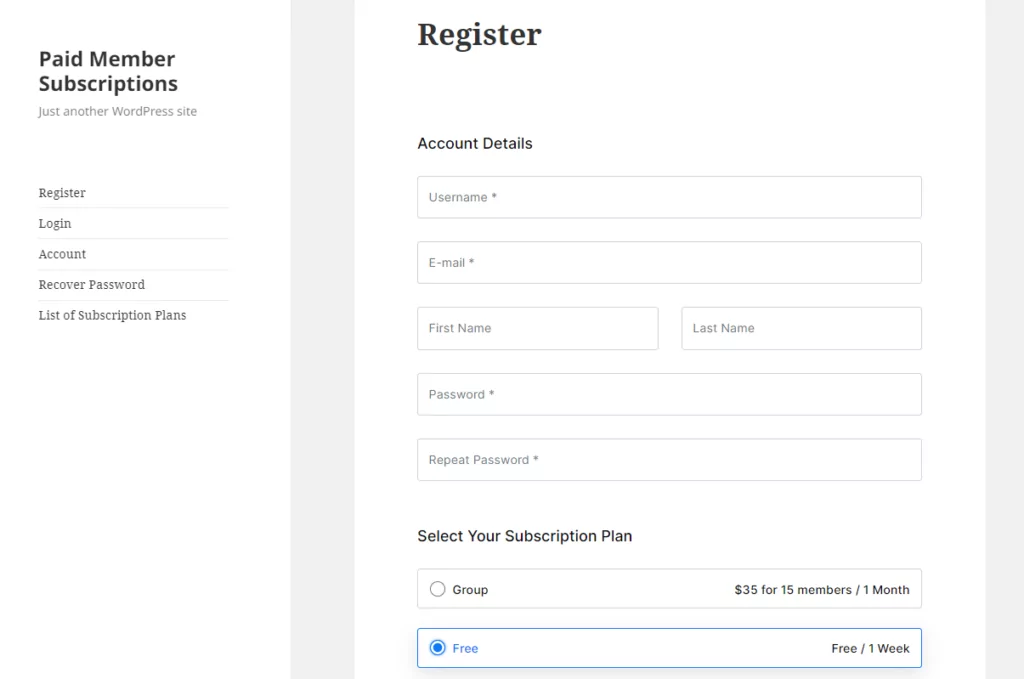
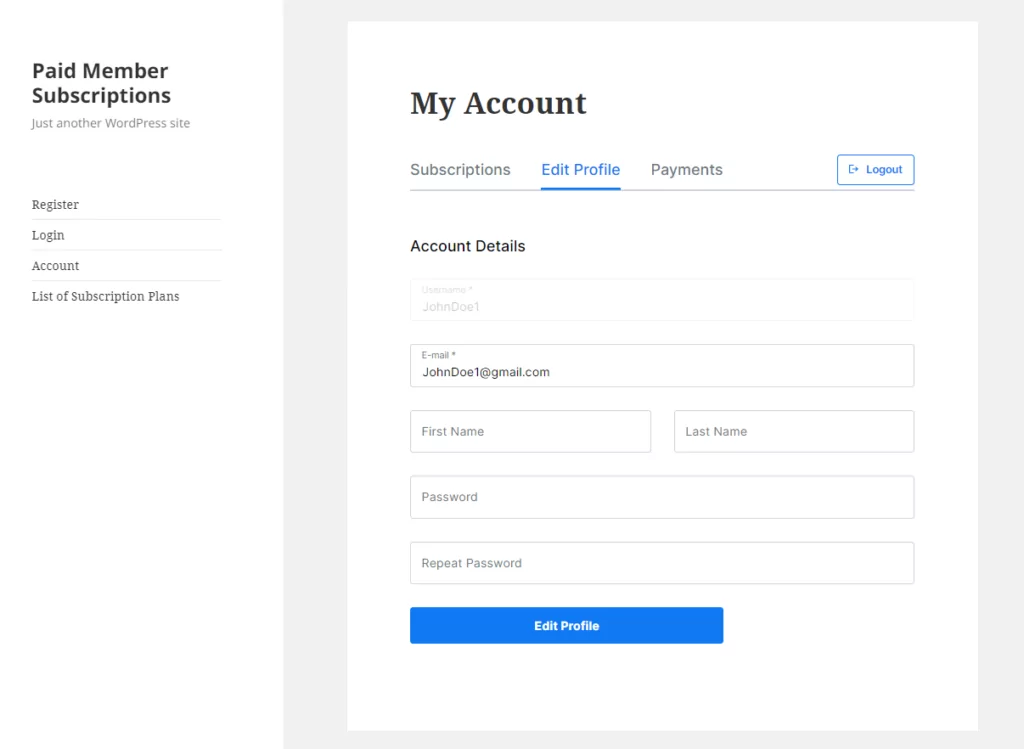
This is how the Menu looks like for the Logged In User. The “Register” Menu Item is not displayed inside the Menu.
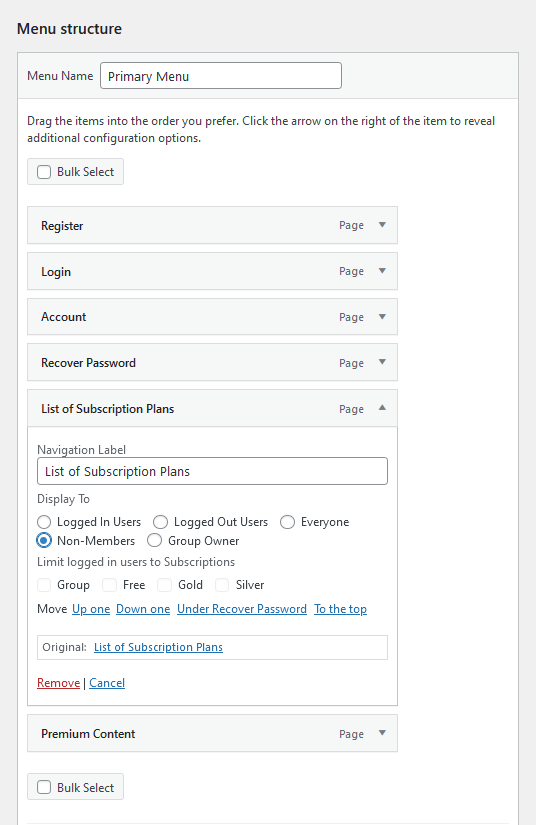
In the example below, I’m going to set the “List of Subscription Plans” Menu Item to be displayed in the Menu only for Non-Members. To do this, I selected the radio button “Non-Members”. Notice how the Subscription Plans are grayed out, meaning that these options are not relevant in this context.
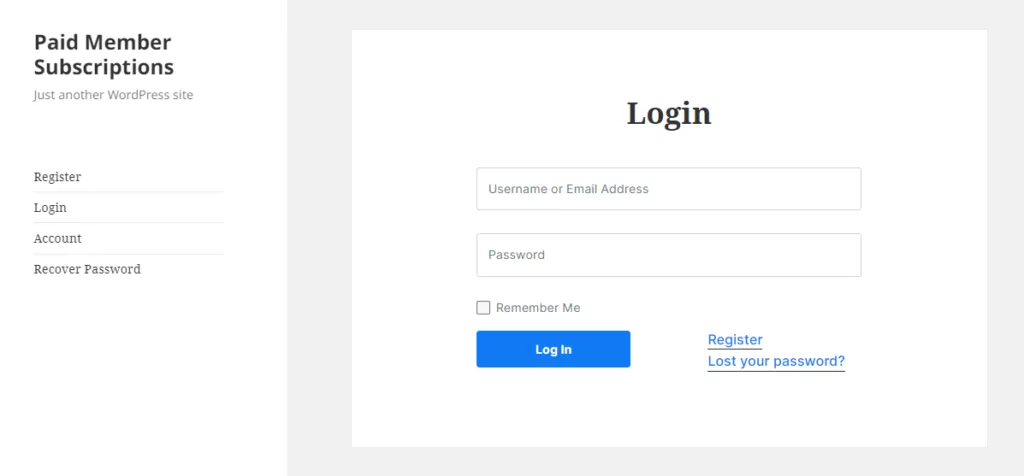
This is how the Menu looks like for the Logged Out User. The “List of Subscription Plans” Menu Item is not displayed inside the Menu.
This is what the Menu looks like for the Non-Member User. The “List of Subscription Plans” Menu Item is displayed inside the Menu.
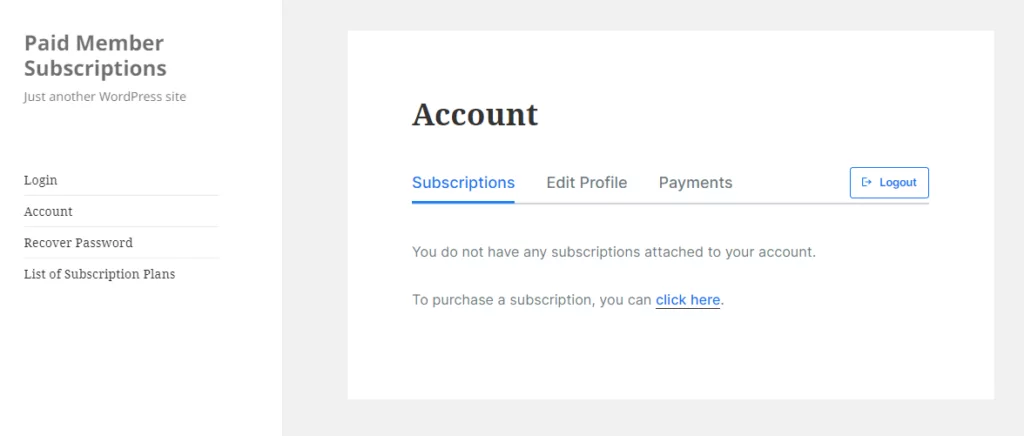
This is how the Menu looks like for the logged-in user. The “List of Subscription Plans” Menu Item is not displayed inside the Menu.
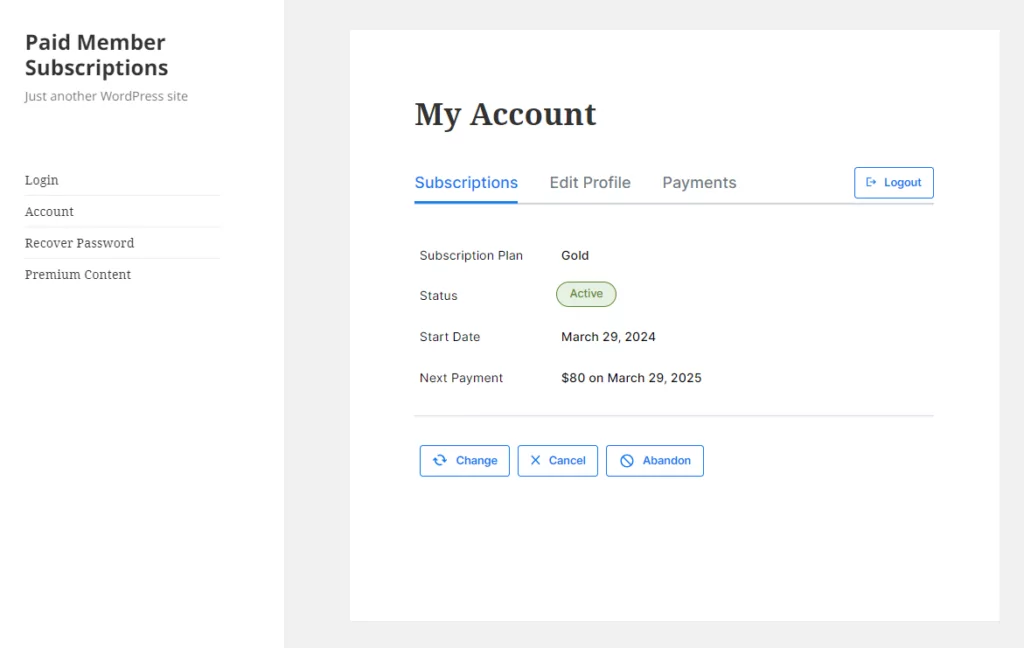
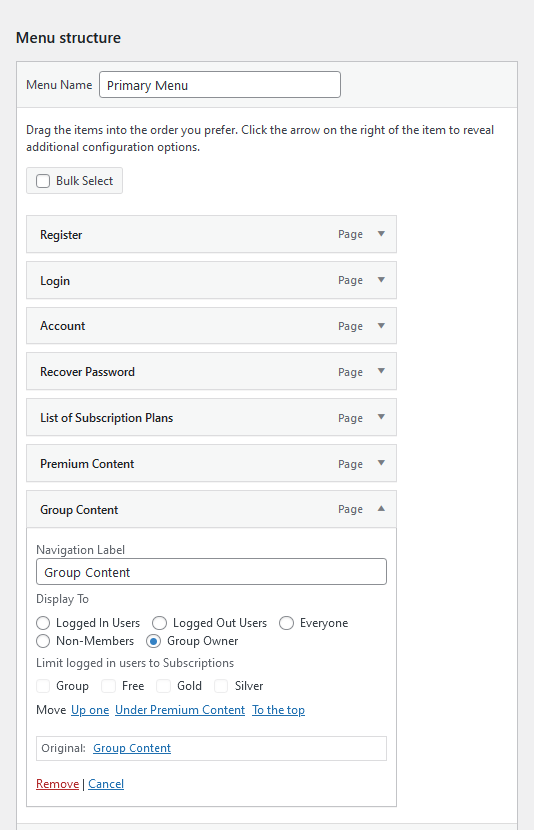
In the example below, I’m going to set the “Group Content” Menu Item to be displayed in the Menu only for Group Owners. To do this, I selected the radio button “Group Owners”. Notice how the Subscription Plans are grayed out, meaning that these options are not relevant in this context.
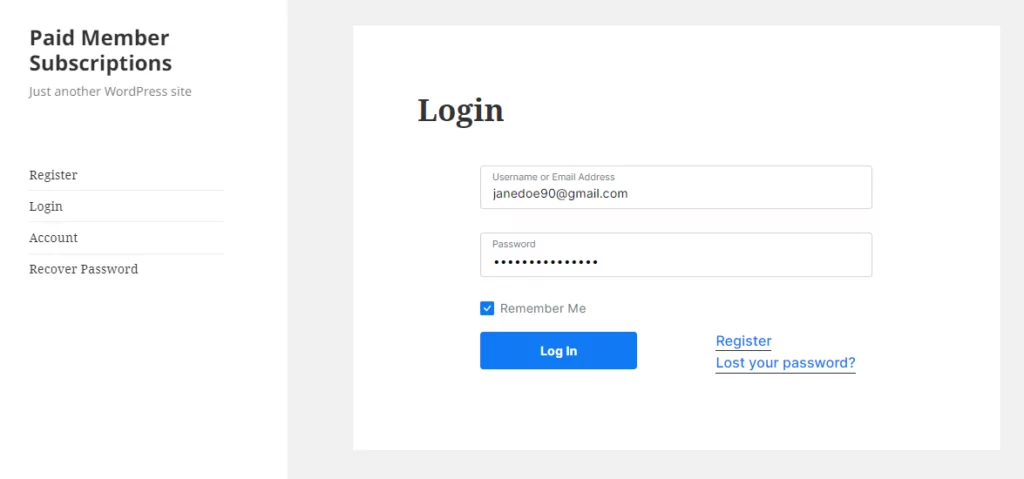
This is how the Menu looks for the Logged Out User. The “Group Content” Menu Item is not displayed inside the Menu.
This is how the Menu looks like for the Non-Member User. The “Group Content” Menu Item is not displayed inside the Menu.
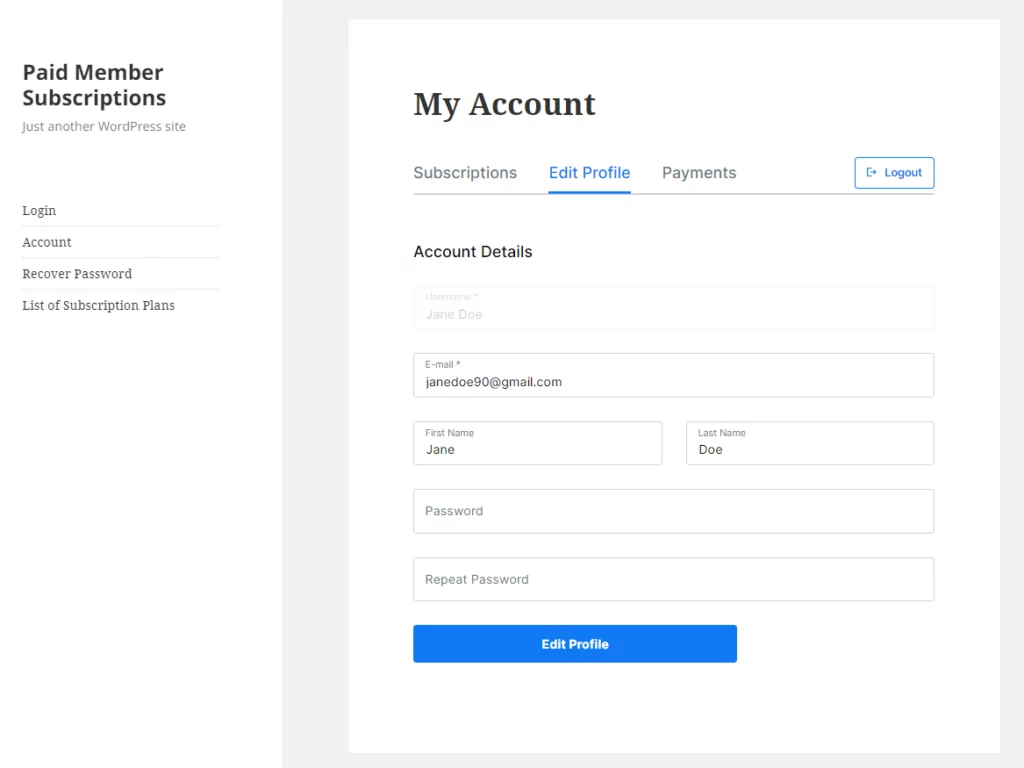
This is how the Menu looks like for the Logged In User. The “Group Content” Menu Item is not displayed inside the Menu.
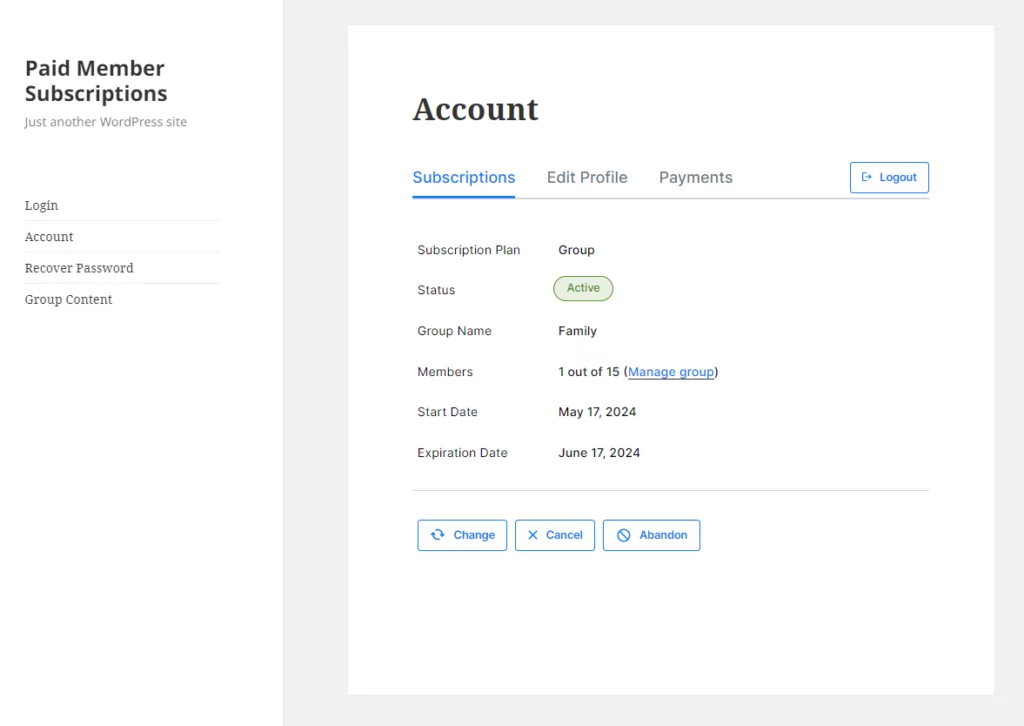
This is how the Menu looks like for the Group Owner User. The “Group Content” Menu Item is displayed inside the Menu.
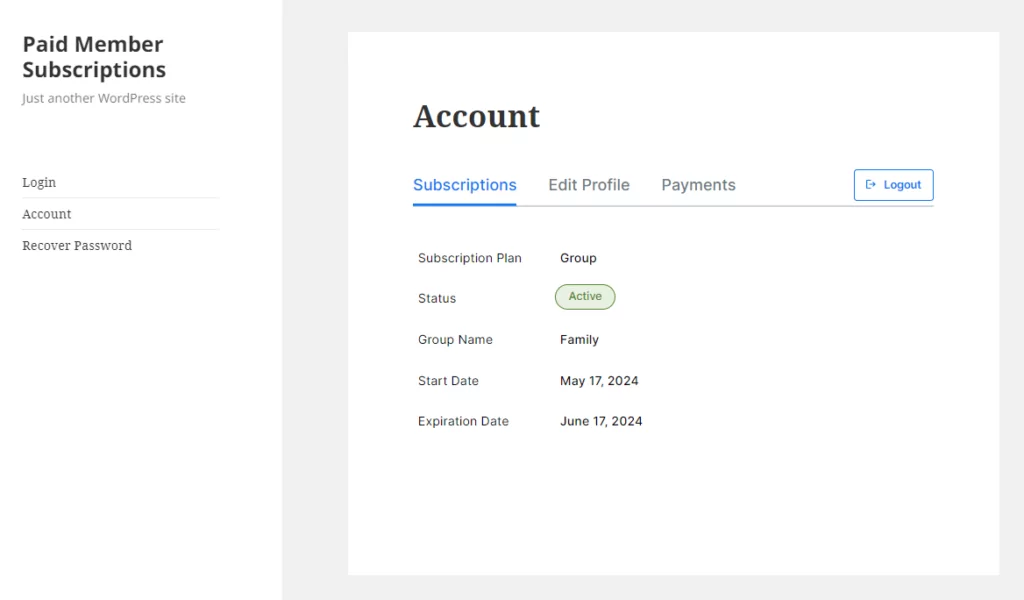
In order for it to work, you need to select the page with the [pms-account] shortcode by going to PMS → Settings → General. For an explanation of what actions are, please click here.
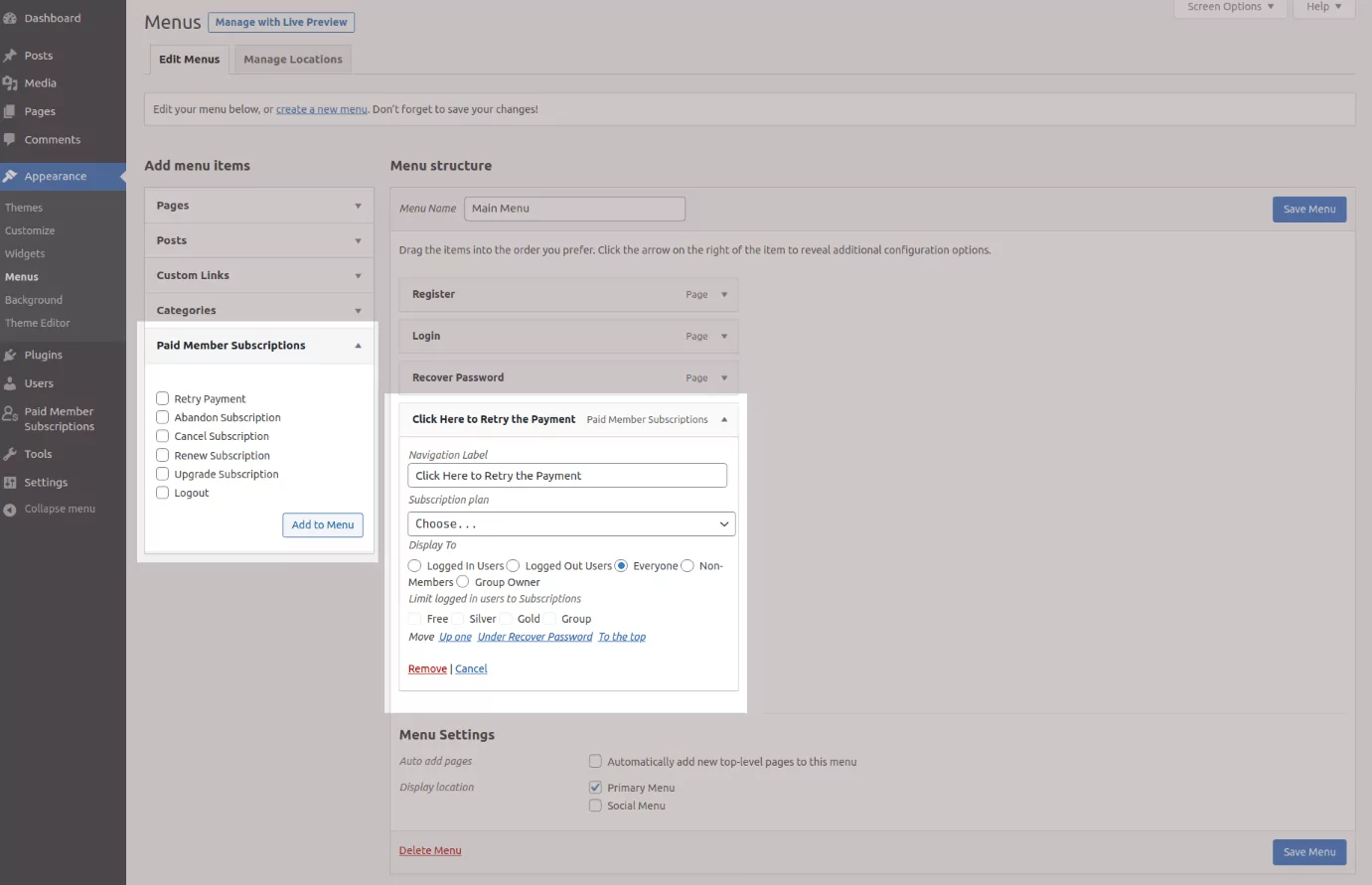
The custom menu items can be found in the Paid Member Subscriptions section, where you need to add them to your menu.
These items will display only if that particular action is available. When setting this up, check the page with the pms-account shortcode to figure out which actions should show up.
If you don’t see the Navigation Menu Filtering options when expanding a Menu Item, it means there is an issue generated by your theme or by another plugin. First, you will need to deactivate all your plugins and to use a Default WordPress Theme to see if there is a plugin/theme conflict.
If this is caused by your theme, it means that the theme is also trying to alter the same code that creates the Menu section.
WordPress does not have sufficient hooks in this area of the admin and, until they do, plugins are forced to replace everything via a Custom Admin Menu Walker, of which there can be only one.
Ask the theme developer to add the code below inside his theme, and the Navigation Menu Filtering add-on will become compatible with it.

Accept (recurring) payments, create subscription plans and restrict content on your website. Easily setup a WordPress membership site using Paid Member Subscriptions.
Get Paid Member SubscriptionsCombine the power of Profile Builder with Paid Member Subscriptions to set up user registration, memberships, and recurring revenue.
Get 25% off with the bundle