
The Pause Subscriptions add-on allows members to temporarily pause their recurring subscriptions. Members can pause and resume their subscriptions without canceling, maintaining their membership relationship while billing is suspended.
The Pause Subscriptions add-on is available starting with a Pro license.
After purchasing a paid version of Paid Member Subscriptions, you can check the following guide on how to install Paid Member Subscriptions.
The Pause Subscriptions add-on provides both global defaults and per-plan customization options.
Navigate to Paid Member Subscriptions → Settings → Payments → Subscription Global Configs to configure the default pause behavior for all subscription plans.
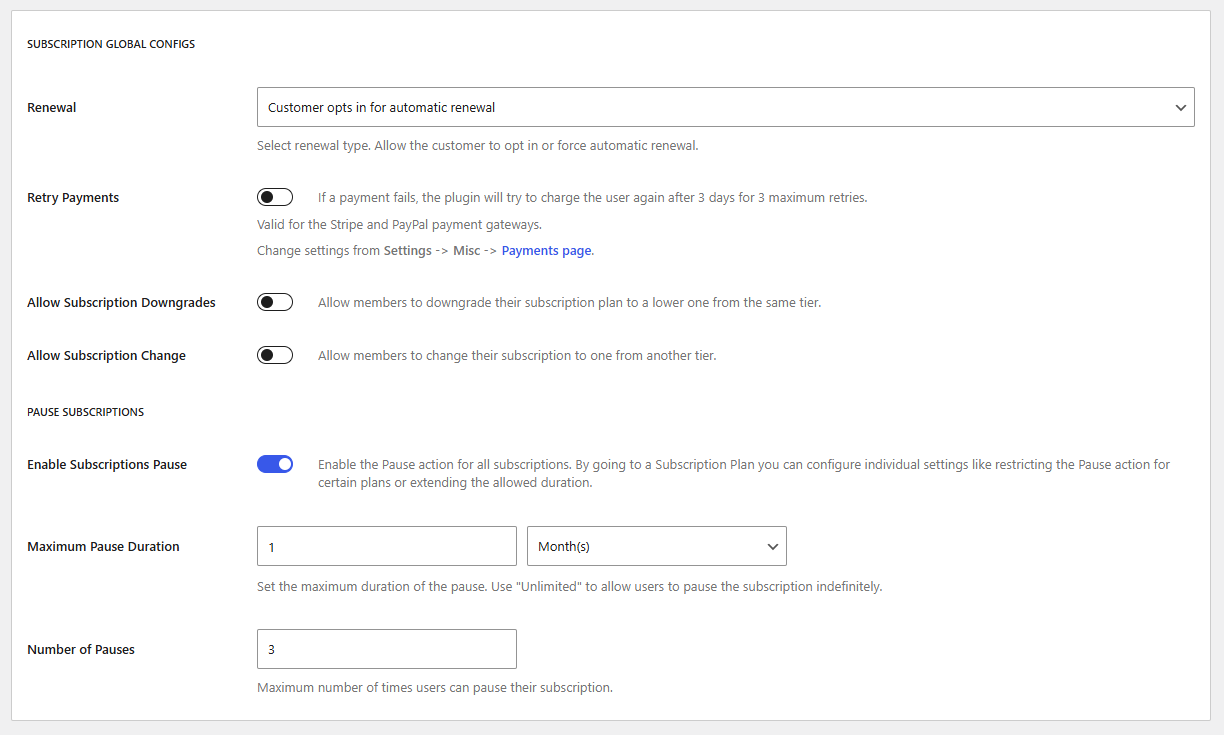
Enable Subscriptions Pause
Through this toggle, you can enable the Pause functionality for all defined plans, depending on their settings. The pause functionality can be enabled or disabled individually for each plan, regardless of this setting.
Maximum Pause Duration
Set the default maximum time a subscription can remain paused. This setting applies to all plans that are set to use “Settings Default” in their individual configuration.
You can configure this as:
Number of Pauses
Define the number of times a member can pause their subscription. This helps prevent abuse of the pause feature while still providing flexibility.
Each subscription plan can have its own pause configuration, which can either inherit the global defaults or use custom settings.
Navigate to Paid Member Subscriptions → Subscription Plans → Edit Subscription Plan and locate the Extra Options → Pause Subscriptions section.
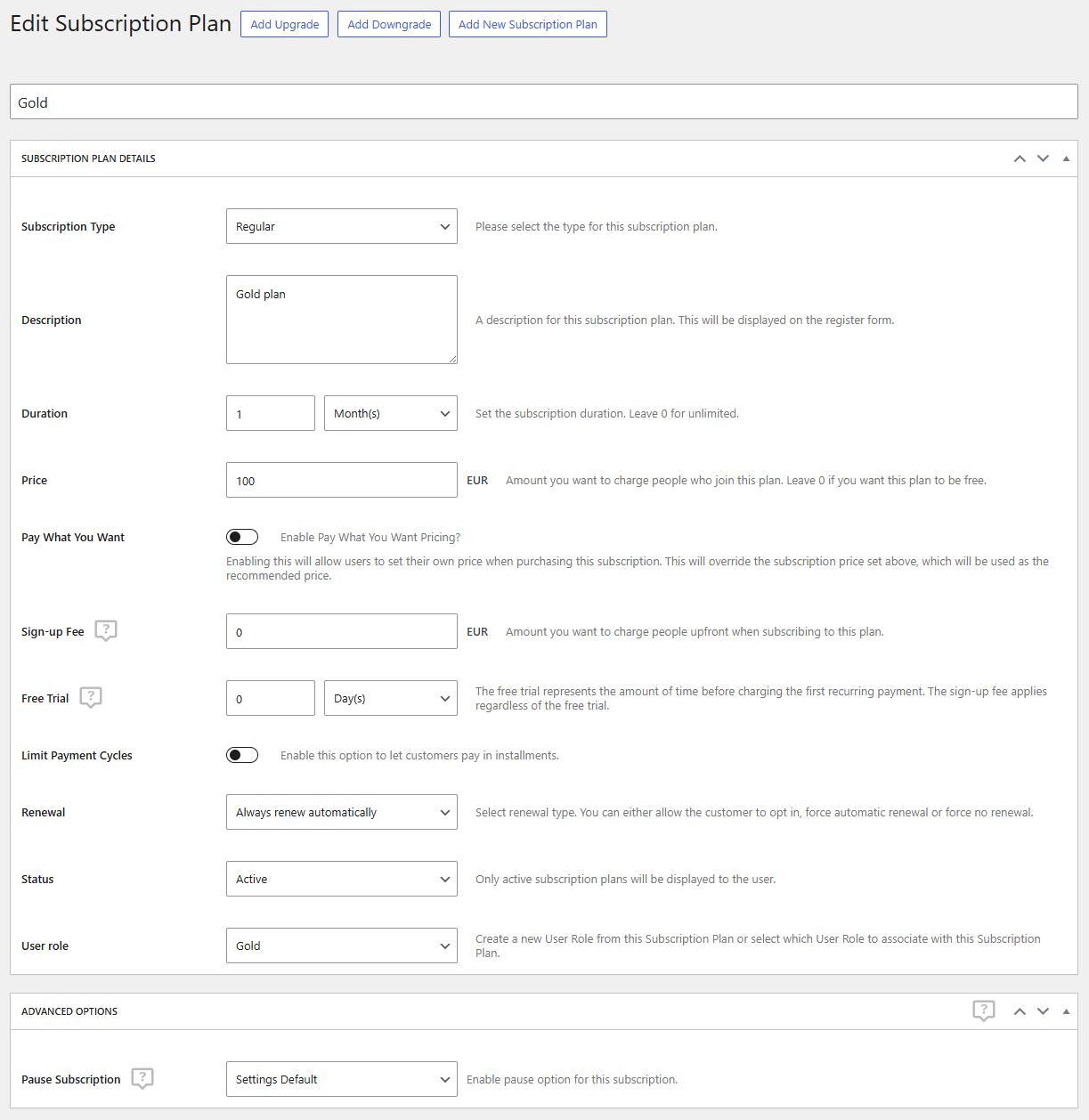
Pause Subscriptions
Choose how pause functionality is handled for this specific plan:
When set to Enabled, additional options will appear.
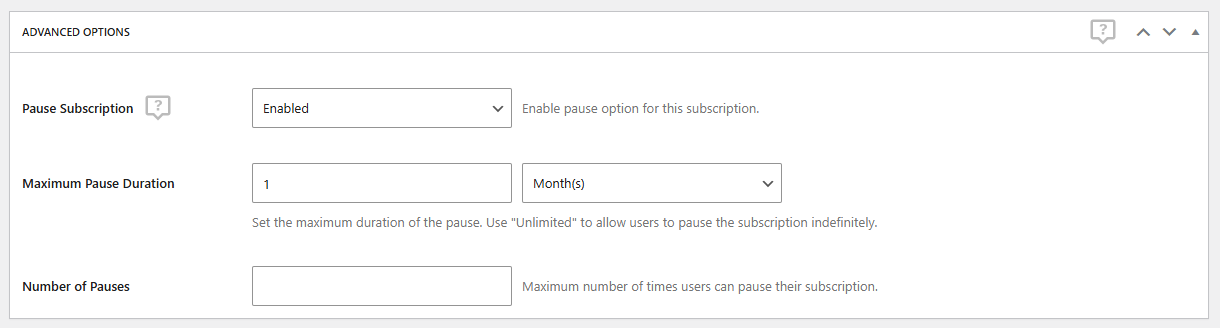
Number of Pauses
Set a plan-specific limit on how many times members can pause this subscription.
Maximum Pause Duration
Define how long subscriptions for this plan can remain paused. Options include:
Important: The pause duration options only appear when pause functionality is enabled for the plan.
Members can pause and resume their subscriptions from the Account page when they meet the eligibility requirements.
Eligibility Requirements
A member can pause their subscription when all of the following conditions are met:
How to Pause
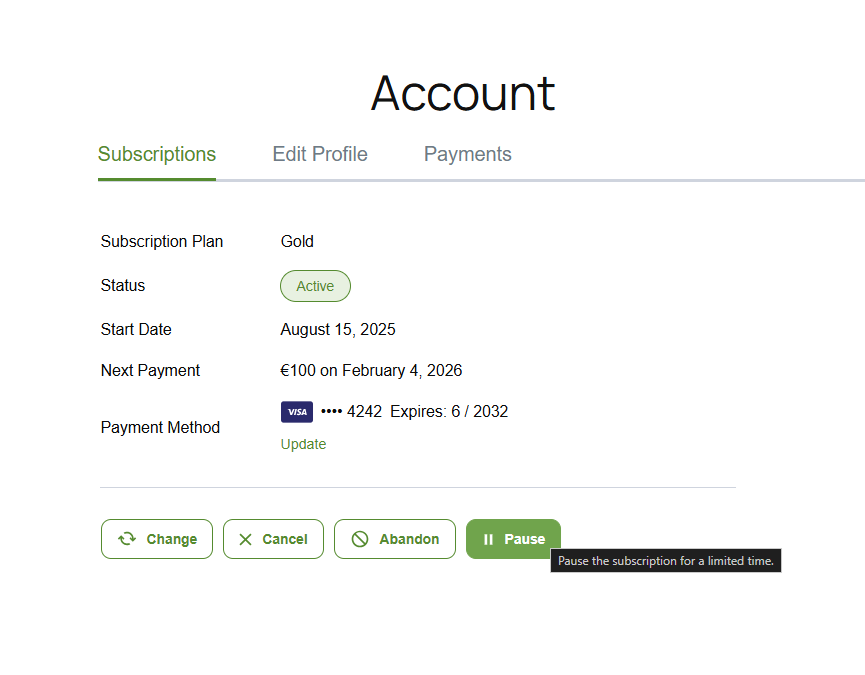
During the Pause Period
Members can manually resume their paused subscription at any time:
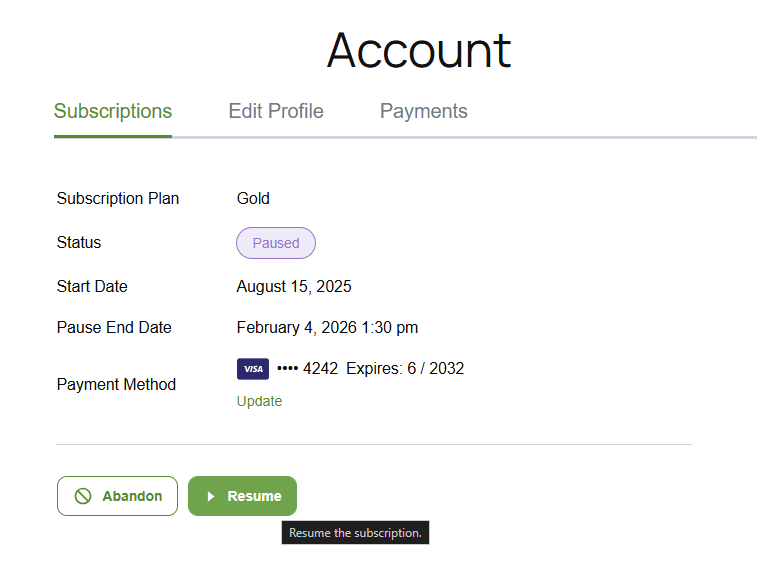
After Resume
Limited Duration Pauses
When a subscription is paused with a specific maximum duration (not “unlimited”), the plugin automatically schedules a resume event using WordPress cron. The subscription will automatically resume when the pause end date is reached.
For Unlimited Pauses
Subscriptions paused with unlimited duration require manual resume by the member or administrator. No automatic resume event is scheduled.
Automatic resume relies on WordPress cron functionality. If cron is not running properly on your site, automatic resumes may not trigger as expected. See the Cron Jobs section for more information.
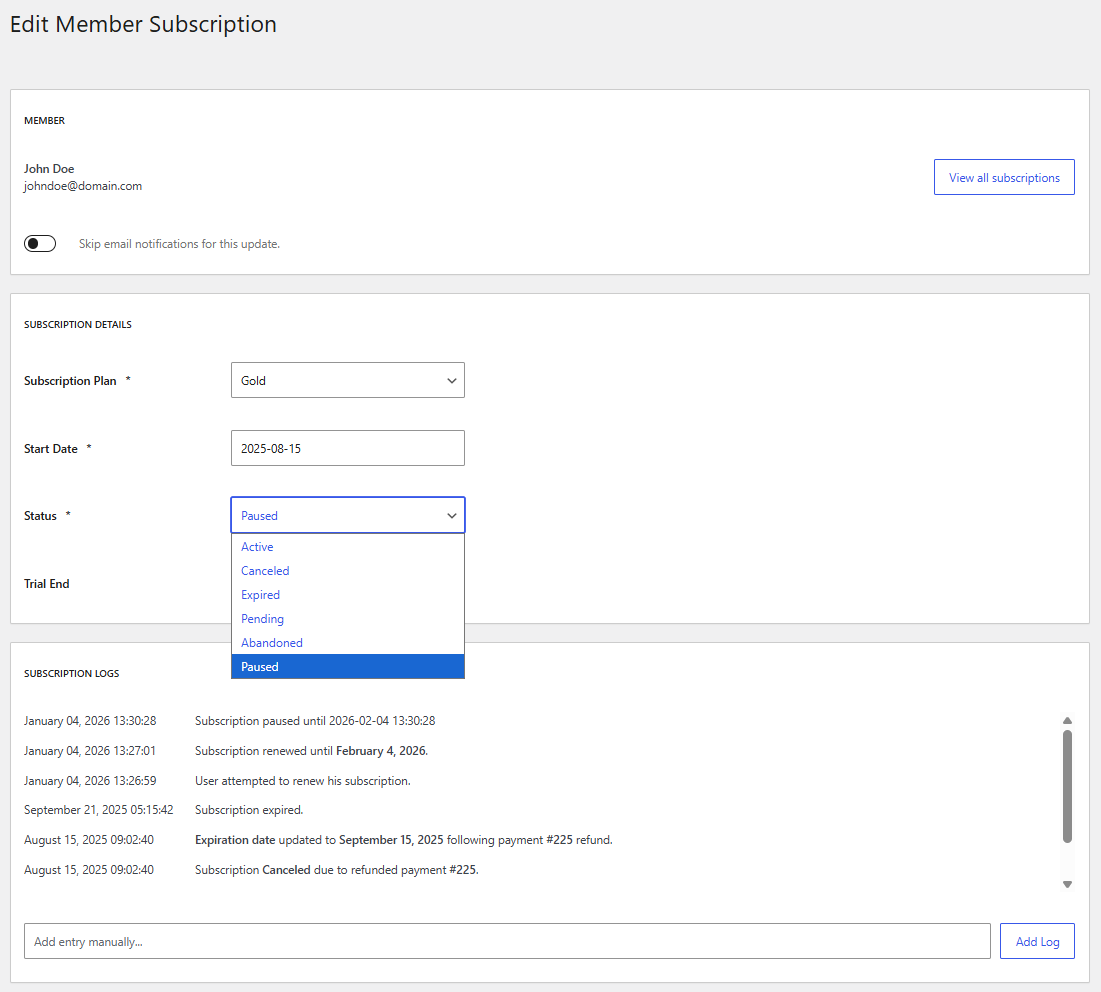
Administrators have full control over member subscriptions from the WordPress dashboard, including the ability to pause and resume subscriptions on behalf of members.
Pause/Resume from Edit Subscription:
When an administrator changes the subscription status the same eligibility rules that apply to members also apply to the admin.
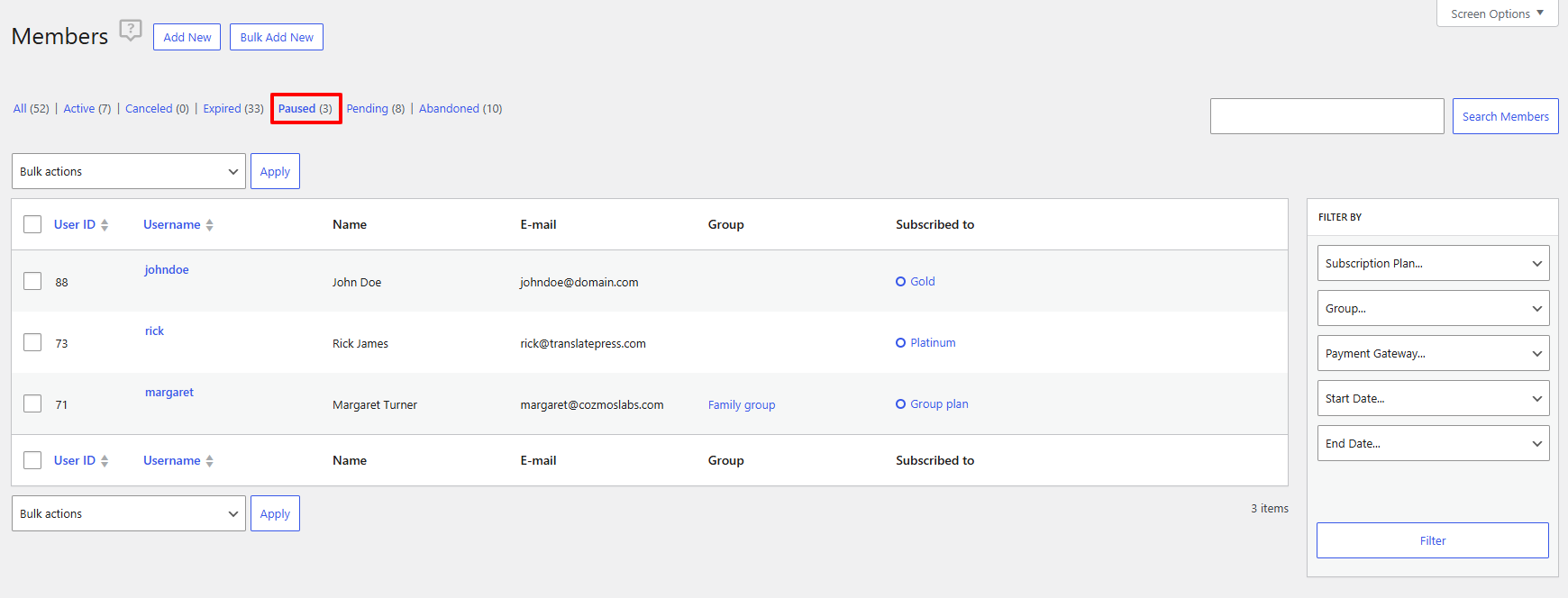
Filter Paused Subscriptions
From the Members page, you can quickly view all subscriptions that are currently paused:
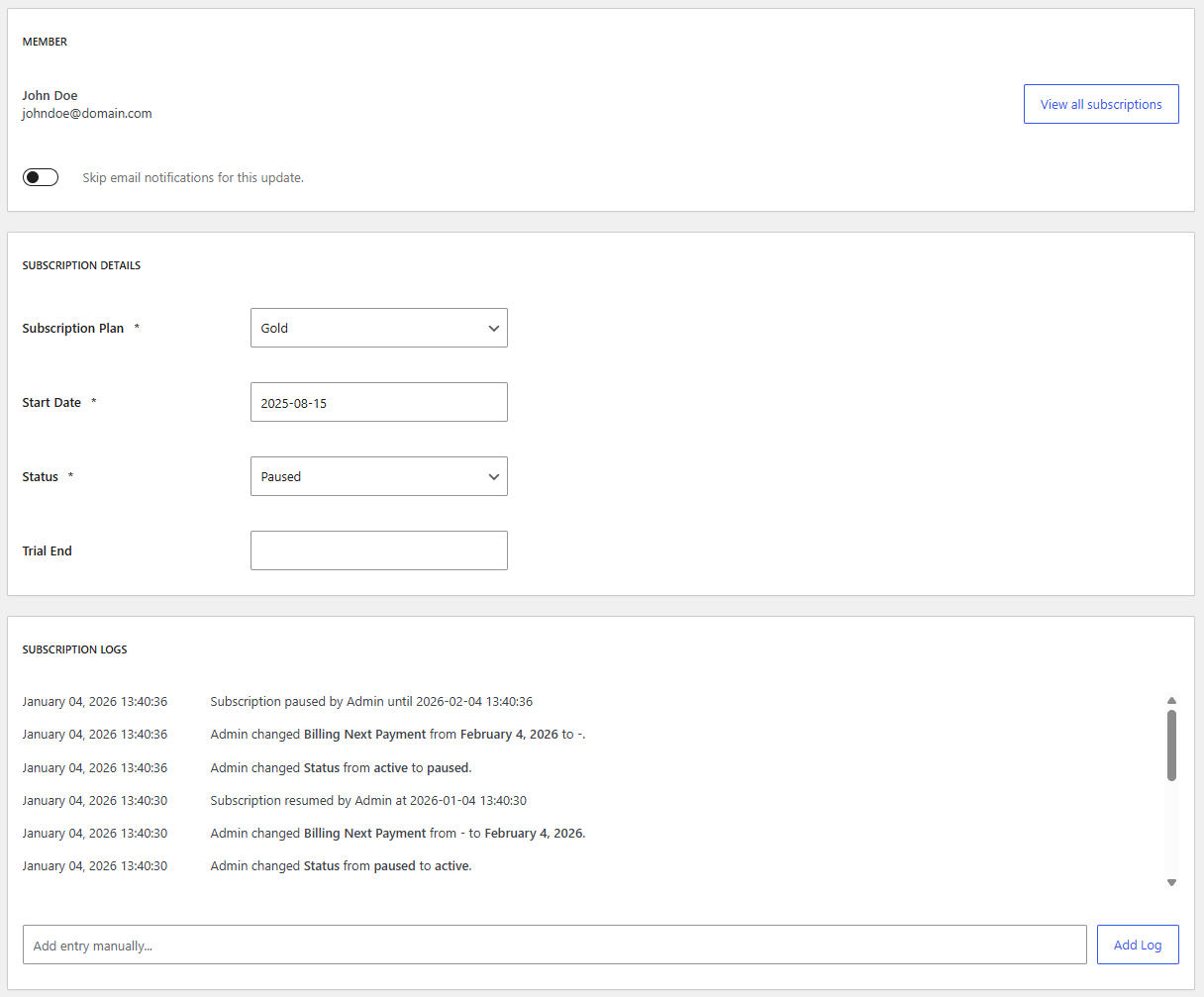
Edit Member Subscription Page
For detailed subscription information, navigate to the Edit Member Subscription page, where you can view complete pause history and logs:
When the Group Memberships add-on is active, the Pause Subscriptions feature automatically synchronizes pause states across parent and child subscriptions.
How It Works:
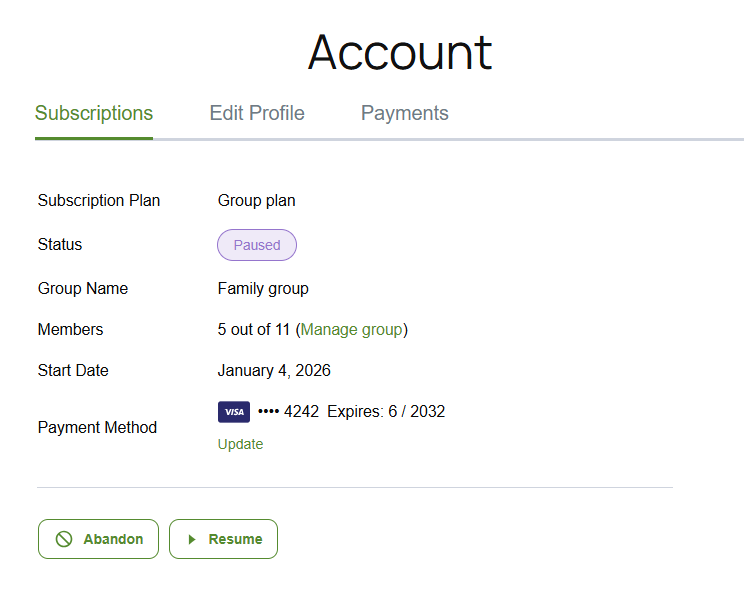
Note: Individual child subscriptions cannot be paused independently when part of a group. Only the parent subscription controls the pause state for the entire group.

Accept (recurring) payments, create subscription plans and restrict content on your website. Easily setup a WordPress membership site using Paid Member Subscriptions.
Get Paid Member SubscriptionsCombine the power of Profile Builder with Paid Member Subscriptions to set up user registration, memberships, and recurring revenue.
Get 25% off with the bundle