
The Gift Subscriptions Add-on allows your users to purchase one-time subscriptions as gifts for other users.
The Gift Subscriptions add-on is available starting with an Agency or Pro license.
After purchasing a paid version of Paid Member Subscriptions, you can check the following guide on how to install Paid Member Subscriptions.
In order for users to be able to buy gifts, a new page needs to be created with the [pms-gift-subscriptions] shortcode.
The shortcode is very similar to [pms-register], offering you customization options through shortcode parameters.
Alternatively, the form can be directly inserted through a Gutenberg block or Elementor module.
Learn more in the Shortcodes section below.
In order to allow users that do not have an account to register for one, the add-on requires that a registration page is set in Paid Member Subscriptions → Settings → Membership Pages → Register.
The page can either be a Paid Member Subscriptions register form (pms-register) or a Profile Builder registration form (wppb-register). If Profile Builder is used, features like Email Confirmation and Admin Approval also apply when the user is registering.
Before a subscription plan can be purchased as a gift it needs to be marked as giftable from the Subscription Plans → Edit Subscription plan interface.
Learn more in the Settings section below.
How it works
In order to purchase a gift, a logged in user needs to navigate to the page with the [pms-gift-subscriptions] shortcode where he will see a selection of plans configured to be purchased as gifts.
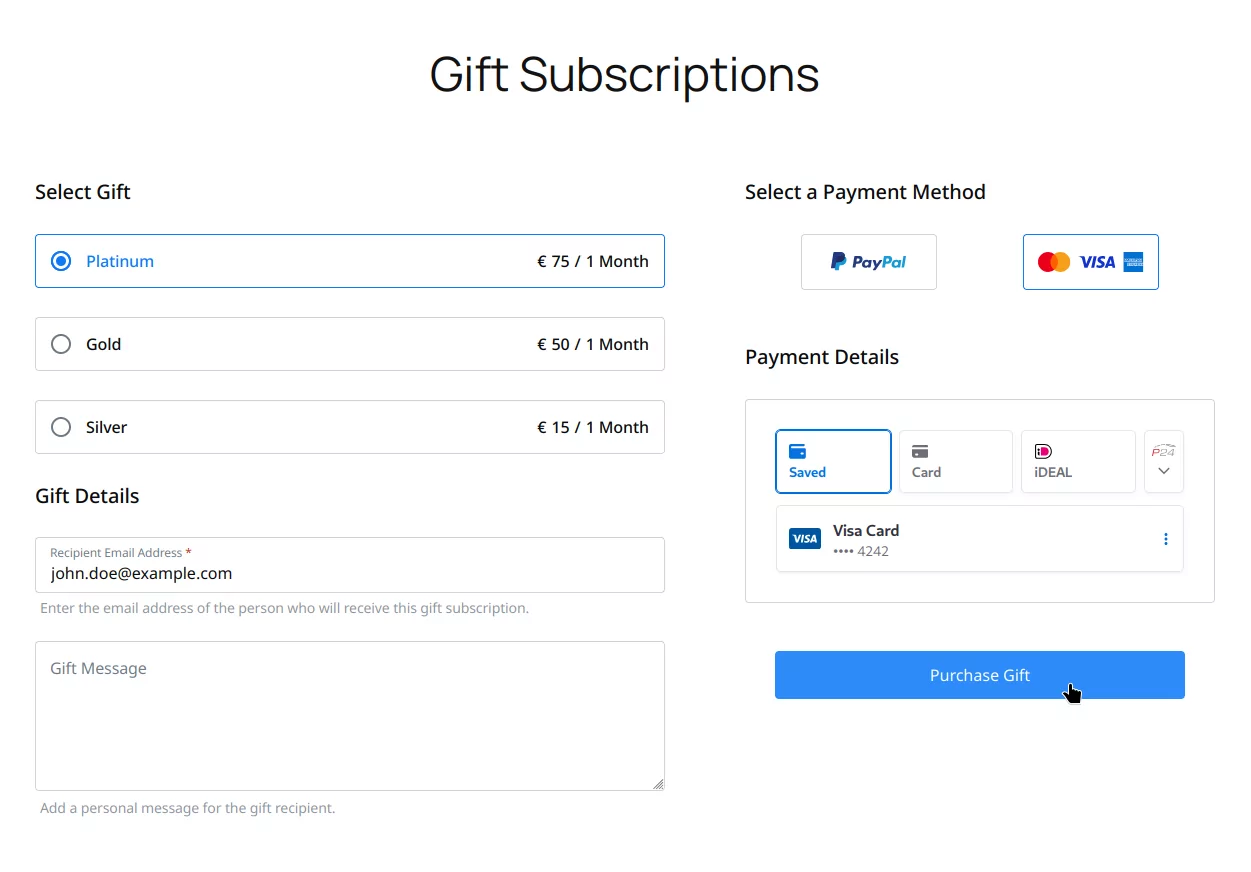
In addition to the regular payment and billing fields that the user needs to complete, he is also required to add an email address that corresponds to the recipient of the purchased gift.
The user can also add a note that will be sent to the user in the invitation email.
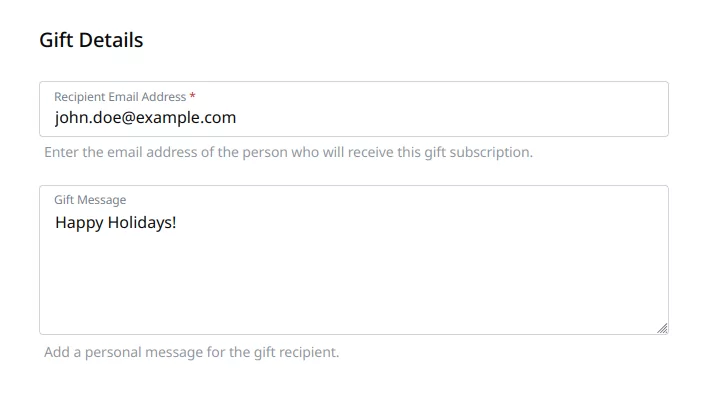
After the form is completed and the payment is successful:
New Users
If the gift recipient does not already have an account on the website, he will receive an email with an invitation link.
The user needs to follow the received link and complete the form with his details in order to register for an account and receive his gift.
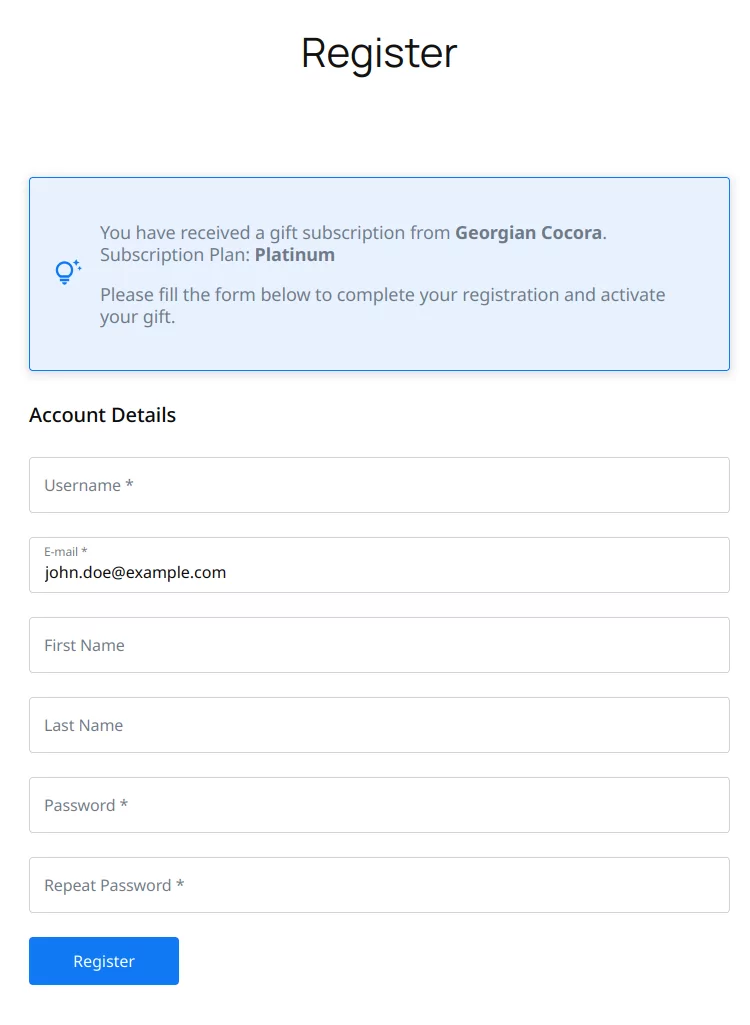
The register form only contains account information and a small note about the received gift and who invited the user.
The target register form is determined by the Register form setting from Paid Member Subscriptions → Settings → General → Membership Pages.
The form can also be a Profile Builder registration form. In that case, the form can be customized with different custom fields and it also takes into account Profile Builder features like Email Confirmation or Admin Approval.
Existing Users
If the gift recipient already has an account on the website, the gifted subscription will be added to his account immediately after the payment is confirmed.
The user will also receive an email that notifies him of the received gift.
Gifter
As a gifter you can see all of the gifts that you have purchased by going to the Account -> Gifts tab.
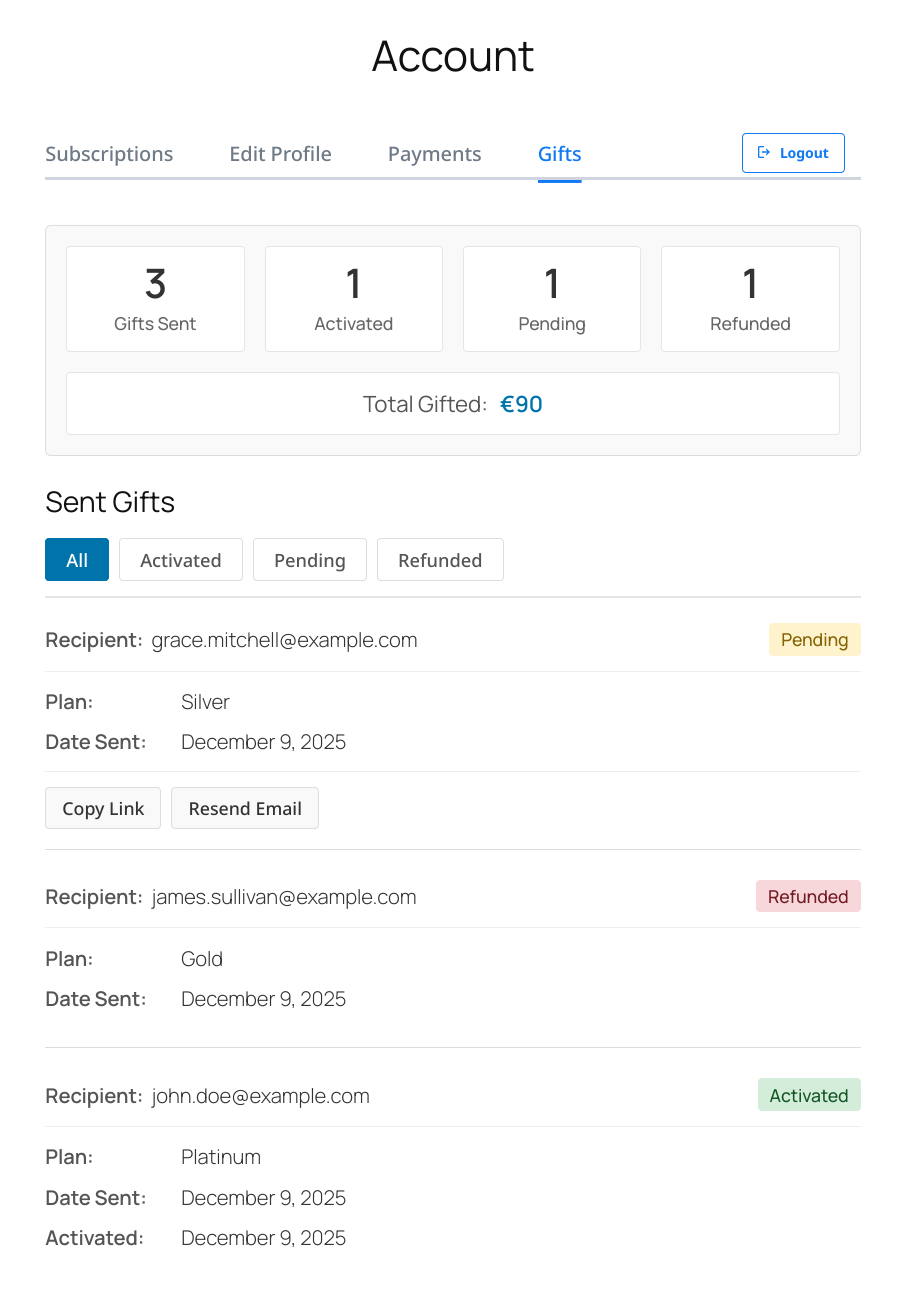
First a widget is displayed with some statistics:
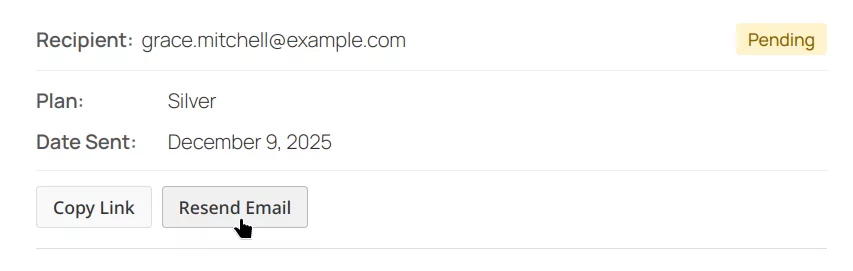
Then a list with all the gifts that were sent by the user, with information about their activation status, recipient, subscription plan, date sent and activation date.
For Pending gifts, the user also has the possibility to either Resend the Email Invitation or Copy the Invitation Link to be shared manually with the recipient.
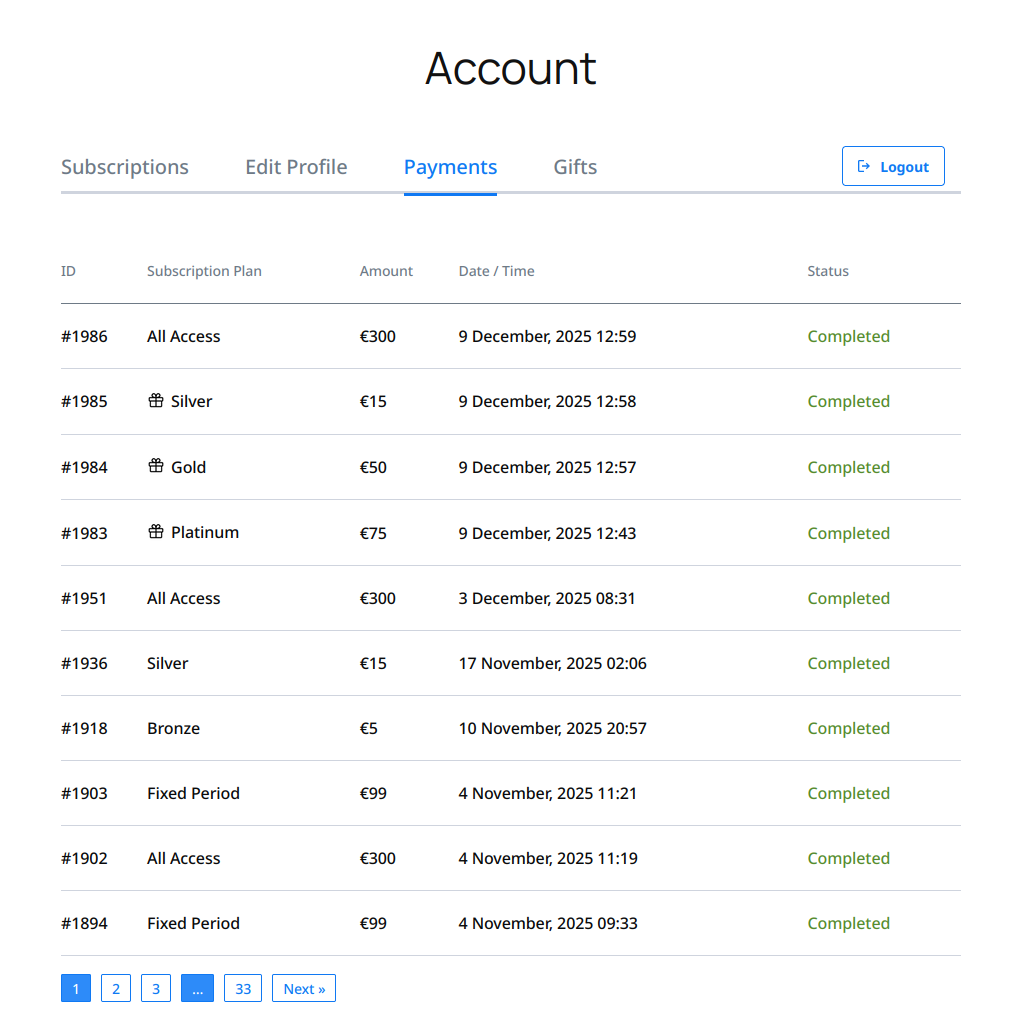
By going to the Account -> Payments tab, the user can also see all of his Gift Payments.
Recipient
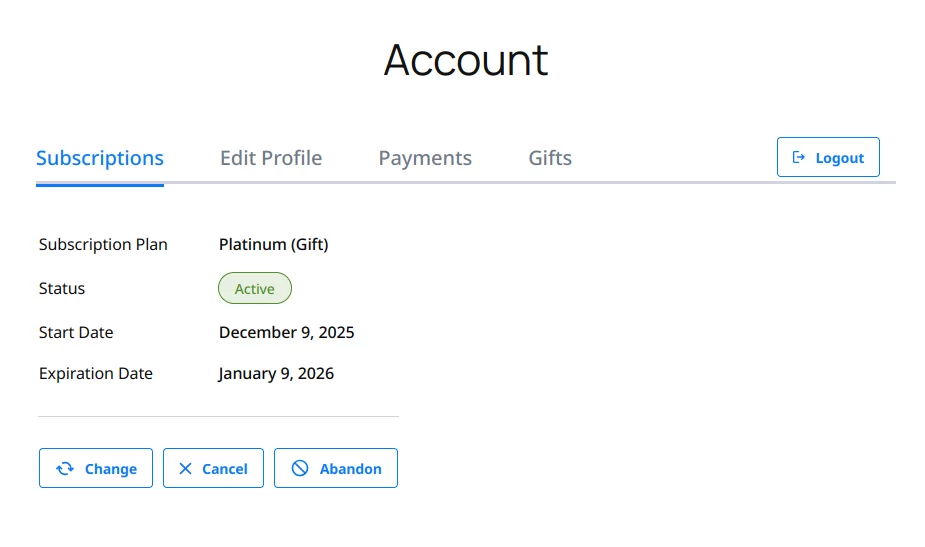
As a recipient, when looking at the Subscriptions tab from the Account page if a plan was activated through a gift, a label appears near the Subscription Plan name.
Gift payments can be viewed on the Paid Member Subscriptions → Payments page like any other payment.
Each payment can be identified using the special type that is used for gift subscription purchases: Gift Payment. Using the Payment Type filter, an admin can view only Gift Payments.
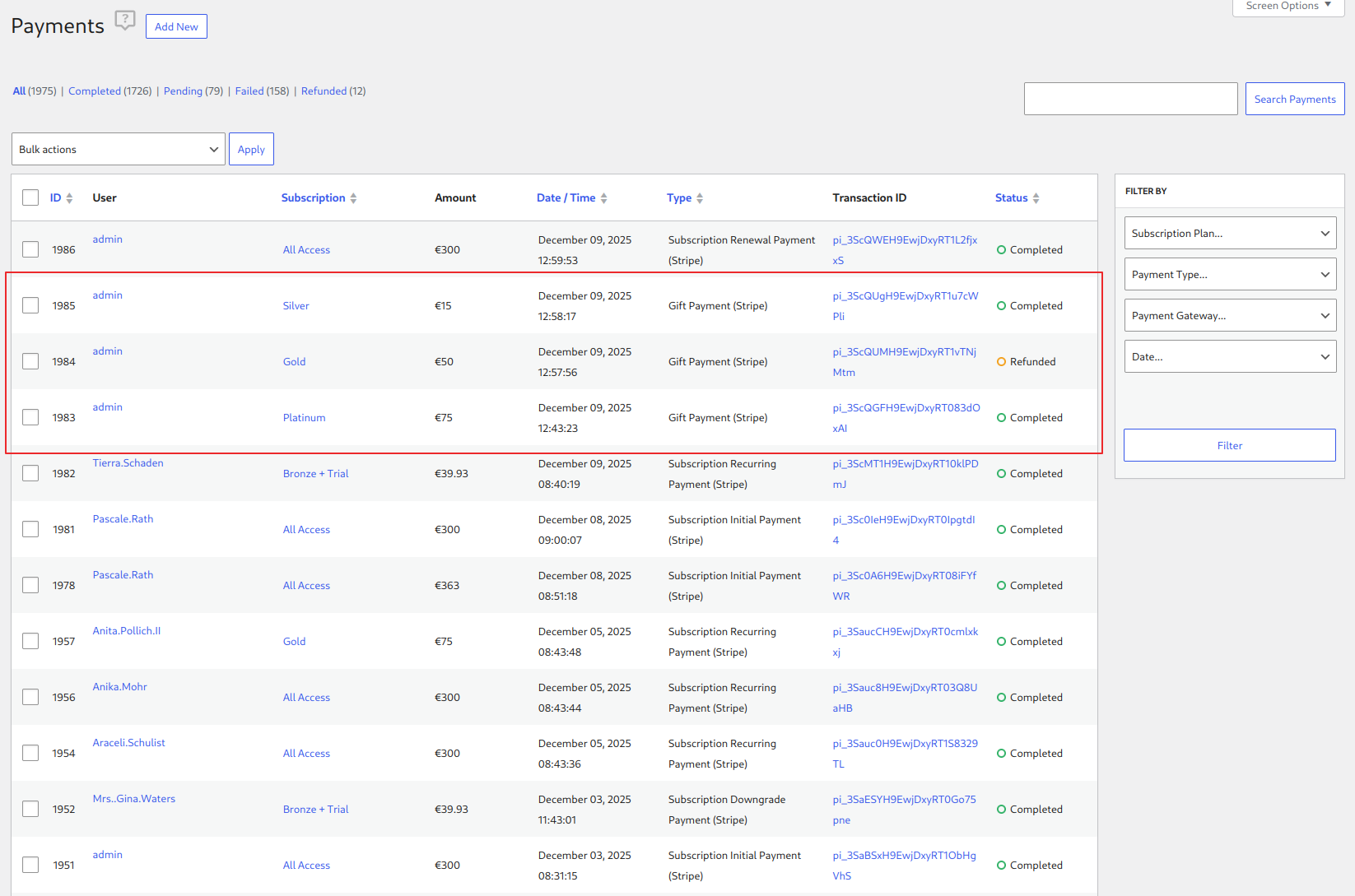
By editing a Gift Payment, more information can be seen about the gift:
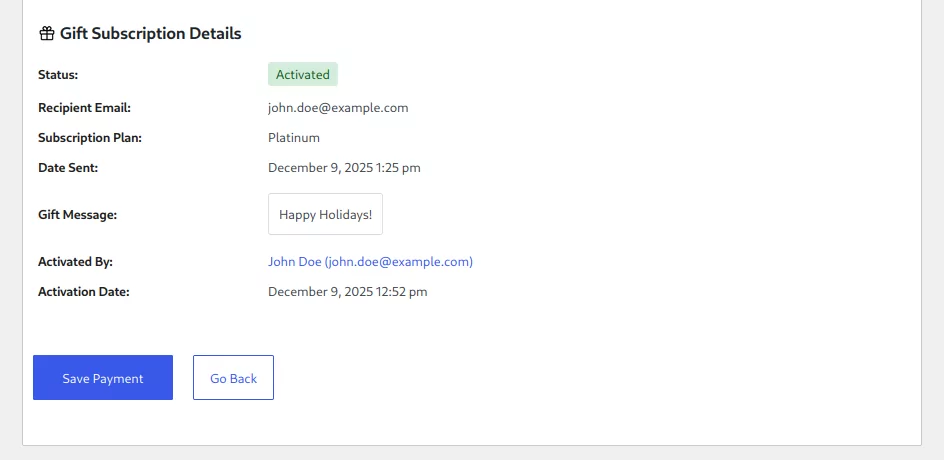
By clicking on the Subscription column from the Payments List table or the Subscription ID from the Edit Payment page you can navigate directly to the subscription that was gifted using the target payment.
Refunding a Gift Payment
To invalidate a sent gift that is pending, as an admin you can refund the payment. When this happens, the link that is sent to the user will not work anymore and a regular registration form will be presented.
If the gift was already claimed, when doing the refund, you can choose what should happen with the attached subscription. You can either choose to expire it, removing access for the gift recipient or keep the gift active until it’s expiration date.
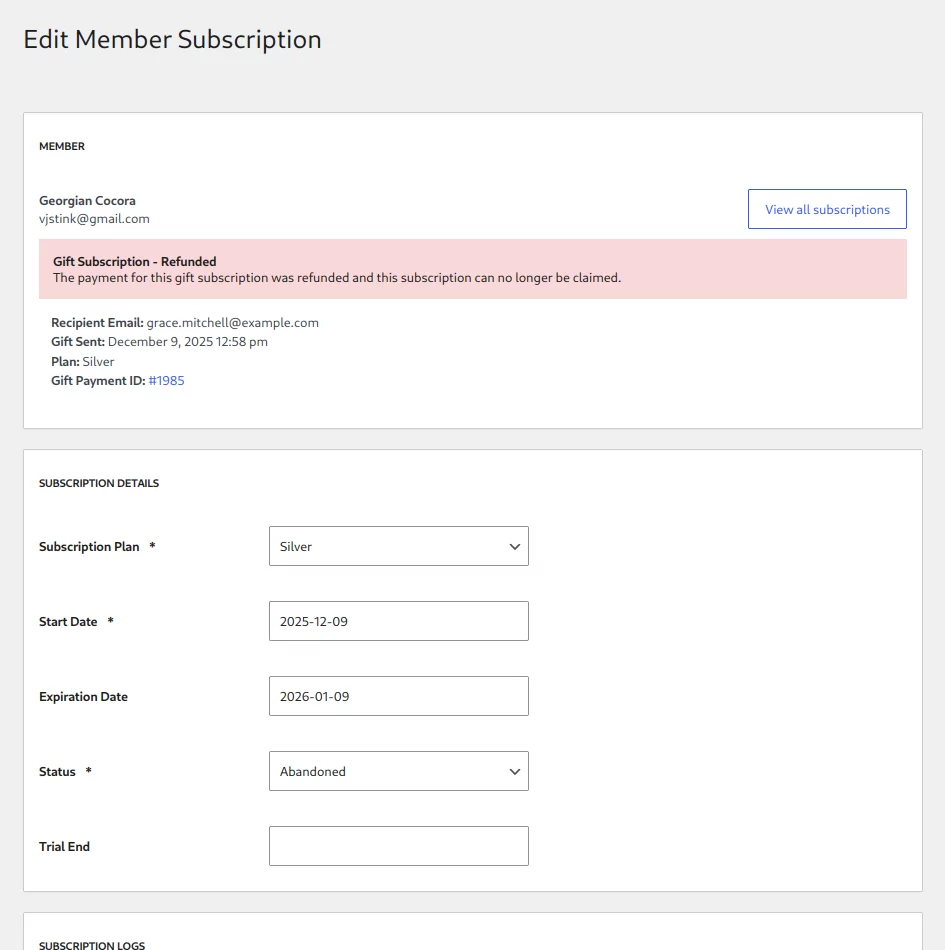
You can also set an expiration window for gifts, automatically refunding the payment and invalidating the invitation after a set amount of time. Read more below.
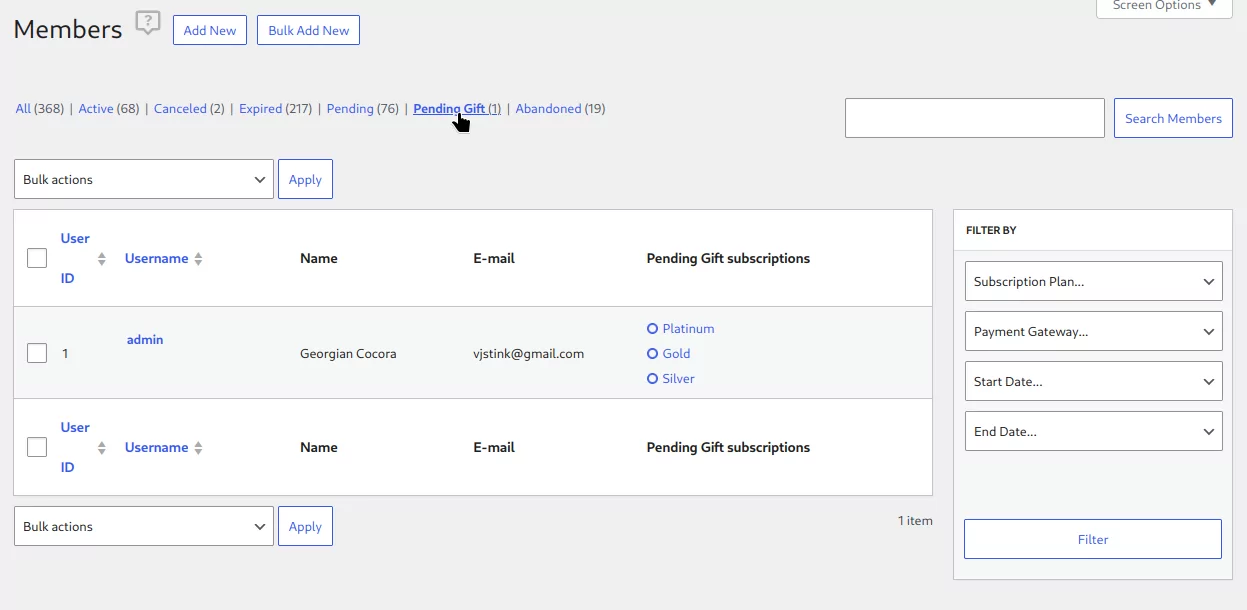
From the Members page, as an admin you can see all Pending Gift Subscriptions by clicking on the appropriate filter.
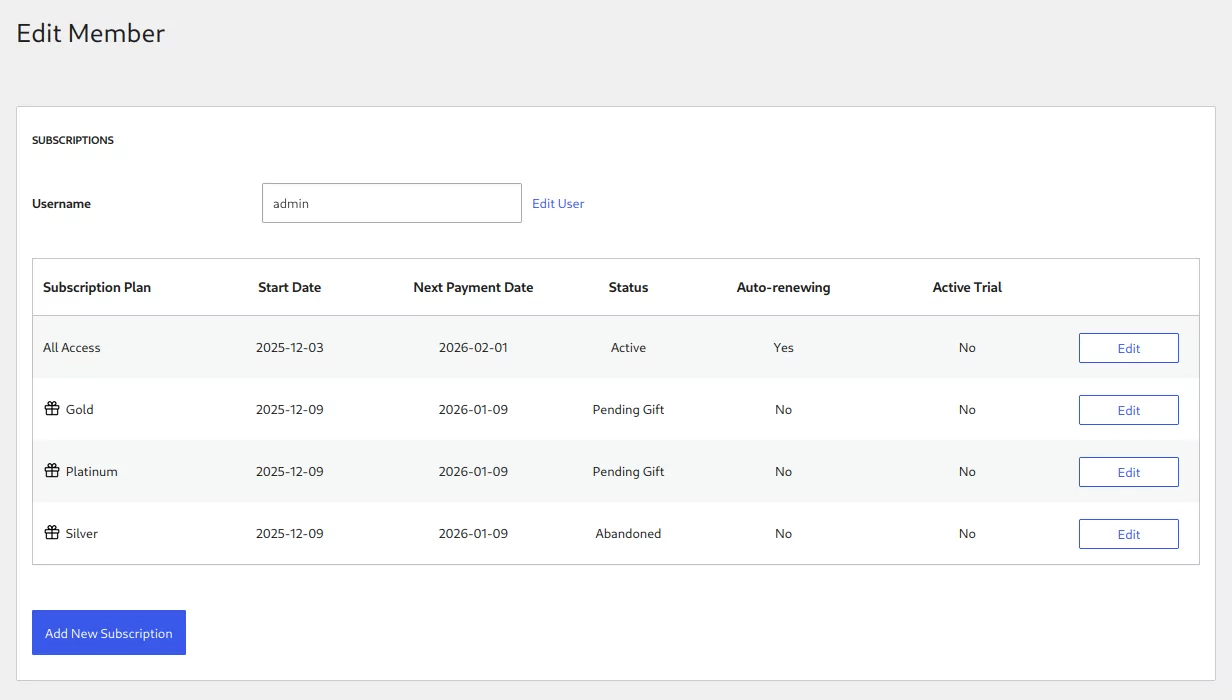
Edit Member
From the Edit Member page, you can see all of the pending gifts that a user has purchased. Pending gifts are gifts that were not claimed by the recipient. Once a gift is claimed, the subscription cannot be seen on the gifter account anymore, as it’s moved to the recipient user and can be seen there.
Edit Member Subscription
From the Edit Member Subscription page, as an admin, you can see similar information that can be found on the related payment, about the status of the invitation, plan, sending date.
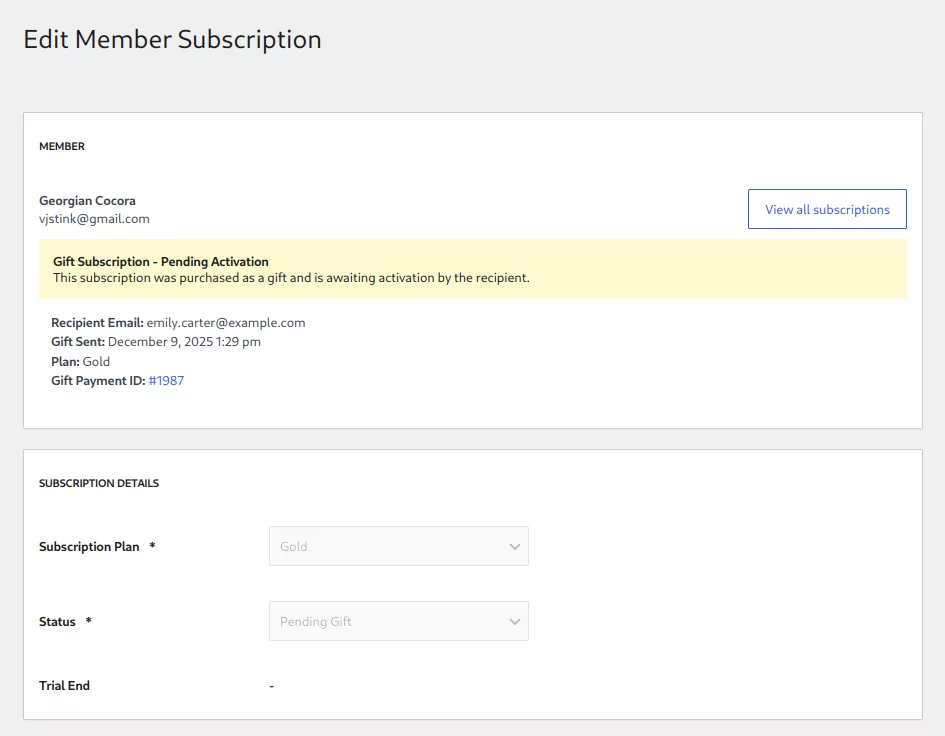
You cannot edit any information about the gift at this time. The Start Date and Expiration Date of the gift subscription will be set when the gift is claimed by the recipient.
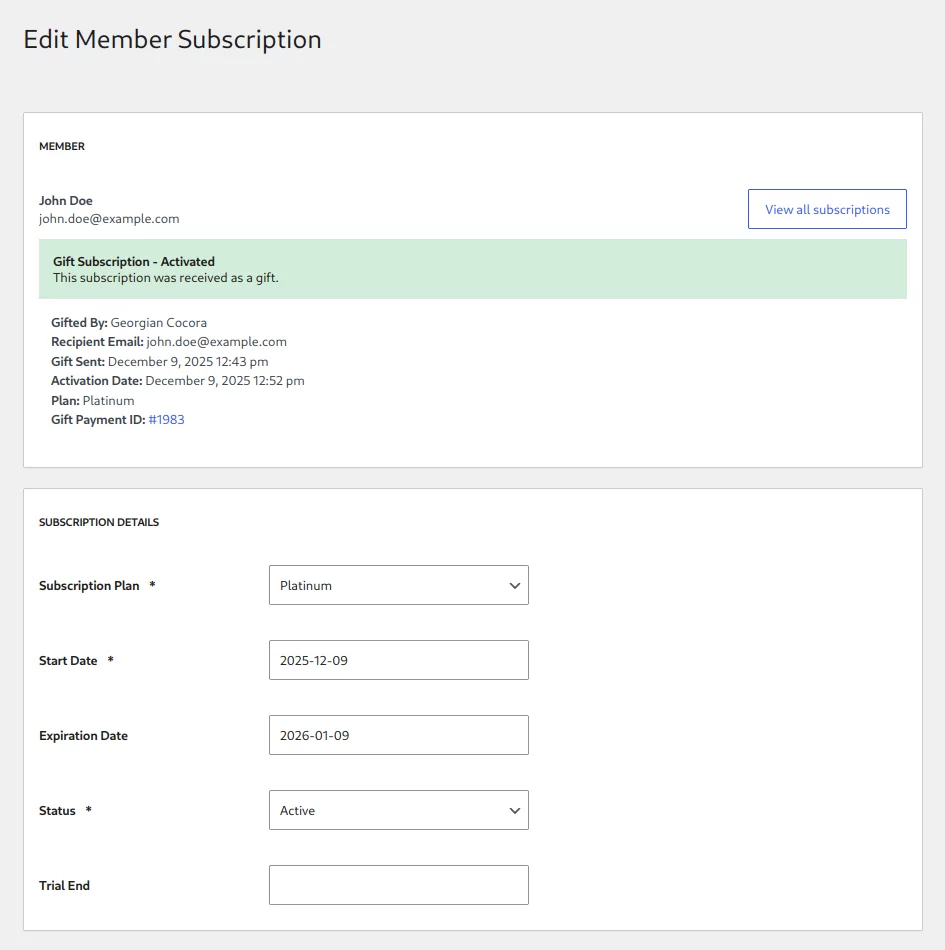
Once the gift is claimed by the recipient, you can find it under his account and the subscription behaves like a normal one, allowing you to edit any of the available fields.
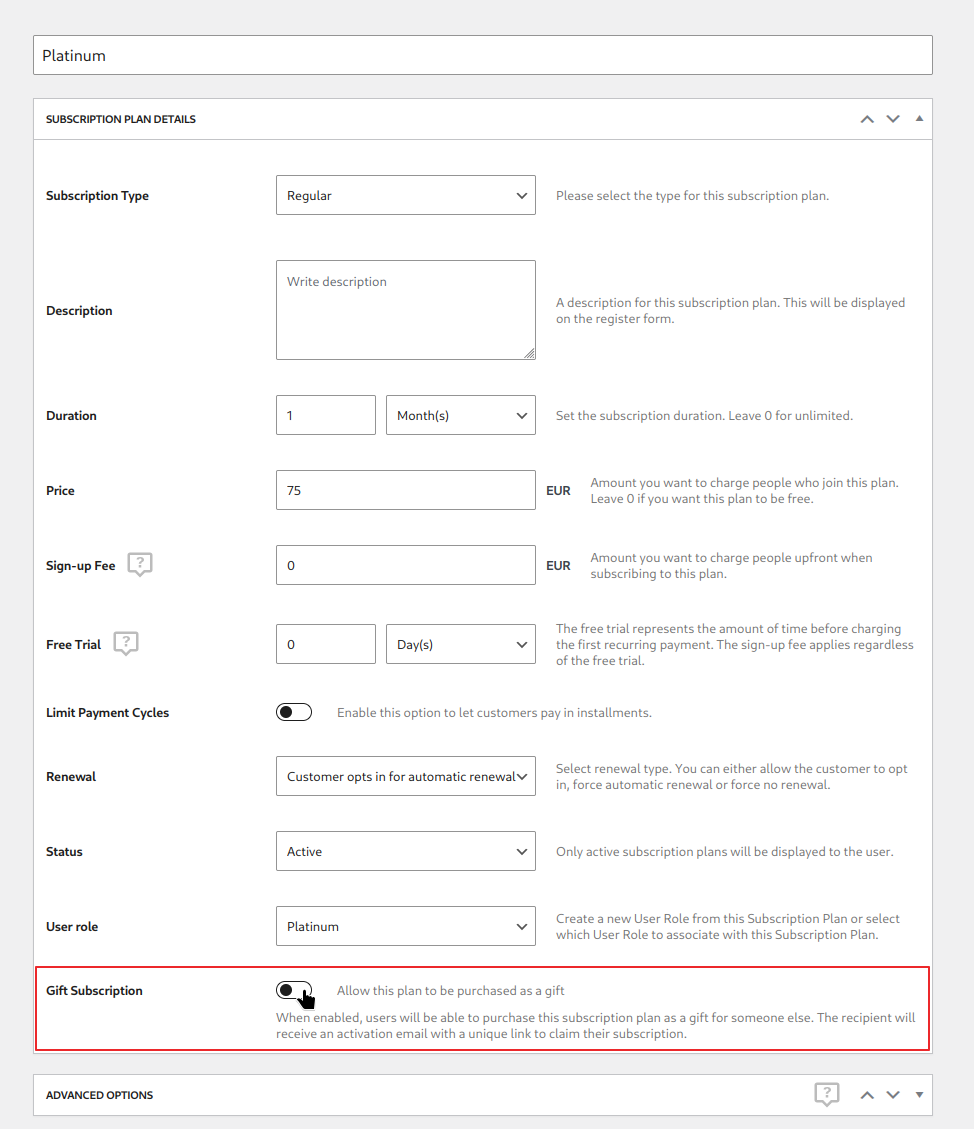
In order for users to be able to purchase a plan as a gift, it needs to be marked as giftable.
To do this, navigate to the Paid Member Subscriptions → Subscription Plans → Edit Subscription Plan page and enable the Gift Subscription toggle.
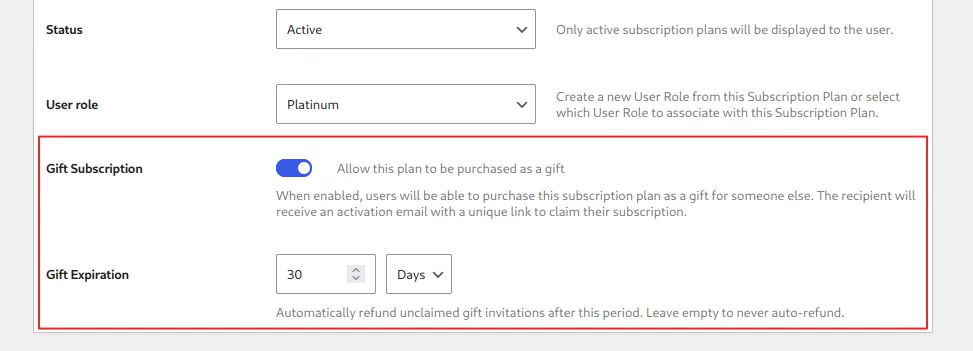
You can optionally set an expiration period for each Gift Subscription Plan. This defines how long the gift remains claimable after it is purchased.
If the recipient does not claim the gift within this period, the plugin will automatically refund the original gift payment and deactivate the invitation link so it can no longer be used
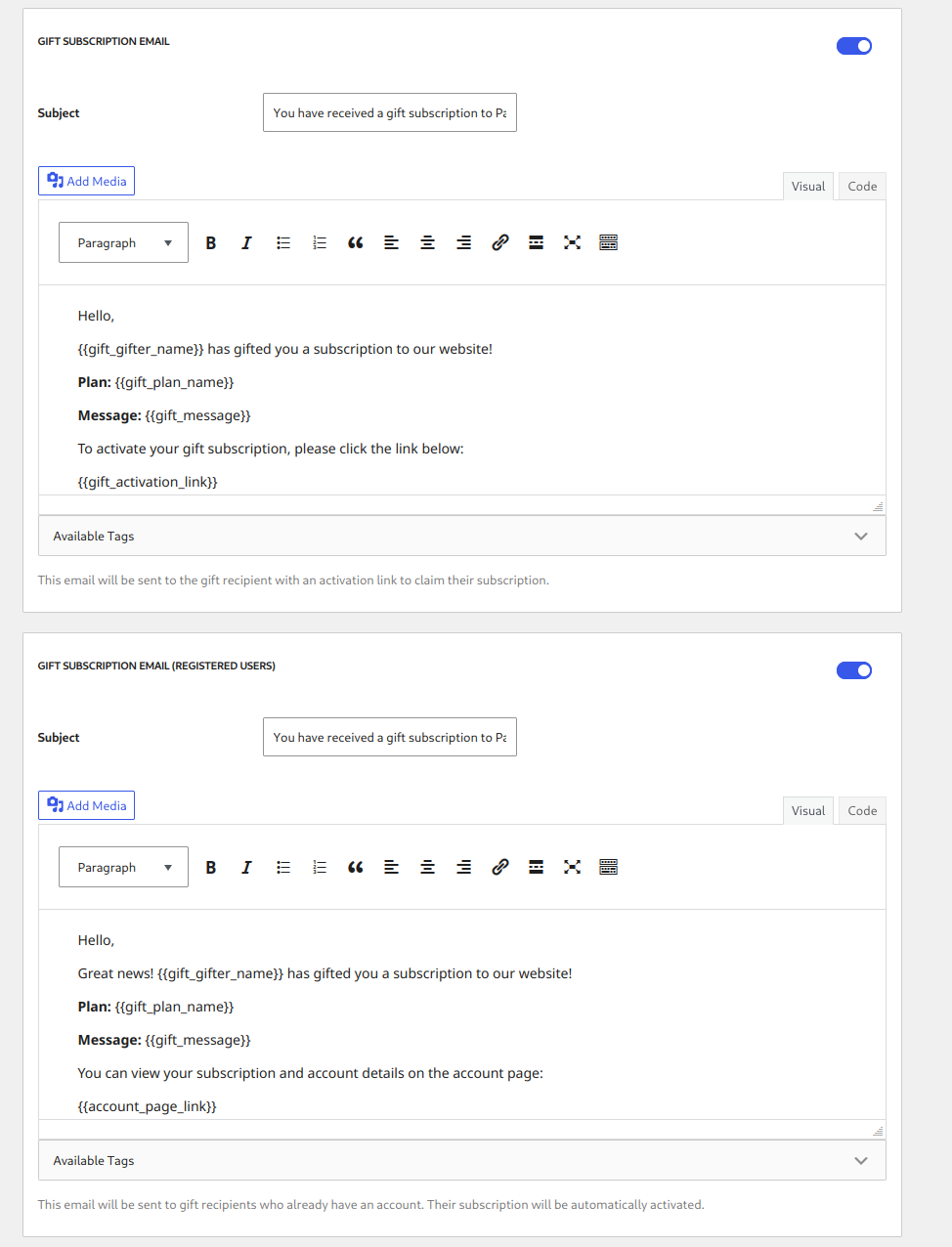
Both email notifications that are sent can be customized by going to the Paid Member Subscriptions → Settings → Emails page.
The Gift Subscription Email is the email that is sent to users that are not already registered and the Gift Subscription Email (Registered Users) is the email that is sent to already registered users.
Tags
Inside the two email notifications that are sent, special merge tags can be used to output specific data:
To allow users to buy gifts, you need to use the [pms-gift-subscriptions] shortcode.
Parameters
[pms-gift-subscriptions subscription_plans="" exclude="" selected=""]
subscription_plans parameterIn some cases, you might want to display this dashboard in another context, outside the Account page, in that case, for that purpose this shortcode should be used.
In order to output only the gifts dashboard, you need to use the following shortcode:
[pms-account-gifts]
The shortcode does not have any additional parameters.

Accept (recurring) payments, create subscription plans and restrict content on your website. Easily setup a WordPress membership site using Paid Member Subscriptions.
Get Paid Member SubscriptionsCombine the power of Profile Builder with Paid Member Subscriptions to set up user registration, memberships, and recurring revenue.
Get 25% off with the bundle