

Form Fields in Columns add-on lets you organize your form layout by placing multiple fields in a single row, creating a clean, column-based structure.
Form Fields in Columns is an Advanced add-on, available with a Profile Builder Basic, Pro, or Agency license only.
After purchasing a premium version of Profile Builder, you can check the following guide on how to install Profile Builder.
To put fields side by side, insert a Columns block and drag two or more field blocks into it. They render as a horizontal row on the front end, and the editor shows the same layout.
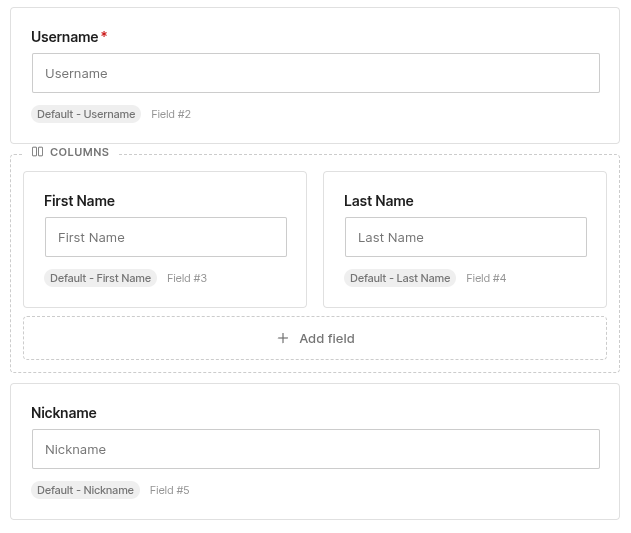
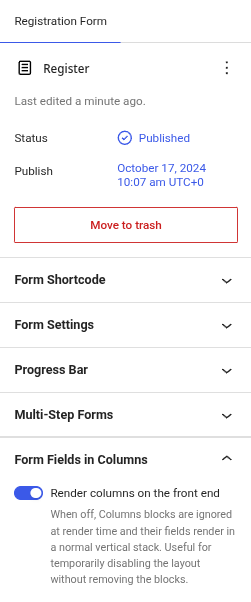
The Form Fields in Columns panel has a single option, Render columns on the front end. Switching it off renders your Columns blocks as a normal vertical stack, which lets you disable the layout temporarily without pulling the blocks apart.
Columns blocks must sit at the top level of the form. They can’t be nested inside a Repeater or another block.
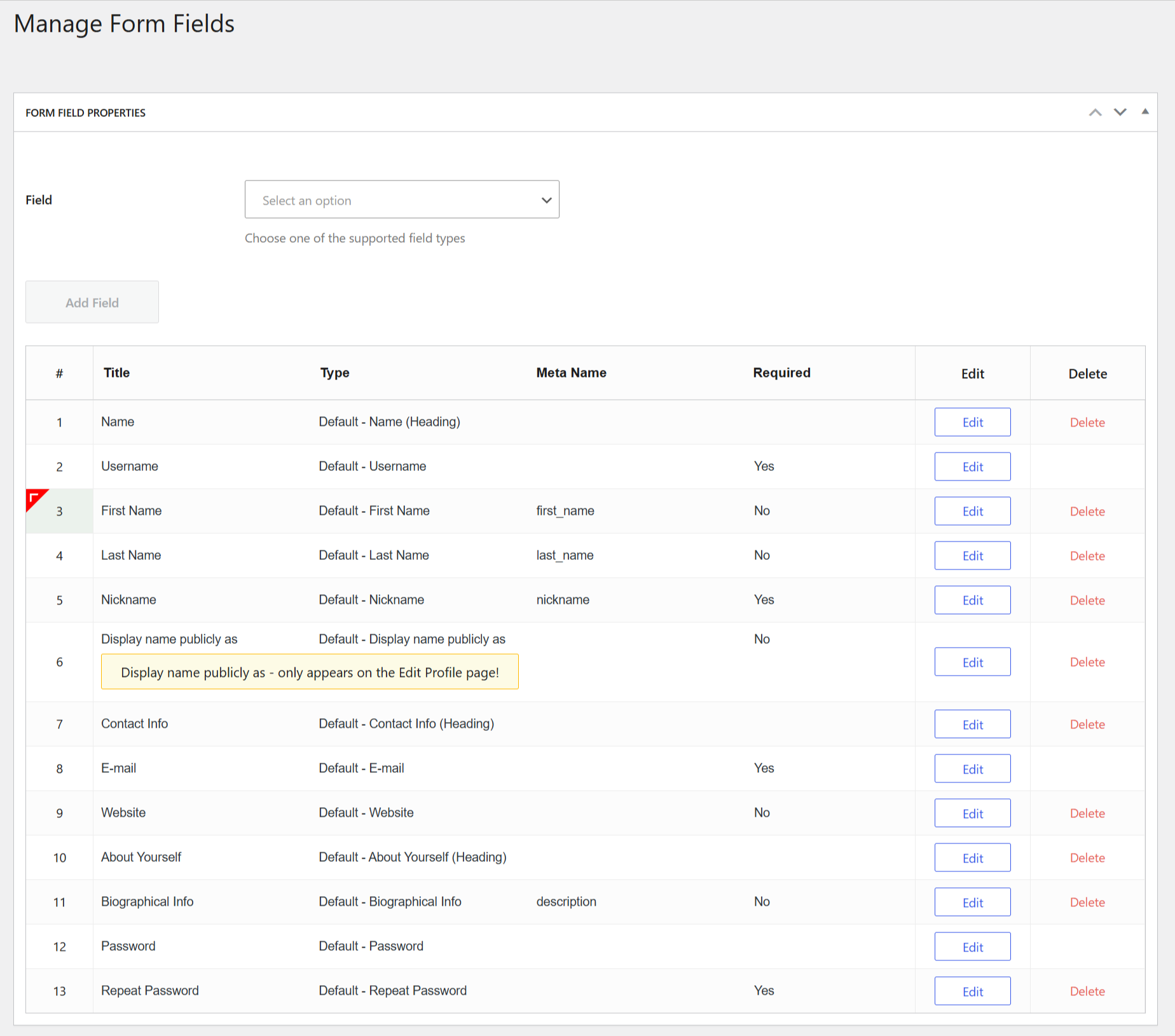
To create forms with columns, after you install and activate the add-on, go to Profile Builder -> Manage Fields, and you will have access to the following options:
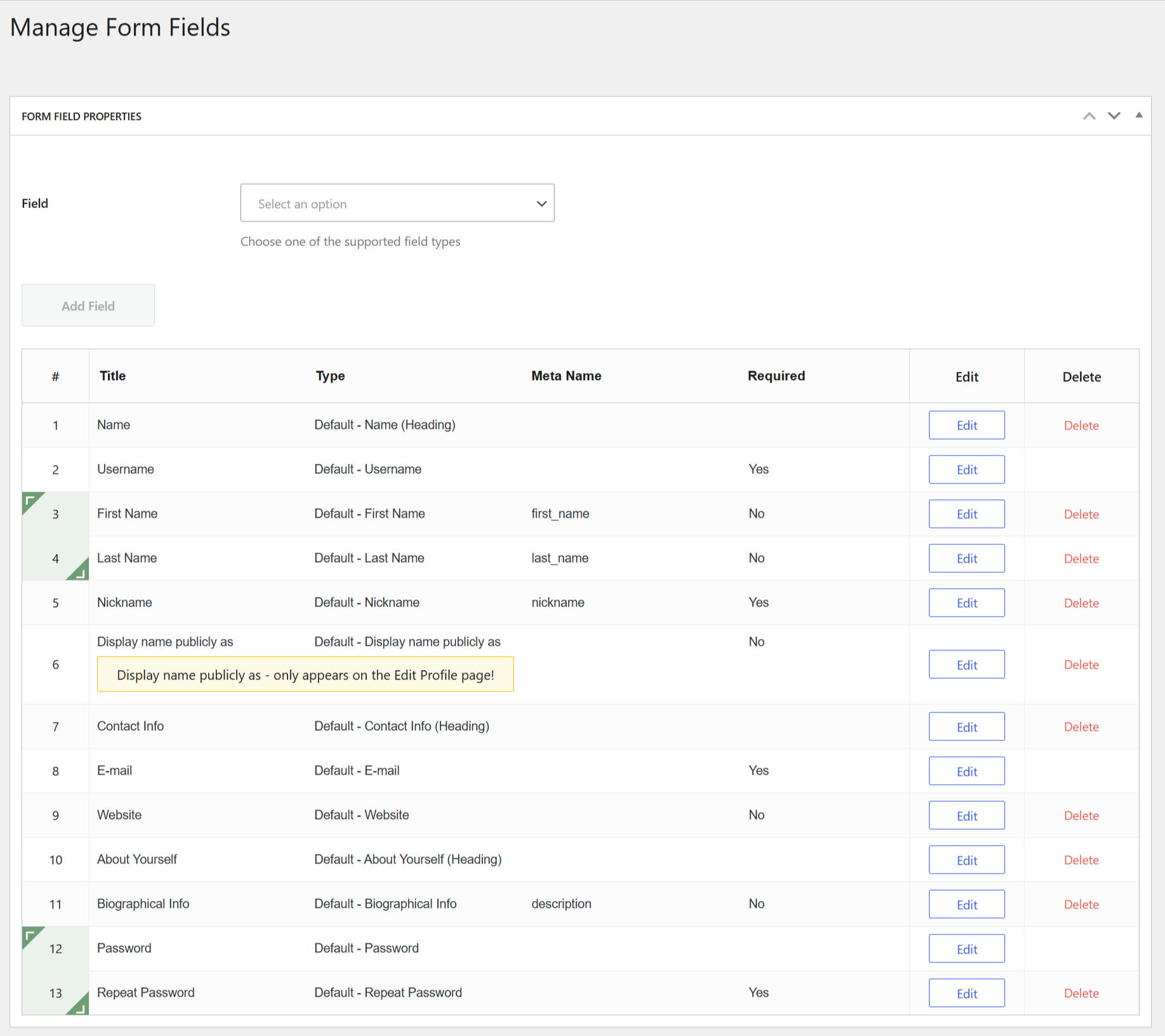
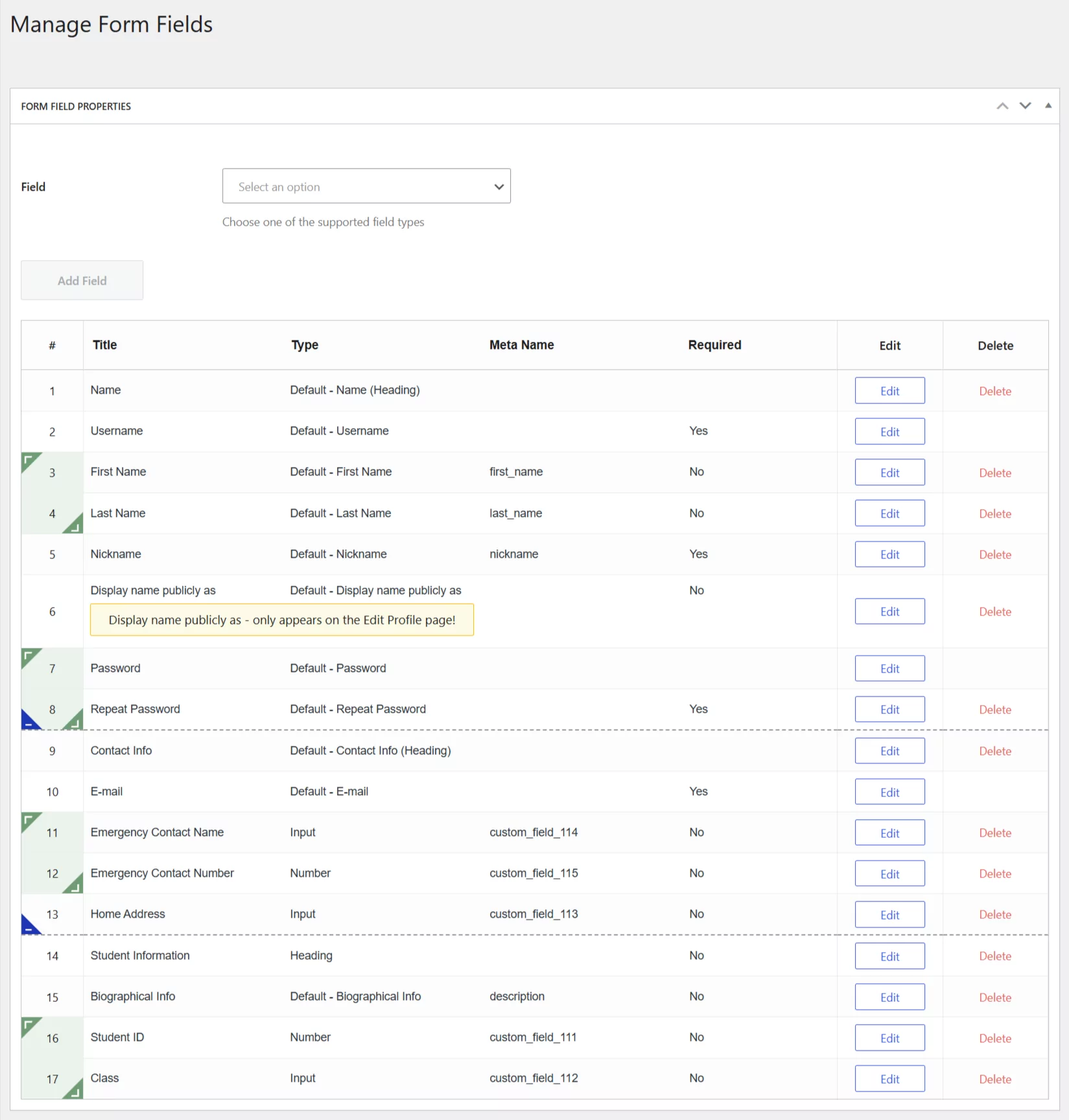
To set the column start, go to Profile Builder -> Form Fields -> Hover over a field, and you will see the “^” sign that you will need to click in order to add the start of the column.
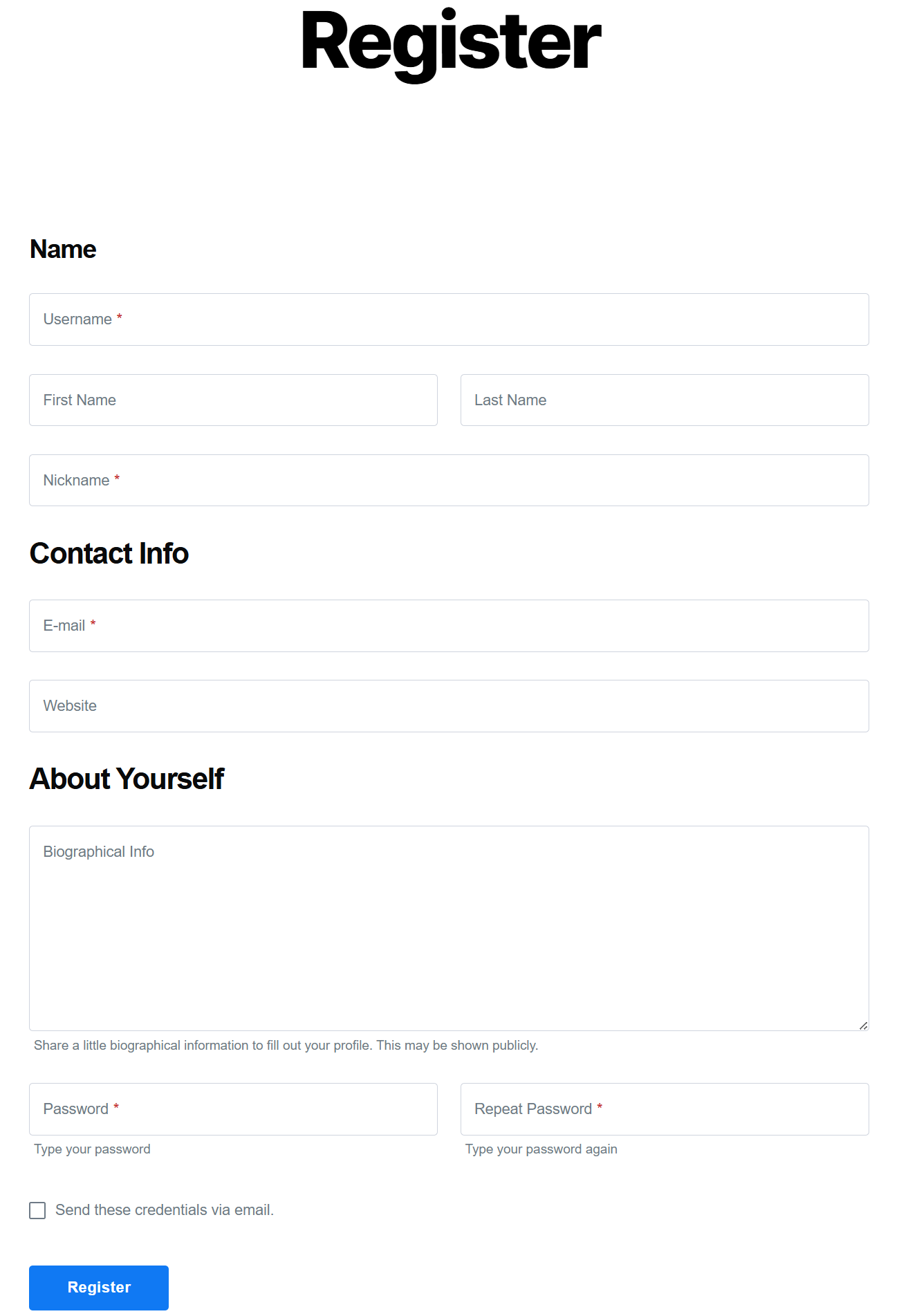
Here’s an example of how it looks when column intervals are properly configured:
Back-end:
Front-end:
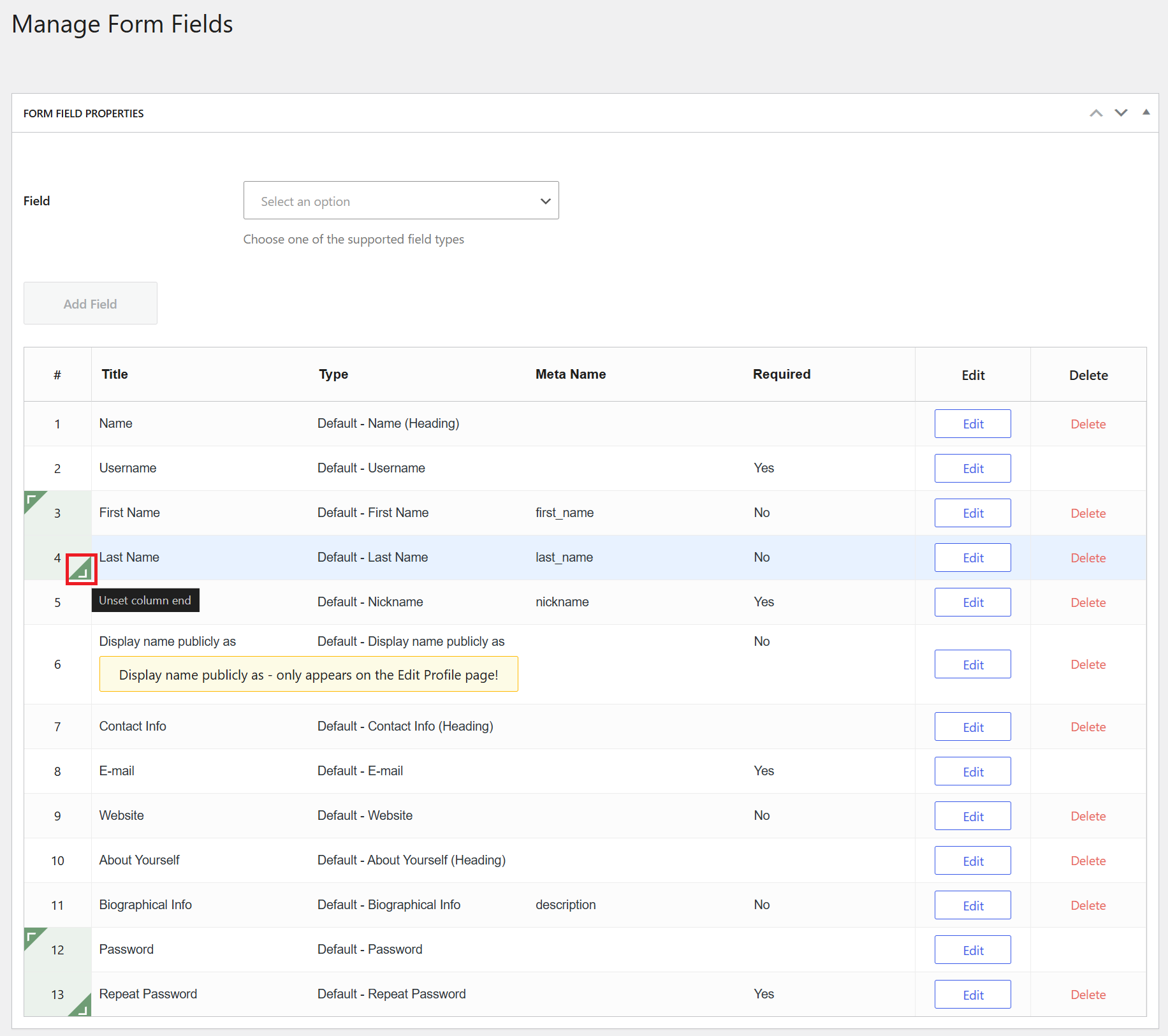
To remove a column breakpoint, simply hover over the one you want to delete and click on it.
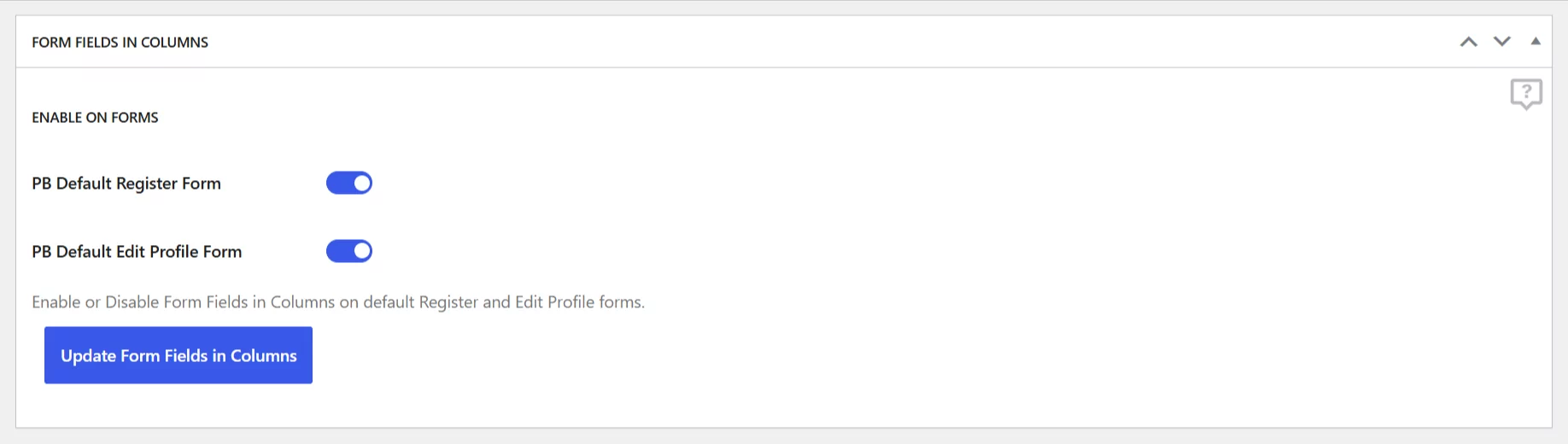
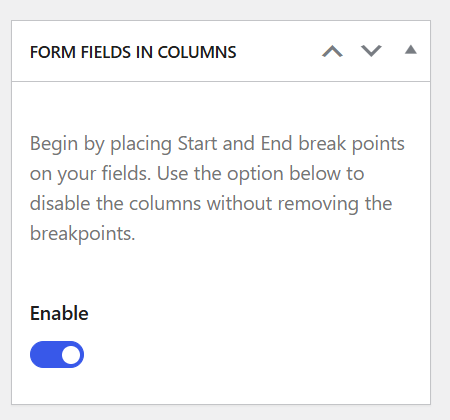
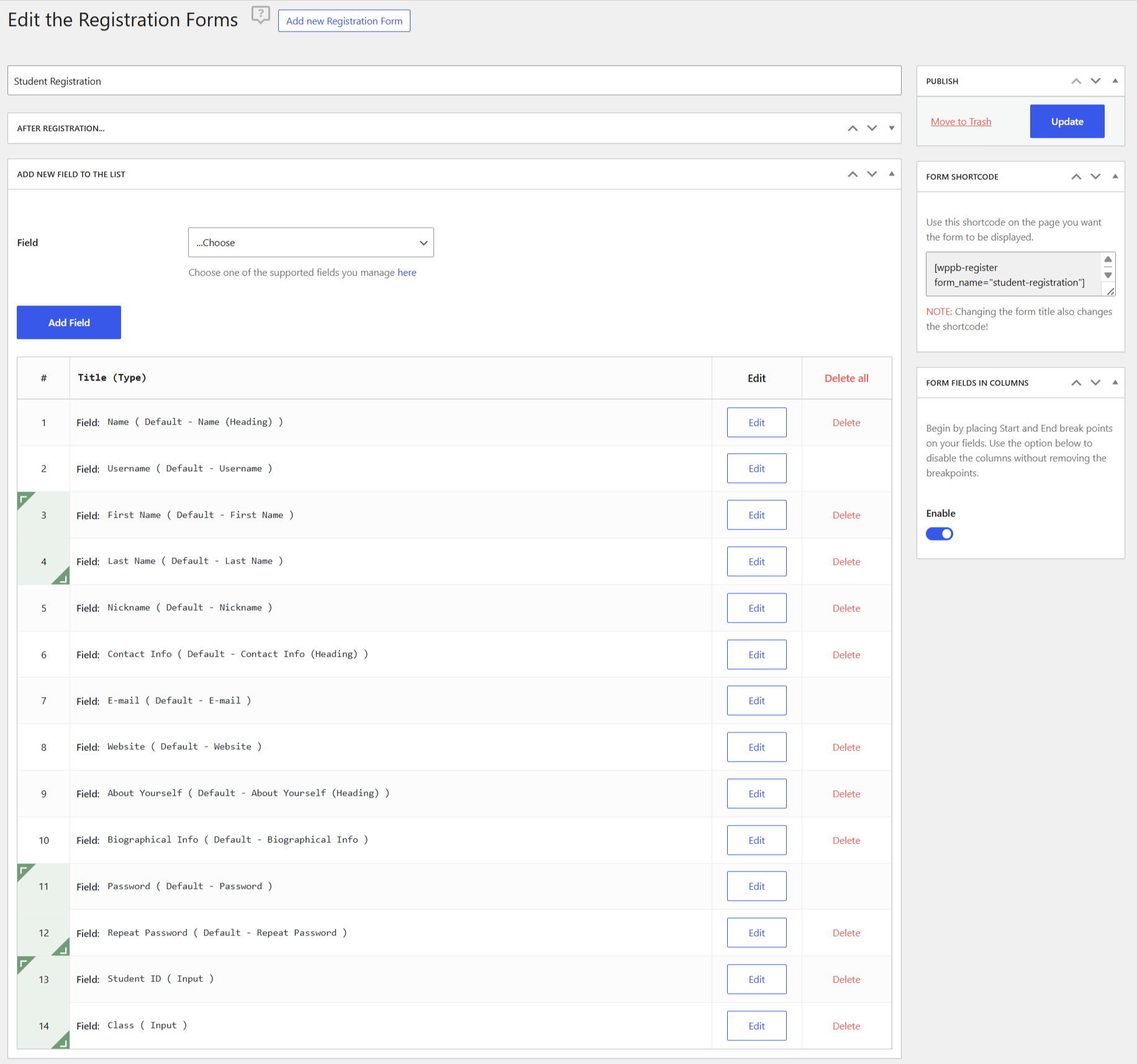
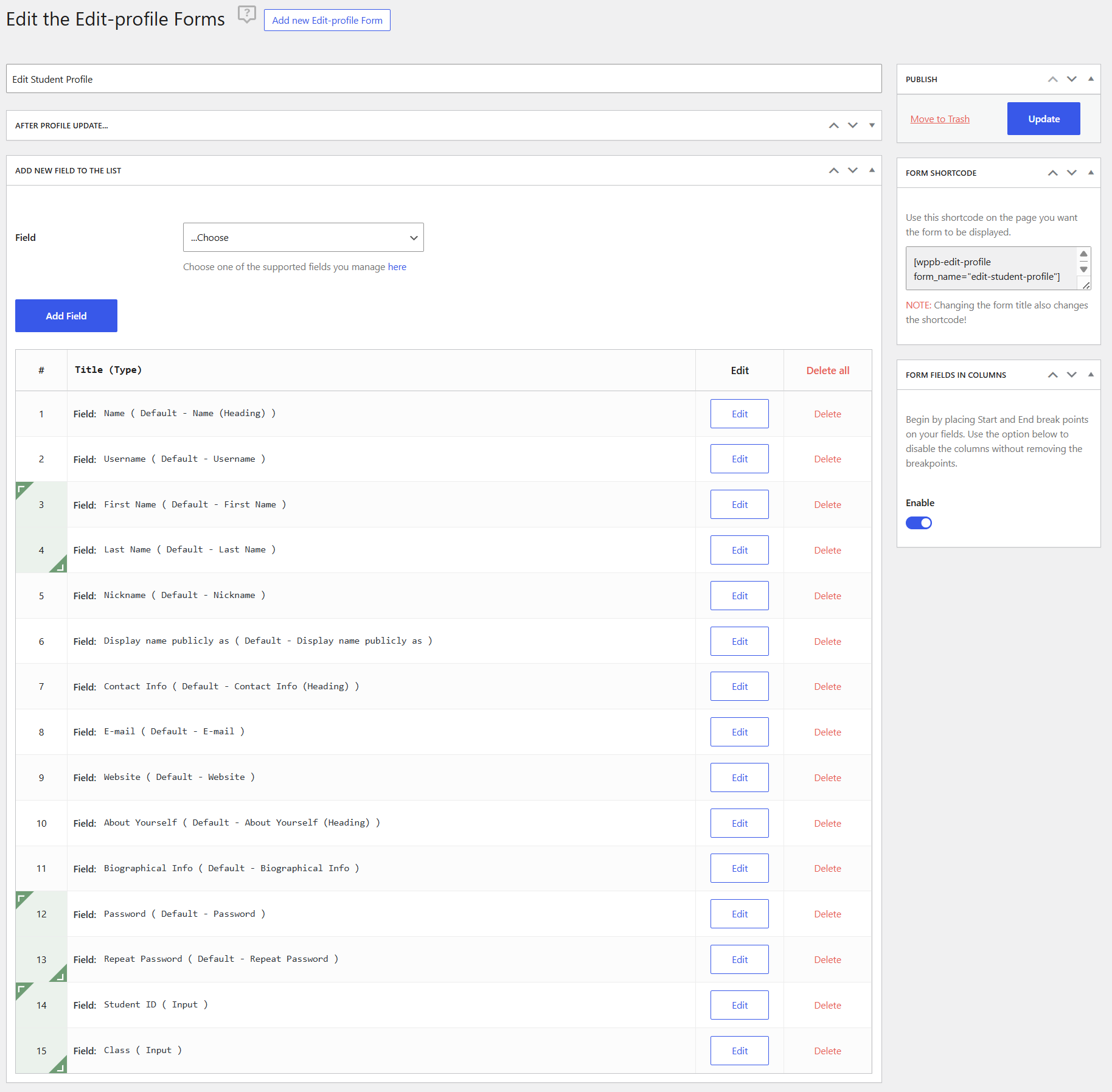
To enable or disable Form Fields in Columns on Profile Builder Registration and Edit Profile Forms, you will need to go to Profile Builder -> Manage Fields -> Form Fields in Columns -> Enable on.
After you check an option, click on the “Update Form Fields in Columns” button.
Inside Profile Builder Pro, we have 2 modules called Multiple Registration Forms and Multiple Edit Profile Forms that are used to create Custom Registration and Edit Profile Forms with different fields for different user roles.
Inside the settings page, we can choose if we want to enable Form Fields in Columns on our Custom Registration or Edit Profile Forms. You can enable or disable Form Fields in Columns for each individual form. It only works with Profile Builder Pro.
For both the Multiple Registration Forms and Multiple Edit Profile Forms, to enable the Form Fields in Columns functionality, you will need to enable it from its respective form.
Multiple Registration Form Settings
Publish the form before adding the column intervals.
Multiple Edit Profile Form Settings
Publish the form before adding the column intervals.
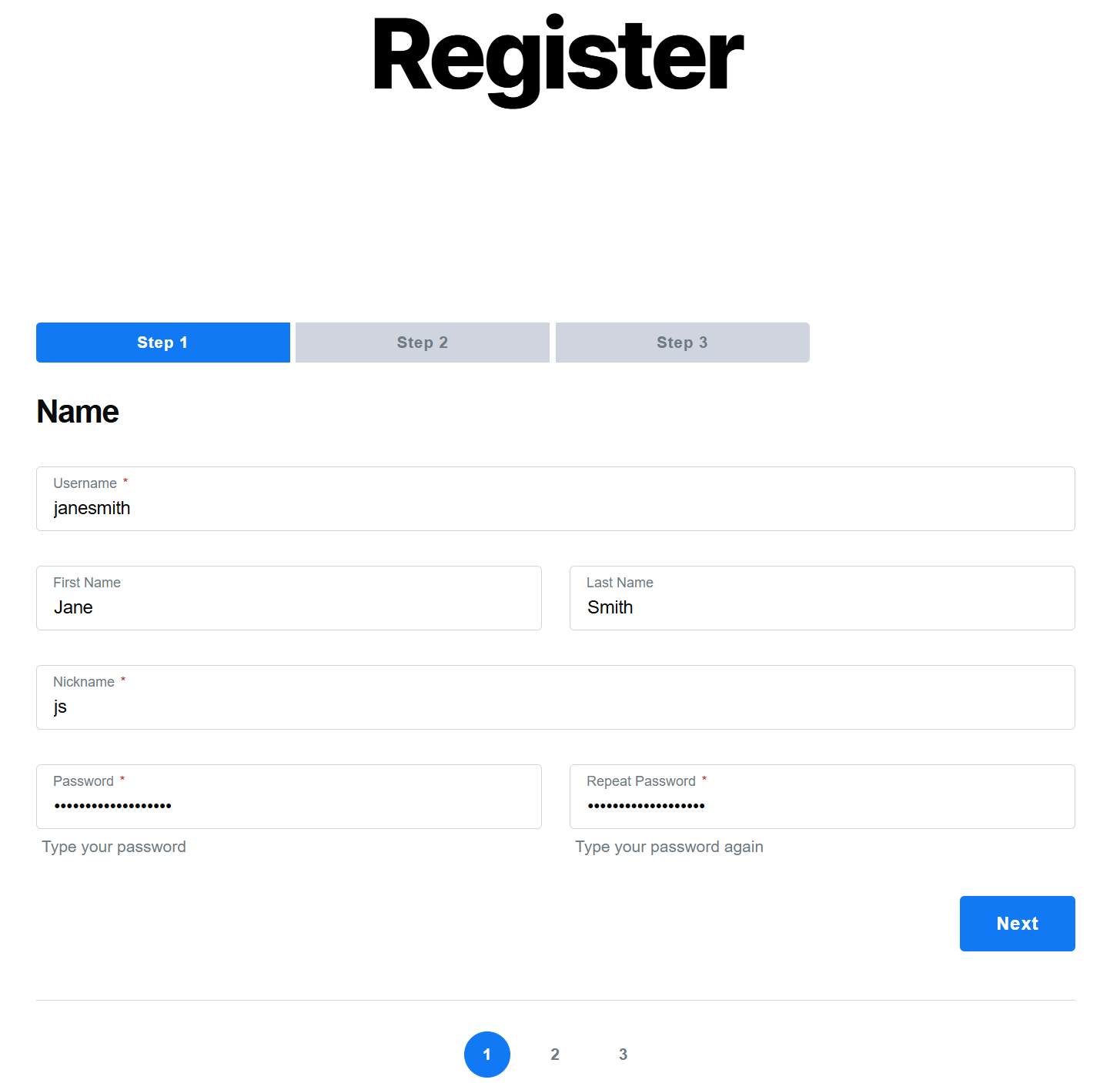
You can use the Form Fields in Columns functionality together with the Multi-Step Forms add-on to create step-by-step forms with fields neatly organized into columns on each step.
Here’s an example of how these two functionalities can be used together:
Back-end fields:
Front-end Step 1:
Step 2:
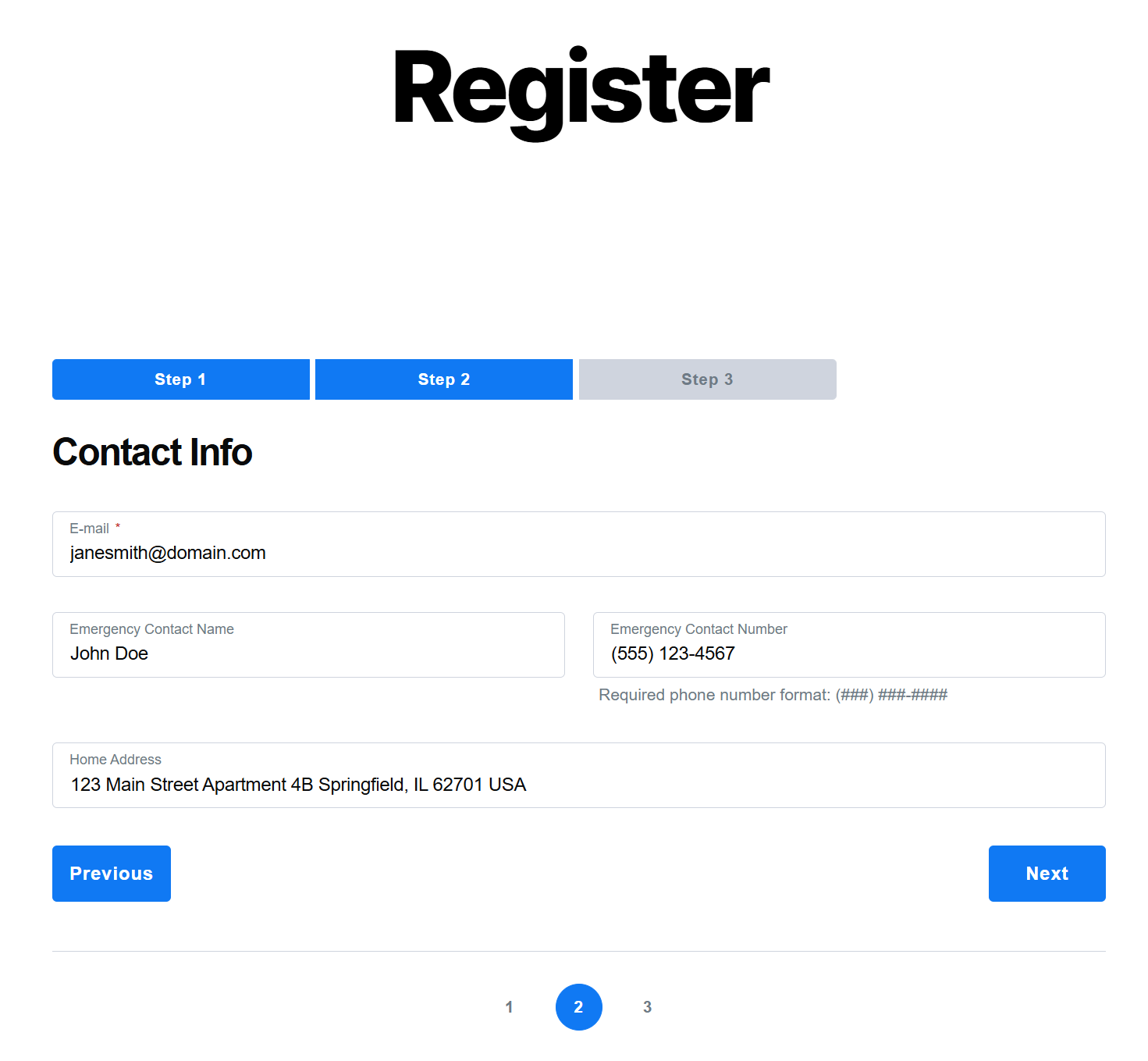
Step 3:


Create beautiful front-end registration and profile forms with custom fields. Setup member directories, custom redirects, cutomize user emails & more using the all in one user management plugin.
Get Profile BuilderCombine the power of Profile Builder with Paid Member Subscriptions to set up user registration, memberships, and recurring revenue.
Get 25% off with the bundle