
Table of Contents
To activate this feature go to Profile Builder -> Settings, click on the Content Restriction tab and then set the Content Restriction option to Yes.
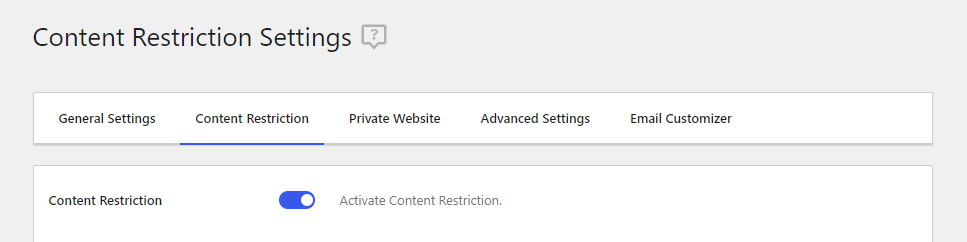
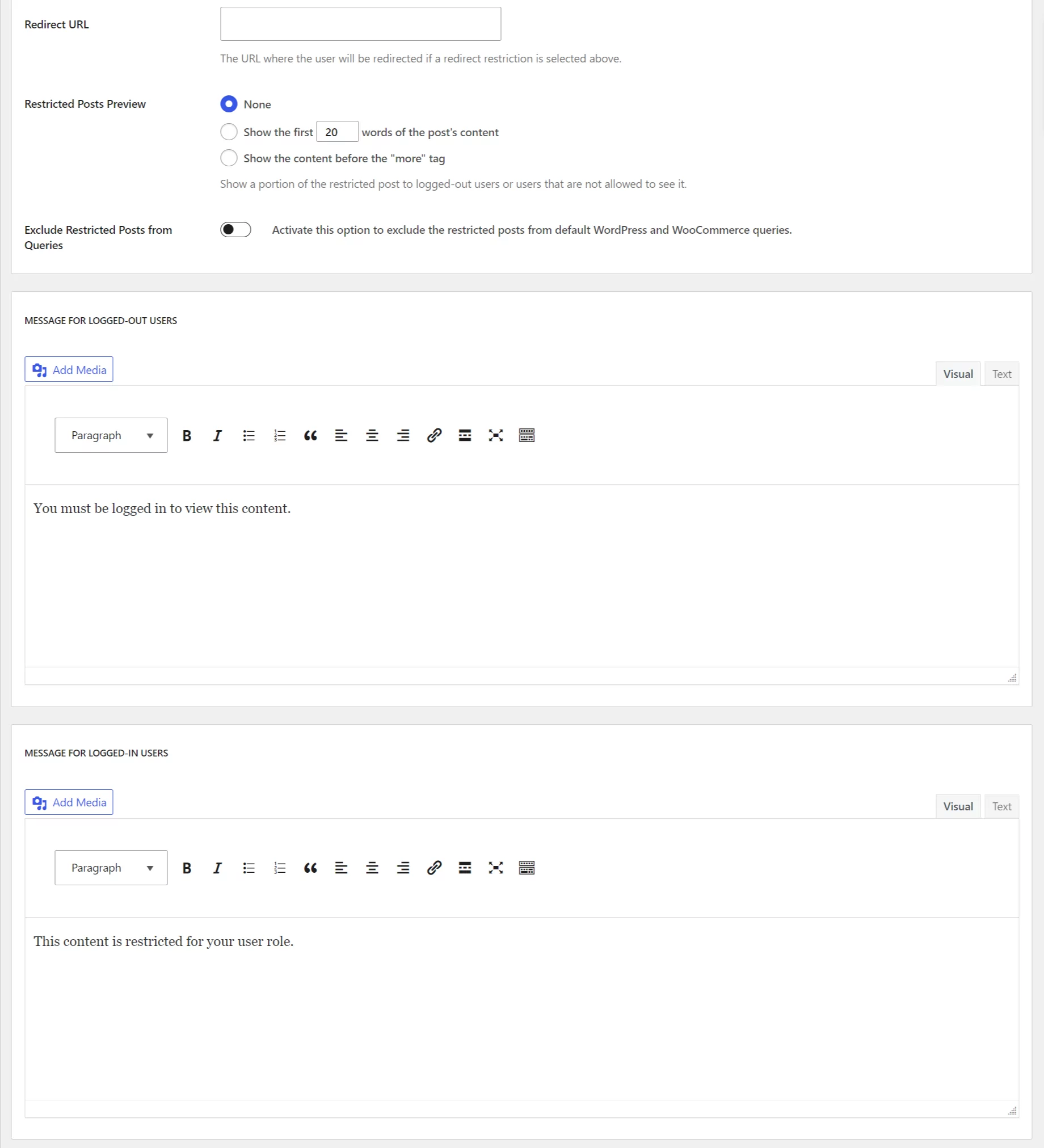
The settings for this feature are present on the same page.


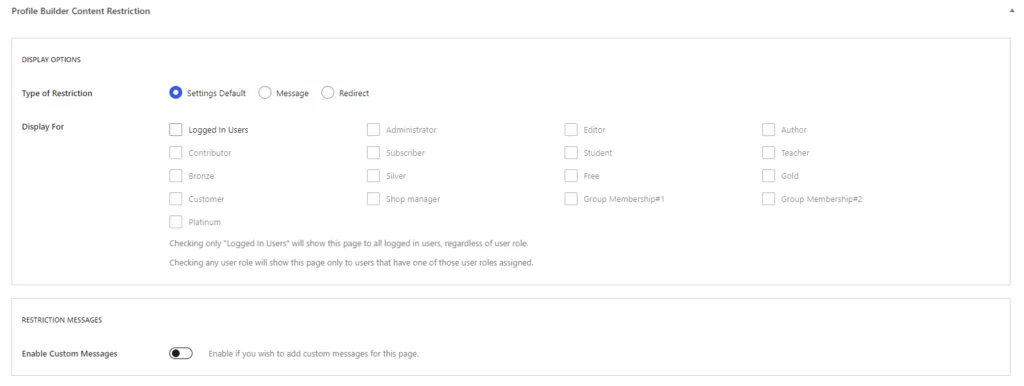
Content Restriction rules can be added to Categories and Tags. Assigning these categories or tags to your posts will apply these restriction rules.
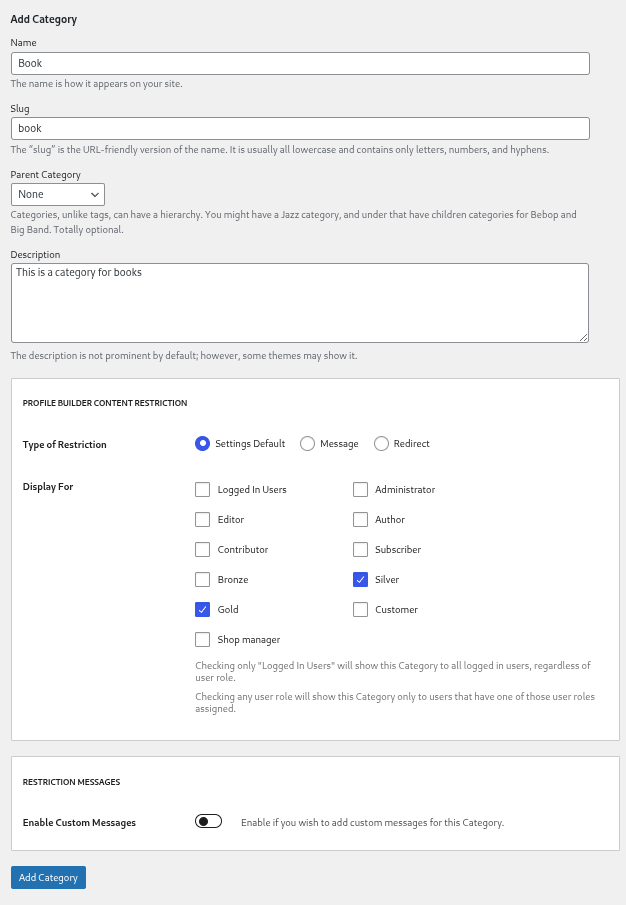
In the above example, posts with the Book category will only be accessible by users with the Gold or Silver user role.
You can read more about this here.
The Files Restriction Add-On allows you to restrict access to files in the WordPress Media Library and to files uploaded through Profile Builder’s Upload Field, based on user roles and login status. This ensures that sensitive files are only accessible to authorized users.
The File Restriction add-on is available with a Pro or Agency license for Profile Builder.
You can read more about this add-on on the following documentation page.
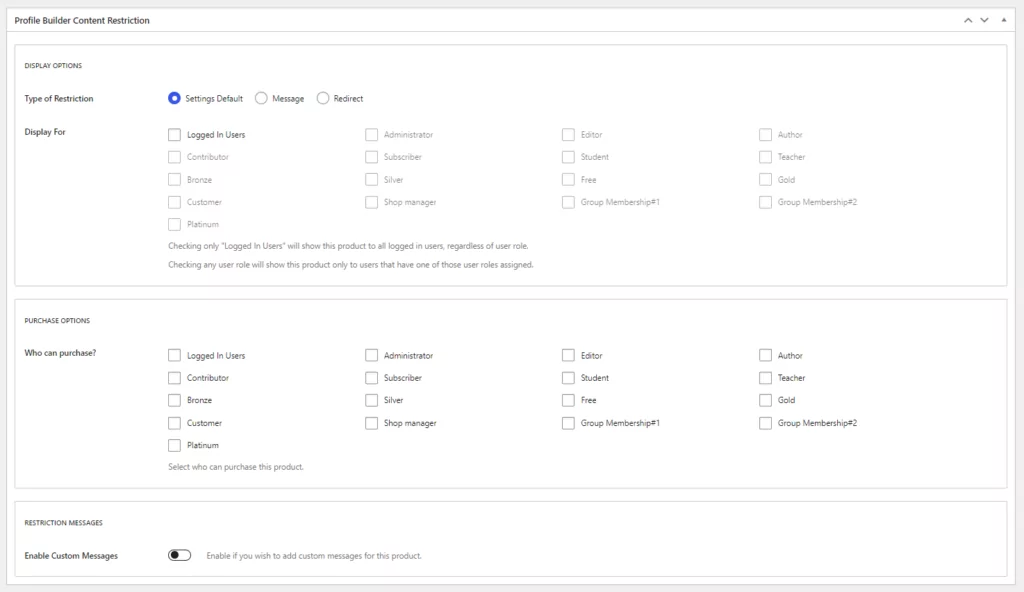
This feature also supports WooCommerce Products so you can restrict access to them based on User Roles or the logged in status of the user. This works through the normal Content Restriction metabox that appears on Products (identic to the one that appears on posts/pages).
The Content Restriction feature from Profile Builder works great with Elementor, allowing you to restrict widgets and sections directly from Elementor’s front-end visual interface.
This functionality is described in this section of the Documentation.
This functionality is described in this section of the Documentation.

Create beautiful front-end registration and profile forms with custom fields. Setup member directories, custom redirects, cutomize user emails & more using the all in one user management plugin.
Get Profile BuilderCombine the power of Profile Builder with Paid Member Subscriptions to set up user registration, memberships, and recurring revenue.
Get 25% off with the bundle