
Progress Bar add-on displays a live completion bar on your Profile Builder Registration and Edit Profile forms, so users can see how much of the form they still have to fill in.
Progress Bar is an Advanced add-on, available with a Profile Builder Basic, Pro, or Agency license only.
Go to Dashboard → Profile Builder → Add-ons, find the Progress Bar card under Basic Add-ons and click Activate.
The Progress Bar settings are per form. Open a form from Dashboard → Profile Builder → Forms and use the Progress Bar panel in the editor sidebar.
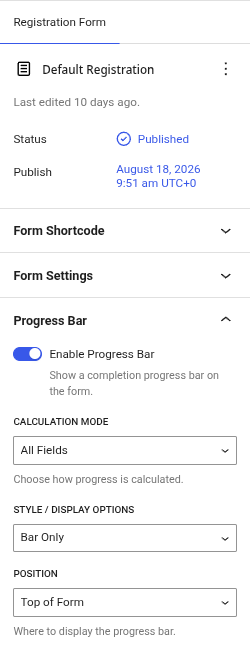
The bar’s colors follow the form design you have selected, so it matches the rest of the form without any styling work.
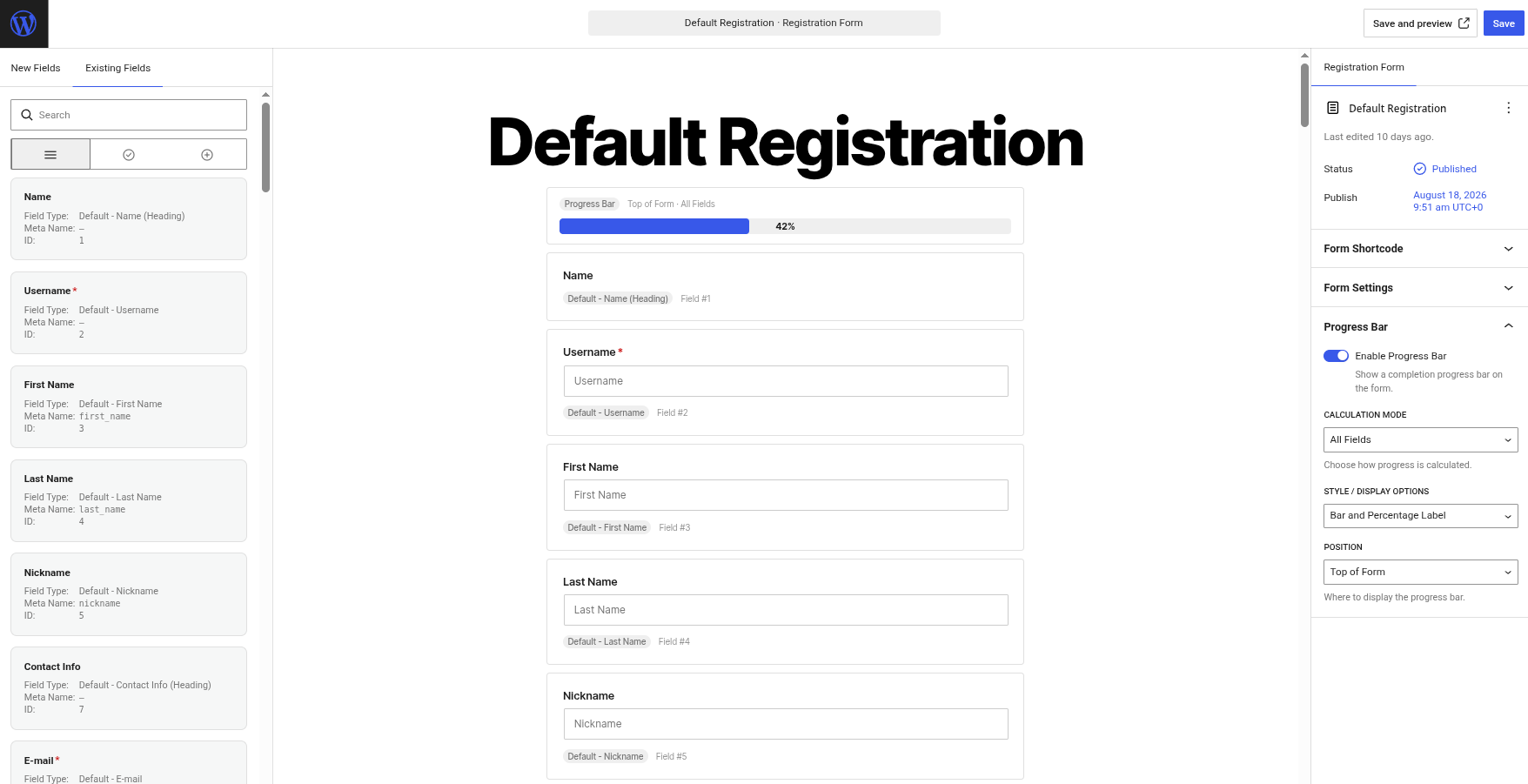
Profile Builder adds a Progress Bar placeholder to the form canvas to show where the bar lands, and moves it when you change Position. The placeholder is locked, so you cannot drag or delete it from the canvas; turning Enable Progress Bar off removes it.
The placeholder is a preview, not live data. It fills to a sample 42% and shows its position and calculation mode on a small badge.
If the form type is set to the classic editor under Dashboard → Profile Builder → Advanced Settings → Forms, the same four options appear in the Progress Bar Settings box on the form’s edit screen instead.
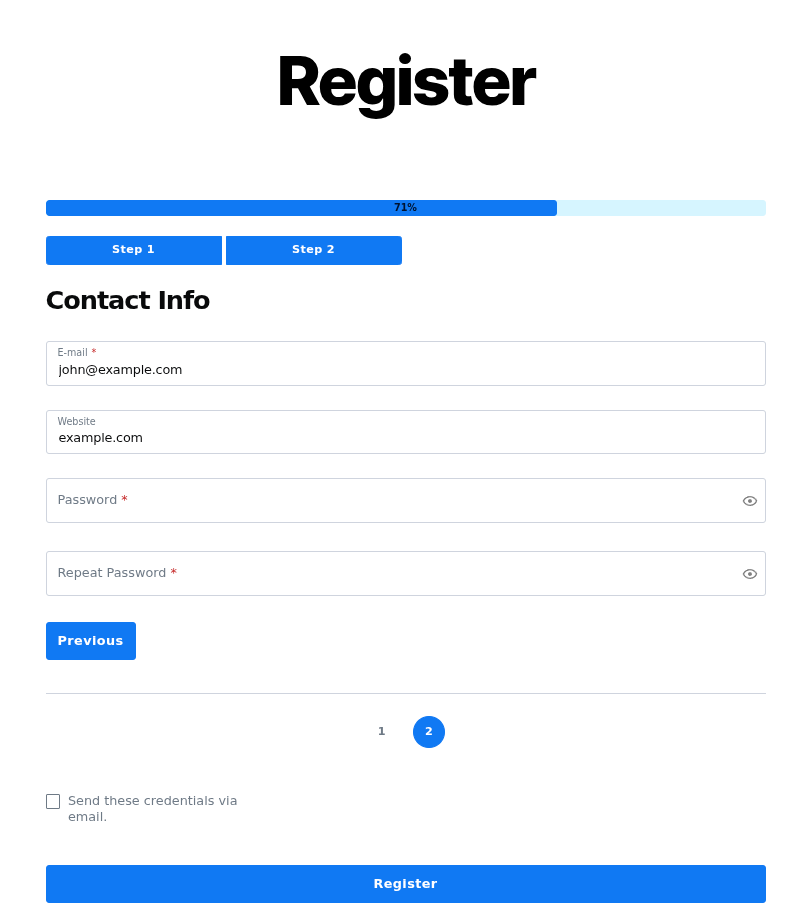
The bar starts at the percentage matching whatever the form already has filled in, and updates as the user types, picks options, uploads files or edits a WYSIWYG field. The percentage is the number of counted fields that hold a value, divided by the number of counted fields, rounded to a whole number.
Some fields are left out of the count:
The Two-Factor Authentication group counts as a single item, and only after the user ticks Activate. It counts as complete once the code entered under Verify TOTP validates.
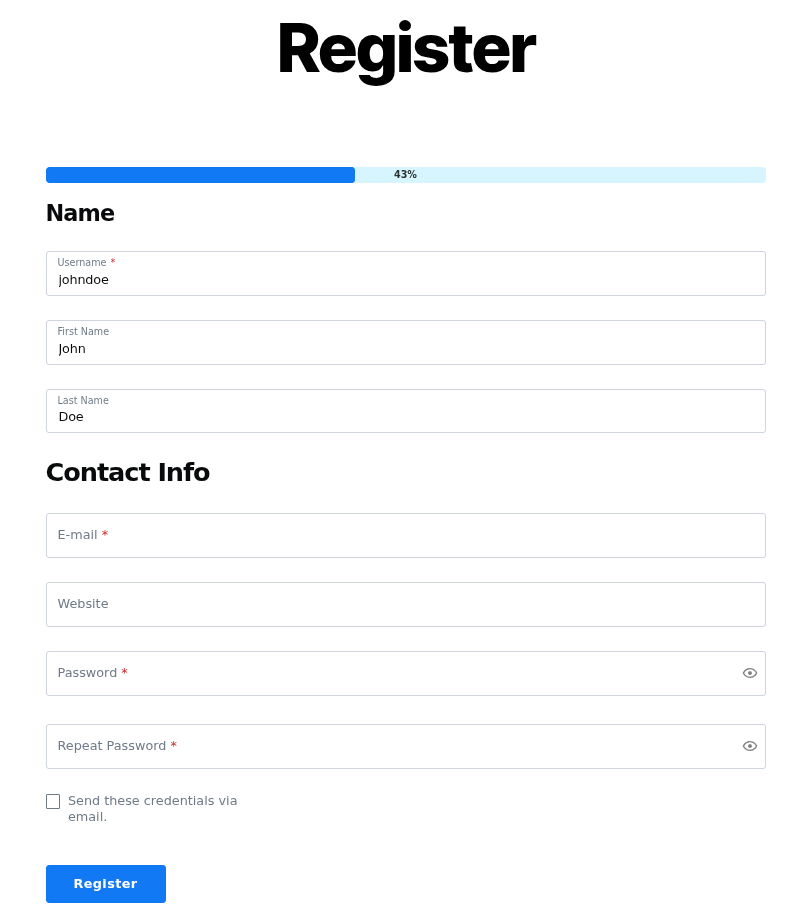
The Progress Bar works on forms split into steps with the Multi Step Forms add-on. It renders outside the steps: Top of Form places it above the step tabs, Bottom of Form below the fields. The bar stays on screen as the user moves from step to step, and its percentage covers every field in the form rather than only the current step’s, so it keeps climbing as the user advances.
Adding step breaks and configuring pagination and tabs is covered on the Multi-Step Forms page.

Create beautiful front-end registration and profile forms with custom fields. Setup member directories, custom redirects, cutomize user emails & more using the all in one user management plugin.
Get Profile BuilderCombine the power of Profile Builder with Paid Member Subscriptions to set up user registration, memberships, and recurring revenue.
Get 25% off with the bundle