
Conditional Logic allows you to show or hide fields based on user input. This way, the user registration or edit profile form fields will dynamically show or hide based on user selections.
Conditional Logic can be applied to a user field when creating a new field or editing an existing one.
The Conditional Logic panel can be found in the Field Settings sidebar on the right side of the Form Builder.
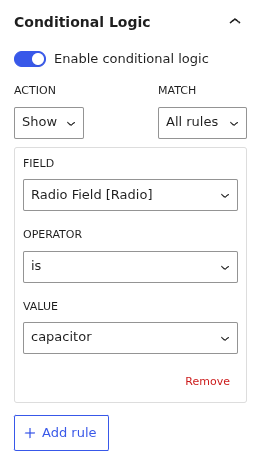
After enabling conditional logic you will have access to the following settings:
When the field you’re testing against has preset choices, the Value box becomes a dropdown of those choices. Less than and more than are only available on numeric fields.
Rules can point at fields that aren’t in the current form, but those rules never trigger. The editor warns you when that happens.
When using the Classic Form Editor, Conditional Logic option is located under Profile Builder → Manage Fields, in the Field Properties box.
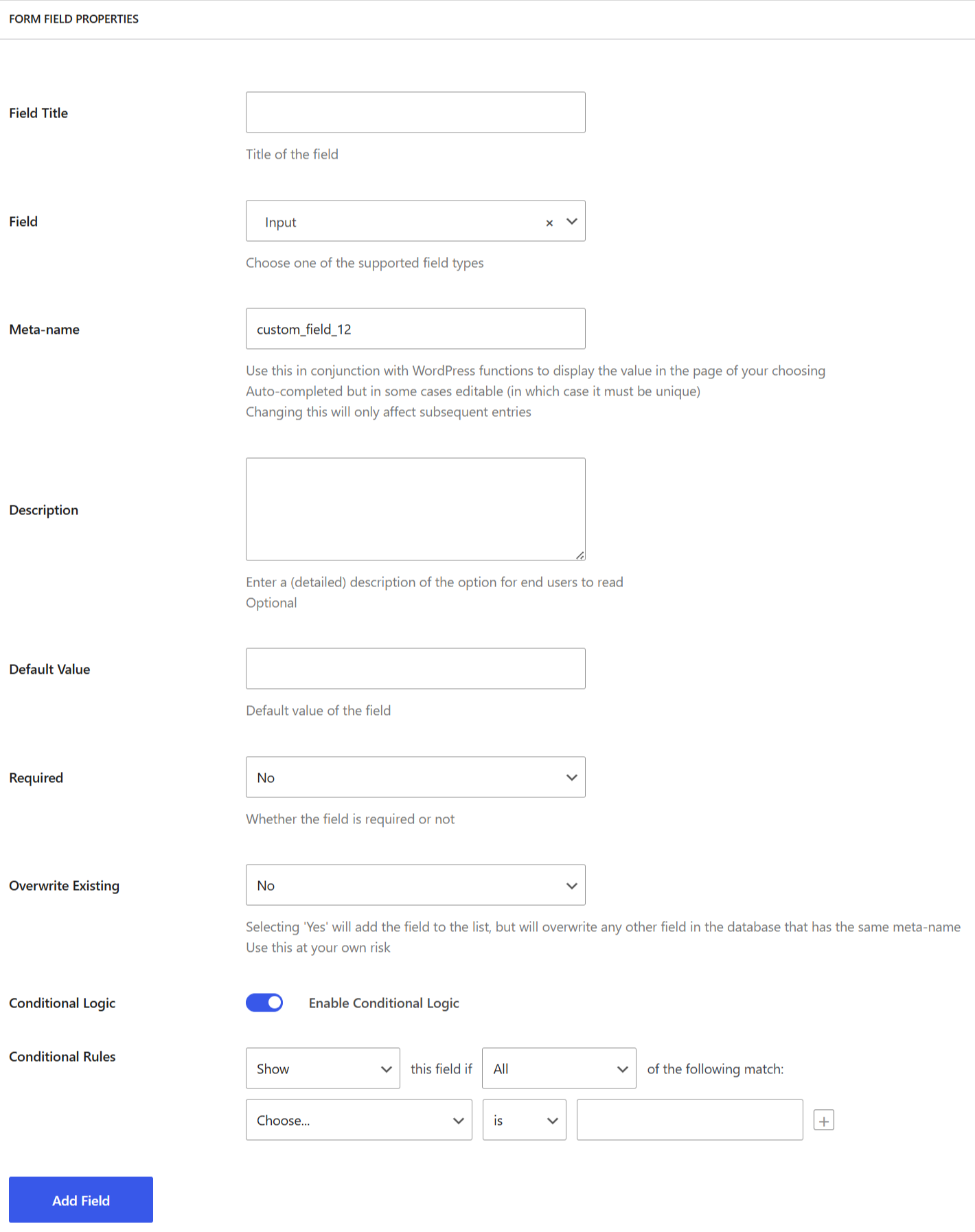
When setting up conditional logic for a certain field, you can add rules based on the options below:
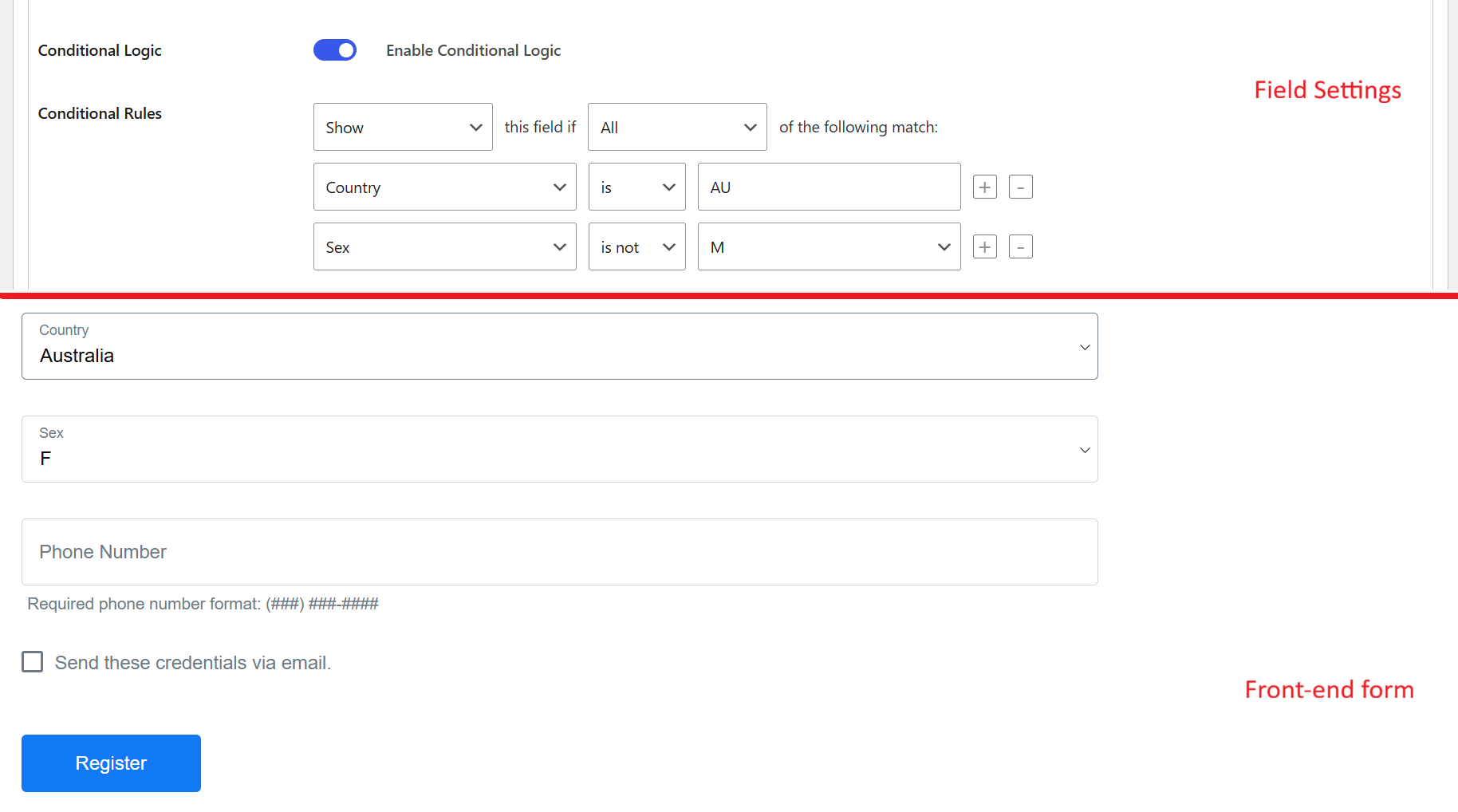
Below, we’ll focus on setting up a conditional Phone field, which will display only if certain user inputs are met.
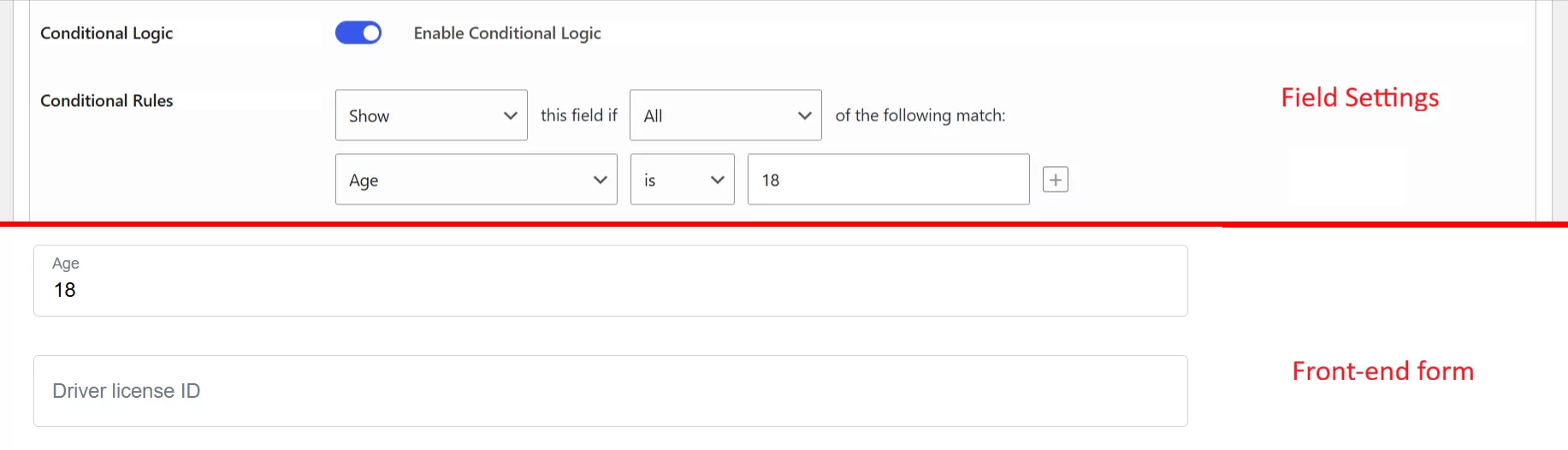
This other example shows the Driver license ID field only if the value added in the Age field (which is a number field) is greater than 18

Create beautiful front-end registration and profile forms with custom fields. Setup member directories, custom redirects, cutomize user emails & more using the all in one user management plugin.
Get Profile BuilderCombine the power of Profile Builder with Paid Member Subscriptions to set up user registration, memberships, and recurring revenue.
Get 25% off with the bundle