



Table of Contents
The easiest way to export users in WordPress or import users in WordPress is with a CSV file — but WordPress doesn’t include a built-in tool to do either.
On top of that, managing WordPress users becomes more complicated as your website grows. Whether you’re migrating to a new site, switching membership plugins, onboarding users in bulk, or simply creating backups of member data, having a reliable way to export and import users is essential.
This becomes even more difficult when custom profile fields and membership data are involved.
That’s where Profile Builder can help. It provides a straightforward way to export existing users and import users in bulk using CSV files. The plugin also supports custom profile fields and user roles.
In this guide, we’ll show you step-by-step how to export and import WordPress users to CSV.
Understanding User Data in WordPress
Although you might just need your user’s usernames and email addresses, WordPress user data includes far more than just that.
Every user account can contain important information such as passwords, roles, registration dates, profile details, and custom field data added through membership or registration plugins.
For membership sites, online communities, LMS platforms, and WooCommerce stores, this information often becomes a critical part of daily operations, so it’s important to have it easily accessible to you.
In addition to standard WordPress fields, many websites also store custom profile information like phone numbers, company names, subscription details, user preferences, or member-specific metadata.
Preserving this data during migrations or backups is extremely important, and this is where CSV files become useful. CSV (Comma-Separated Values) files provide a simple, universal format for storing and transferring user information between systems.
They’re easy to generate, edit, and import, making them one of the most practical solutions for user migrations, bulk onboarding, and maintaining secure backups of your WordPress user database.
Why Site Owners Need to Export and Import Users
Exporting and importing users helps site owners manage migrations, memberships, backups, and large communities more efficiently while keeping important user data organized and portable.
Migrating to a New Website
Website migrations are one of the most common reasons for exporting and importing WordPress users. These are usually needed when you’re redesigning your site, changing domains, moving to a different host, or rebuilding your membership platform.
Exporting users to a CSV file allows you to preserve important account information, including roles and profile data, while importing them into the new website helps ensure a smoother transition for members, customers, or subscribers without requiring users to register again.
Switching Membership or User Management Plugins
Changing membership or user management plugins can become complicated if user accounts and profile data aren’t transferred properly. Site owners often need to preserve usernames, email addresses, membership roles, and custom profile fields during the transition.
Exporting users to CSV makes it easier to move data between systems without manually recreating accounts.
Bulk User Registration
Manually creating large numbers of user accounts can quickly become time-consuming and error-prone. Schools, businesses, membership sites, and online communities often need to onboard students, employees, customers, or members in bulk.
Importing users from a CSV file allows administrators to create multiple accounts at once while assigning roles and profile information automatically. This significantly reduces administrative work and helps maintain consistent user data.
Creating User Backups
Exporting users also provides an easy way to create backups of important member data. Keeping offline copies of user accounts, roles, and profile information can be useful before major site updates, migrations, or plugin changes.
A CSV backup gives site owners an additional layer of protection against accidental data loss or website issues.
Managing Multi-Site or Community Projects
Web agencies, membership businesses, and online communities often manage multiple WordPress websites with shared or overlapping user bases. Exporting and importing users makes it easier to reuse account data across different sites or environments.
This can be especially useful for staging sites, franchise networks, online learning platforms, or community projects.
Why WordPress Alone Isn’t Enough
While WordPress includes basic user management features, it doesn’t provide a built-in way to export or import users using CSV files. This creates challenges for site owners who need to migrate accounts, manage large member databases, or back up user information efficiently, especially when custom profile fields are involved.
Without a dedicated solution, you’d typically need to rely on custom PHP scripts, or direct database access to move user data safely. That increases the risk of formatting issues, missing profile information, and inconsistencies between sites.
Profile Builder bridges this gap by working seamlessly with two free WordPress plugins — Export User Data for exporting, and Import users from CSV with meta for importing. Together, they support standard WordPress fields like usernames, email addresses, and roles, as well as custom Profile Builder fields like text inputs, dropdowns, phone numbers, and membership-related data. The import process also supports bulk operations and role assignment, keeping profile data consistent across large user sets.

Profile Builder Pro
The easiest way for membership site and online community site owners to export and import WordPress users.
Get Profile BuilderSince profile fields, registration forms, and user imports all live within the same plugin ecosystem, the workflow stays manageable for both developers and non-technical administrators — with no custom code required.
Additionally, Profile Builder helps websites grow their user base in the first place by allowing site owners to create professional custom registration forms and user profiles. This means the same tool used to manage existing users can also help attract and onboard new ones more efficiently.
How to Export & Import WordPress Users to CSV
Now let’s look at how to export existing WordPress users and import users in bulk using Profile Builder’s CSV-based user management tools.
What You’ll Need
To export and import WordPress users with Profile Builder, you’ll need three plugins working together:
- Profile Builder (free or Pro) — manages your custom profile fields and ensures imported data maps correctly to your site
- Export User Data (free, WordPress.org) — handles exporting your existing users to a CSV file
- Import users from CSV with meta (free, WordPress.org) — handles importing users from a CSV file into WordPress
Profile Builder doesn’t yet include a built-in import/export tool, but it’s fully compatible with both of the above plugins and supports custom Profile Builder fields throughout the process.
Step #1: Install Profile Builder and Set Up Your Custom Fields
To get started, install and activate Profile Builder from your WordPress dashboard by going to Plugins → Add New and searching for “Profile Builder.”. Click Install Now, and then make sure to activate the plugin after it’s done installing.
You can follow this tutorial using just the free version of the plugin.

The premium version of the plugin unlocks advanced features like extra fields and front-end member directories. If you need those features (as well as many more), check out the Pro version.
Before importing any users, make sure all your custom profile fields are already created in Profile Builder. Go to Profile Builder → Forms, open the relevant Registration or Edit Profile form in the Form Builder, and use the New Fields panel on the left to create each field you plan to import — giving each one the correct meta name that matches the column headers in your CSV file.
This step is essential: if a field doesn’t exist in Profile Builder before the import runs, the imported data for that field won’t be editable or manageable through Profile Builder afterwards.
If you’re only exporting users and don’t need to import, you can skip the field setup and move straight to Step 2.
Step #2: Export Your Existing Users to a CSV File
After installing Profile Builder, you will also need the Export User Data plugin. This allows you to create backups, migrate users to another site, or edit user information in bulk.
Install the plugin from WordPress.org and once activated, navigate to Dashboard → Users → Export User Data.
From this screen you can select exactly which fields to include in your export — standard WordPress fields like username, email address, first name, last name, user role, and registration date, as well as any custom Profile Builder fields stored in user metadata.
Once you’ve selected your fields and set the export format, click Run Export. WordPress will prompt you to download a CSV or XLSX file containing all selected user data.
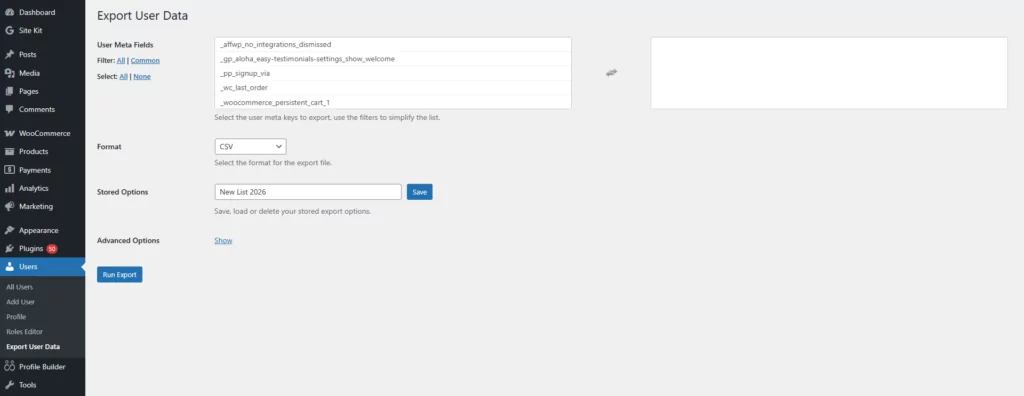
Once exported, the file can be stored as a backup or used later for bulk imports into another WordPress website.
Step #3: Prepare Your CSV File for Import
Before importing users, your CSV file needs to follow a specific column structure for the import plugin to process it correctly:
- Column 1 must be Username
- Column 2 must be Email
- Column 3 should be Password — if left empty, existing passwords are unchanged; if omitted entirely, WordPress generates passwords automatically
- Remaining columns should use the exact meta names of your Profile Builder fields
If the username and email in a row match an existing WordPress user, that user will be updated. If they don’t match, a new user account will be created.
You can download a sample CSV file from the Profile Builder documentation to use as a starting point.
Step #4: Import Users From a CSV File
Next, install the Import users from CSV with meta plugin from WordPress.org. Once activated, navigate to Tools → Import users from CSV.
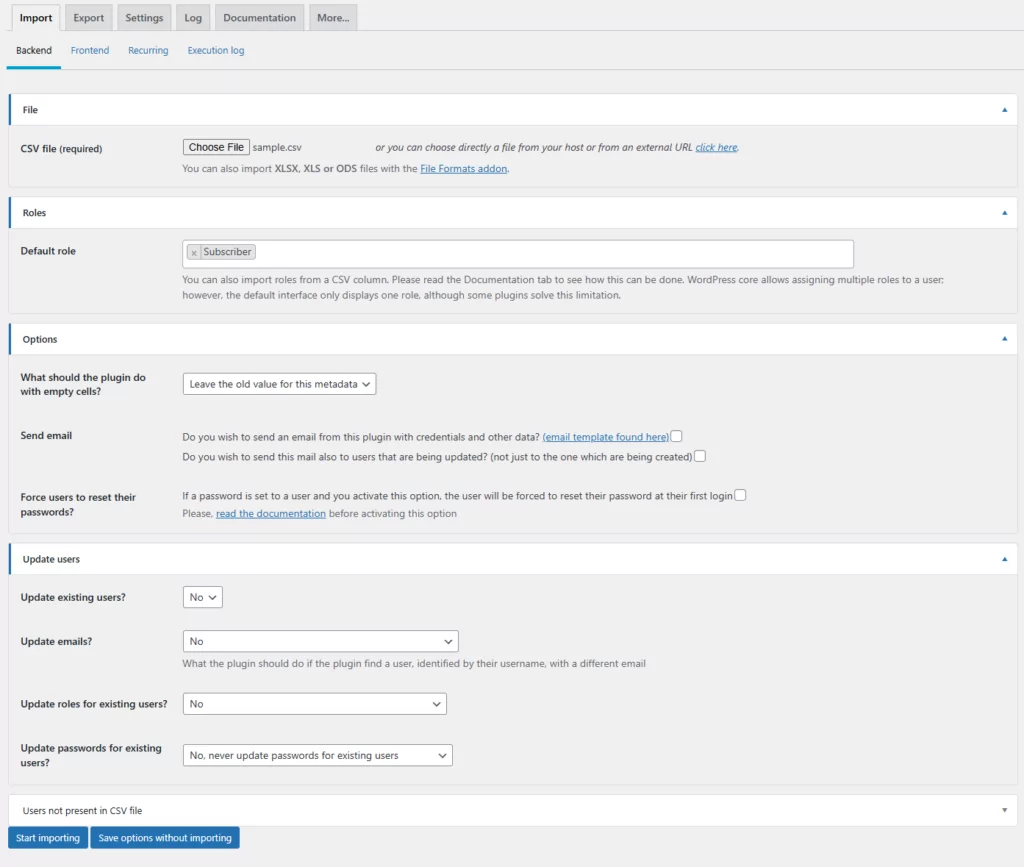
From this screen, configure the following before starting the import:
- Update existing users — choose whether matching users should be updated or skipped
- Role for new users — set the WordPress role that newly created users will receive
- Update role for existing users — choose whether to apply the new role to existing accounts
- Empty cells — decide whether empty CSV cells should overwrite existing data or be ignored
- Send notification emails — choose whether users receive an email after their account is created or updated
Upload your CSV file, confirm your settings, and click Start Importing. This will allow you to quickly onboard large groups while keeping all user data structured and consistent.
After the import completes, you may notice custom fields appearing twice in the WordPress back-end user profile view. This is expected — simply deactivate the Import plugin once the import is finished and the duplicate display will resolve.
Best Practices for Exporting and Importing WordPress Users to CSV
Following these best practices before you export or import WordPress users will help avoid formatting issues, missing data, or accidental user conflicts.
Always Back Up Your Site First
A full site backup is your safety net before any import or export. This helps protect your user database in case something goes wrong during the migration or import process.
Even small formatting issues in a CSV file can sometimes create duplicate accounts or missing profile information. Having a recent backup allows you to restore your website quickly and minimize the risk of accidental data loss or user management issues.
Test With a Small CSV First
Run a test import with 5–10 users before processing your full list. This allows you to confirm that fields are mapped correctly and that user accounts are being created as expected.
A small test import can help identify formatting issues, incorrect role assignments, or missing profile data early in the process. It’s a simple step that can save significant time and reduce the risk of large-scale import errors later on.
Verify Custom Field Mapping
If your website uses custom profile fields, make sure those fields are mapped correctly before running a full import. Incorrect mapping can lead to missing or misplaced user information after the migration.
This is especially important for membership sites, WooCommerce stores, and LMS platforms that rely on additional profile data. Double-check that your CSV column names match the corresponding Profile Builder fields so information like phone numbers, subscriptions, or member details are imported properly.
Check Password Handling
Before importing users, verify how passwords will be handled during the process. Depending on your setup, passwords may be imported directly, generated automatically, or reset after account creation.
Understanding this beforehand helps prevent login issues for existing members and ensures users can access their accounts after the migration. If passwords aren’t included in the CSV file, you may need to send password reset emails or ask users to create new passwords after the import is complete.
FAQs
Can you export WordPress users without a plugin?
Not easily. WordPress doesn’t include a built-in CSV export tool for users. A plugin like Profile Builder is the most practical solution for exporting user data including custom profile fields.
How do I import users into WordPress from a CSV?
With Profile Builder’s import tool, you can upload a CSV file, map each column to the corresponding WordPress or Profile Builder field, and create or update user accounts in bulk.
Will importing users overwrite existing accounts?
This depends on how the import is configured. Most import tools check for existing email addresses or usernames and can update existing accounts rather than creating duplicates. Always test with a small CSV first.
Can I export custom profile fields from WordPress?
Yes. Profile Builder supports exporting custom fields — including text inputs, dropdowns, checkboxes, and membership-related data — alongside standard WordPress user fields.
Managing WordPress Users Doesn’t Have to Be Complicated
Managing WordPress users becomes much easier when you have a reliable way to export and import user data.
Whether you’re migrating to a new website, switching membership plugins, onboarding users in bulk, or creating backups, having access to CSV-based user management can save significant time and reduce errors.
While WordPress core offers basic user management, it lacks built-in tools for handling large-scale user imports and exports, especially when custom profile fields are involved. That’s where Profile Builder simplifies the process.
With support for bulk user imports, CSV exports, custom fields, and role management, it provides a more practical and beginner-friendly solution for managing WordPress users without custom code.
Profile Builder Pro
The easiest way for membership site and online community site owners to export and import WordPress users.
Get Profile BuilderProfile Builder gives you everything you need to export and import WordPress users — custom fields, bulk operations, and role management — without writing a single line of code.
Related Articles

WordPress Profile Builder: a Front-end User Registration, Login and Edit-Profile Plugin
Easily Login, Register and Edit your Profile Directly from the Front-end Profile Builder lets you add front-end forms that give your users a more flexible way to register, log in, and modify their profile information. If you allow public registration on your site, you don't want to force your users to use the backend WordPress […]
Continue Reading
WordPress User Avatar Tutorial: Let Users Upload Custom Profile Pictures
Searching for a way to let users on your site upload a custom WordPress user avatar or profile picture? By default, WordPress relies on the Gravatar service for user profile pictures, which means that your site will show the avatar associated with each user's email in Gravatar. However, this isn't ideal because not all users […]
Continue Reading
Build WordPress Registration Forms Visually — Introducing the New Profile Builder Form Builder
Building a custom registration form in WordPress used to mean managing fields in one screen, form settings in another, and checking the result on a third. Profile Builder's new visual Edit Profile and Registration Form Builder changes that, giving you a drag-and-drop canvas where you can build, arrange, and preview registration forms in one place. […]
Continue Reading