



Table of Contents
- 1 What Is Passwordless Login and How Does It Work?
- 2 Why Should You Use Passwordless Login on Your WordPress Website?
- 3 Before You Start: Make Sure Users Can Register on Your Website
- 4 Optional: Set Up Registration and Login Pages With Profile Builder
- 5 How to Set Up WordPress Passwordless Login
- 6 How to Customize Your WordPress Passwordless Login Setup
- 7 Is Passwordless Login Secure?
- 8 Common Passwordless Login Problems and How to Fix Them
- 9 Frequently Asked Questions About WordPress Passwordless Login
- 9.1 Can I Log In to WordPress Without a Password?
- 9.2 Is Passwordless Login Free in WordPress?
- 9.3 Does Passwordless Login Completely Replace WordPress Passwords?
- 9.4 Can Users Really Log In With Just Their Email Address?
- 9.5 Does Passwordless Login Work With WordPress Membership Websites?
- 9.6 What Happens if I Click an Expired Passwordless Login Link?
- 9.7 Is Passwordless Login the Same as Using a Passkey?
- 10 Make Logging In One Less Thing Your Members Have to Worry About
Quick Answer
WordPress passwordless login lets registered users sign in through a temporary magic link sent to their email instead of entering a password. You can enable it for free with the standalone Passwordless Login plugin by adding the [passwordless-login] shortcode to a page. Links expire after 10 minutes by default, and you can keep traditional password login available.
WordPress passwordless login lets people sign in to your website without having to remember or type a password. Instead, they simply enter their email address, receive a secure login link, and click it to access their account.
If you run a membership website, an online community, or any WordPress site where people regularly log in, you probably know how frustrating forgotten passwords can be.
A member wants to access their content but can’t remember their password. They request a reset email, wait for it to arrive, and create a new password. What should have been a quick login turns into a small project of its own. And sometimes, that frustration lands in your support inbox.
Well, with WordPress passwordless login, you can make things much simpler. Members can access their accounts using a temporary link sent to their email, without going through the usual password-related headaches.
And the good news is that you don’t need to build a custom authentication system to offer this experience. You can use the free Passwordless Login plugin to enable email-based login on your WordPress website, whether you’re using the default WordPress registration system or another plugin to manage your users.
Already have user registration and login set up? Feel free to skip straight to the passwordless login setup. Otherwise, we’ll also show you how to create registration and traditional login pages using Profile Builder, so you can get everything ready from scratch.
Let’s see how it works.
What Is Passwordless Login and How Does It Work?
Passwordless login is a way for users to sign in to a website or application without entering a traditional password. Instead, their identity is verified through another method, such as a passkey, biometric authentication, a one-time code, or a temporary link sent to their email.
For WordPress websites, one of the simplest options is email-based passwordless login, often called “magic link authentication”.
The idea is pretty straightforward: if someone can access the email account associated with their WordPress profile, they can use a temporary link sent to that inbox to sign in.
Here’s what the process looks like from the user’s perspective:
- They visit your website’s login page.
- They enter the email address associated with their account.
- Your website sends them an email containing a temporary login link.
- They open the email and click the link.
- They’re logged in and can continue browsing your website.
For example, imagine someone who subscribed to your membership website a few months ago. They enjoyed your content, but they haven’t logged in for a while. Now they’re back, ready to check out something new, and they can’t remember their password. With a traditional login form, they might have to go through the password recovery process before they can access their membership. But with passwordless sign-in, they can just request a login link and pick up where they left off.
It’s a small change to the login process, but one that can make accessing your website feel much easier for your audience.
How Is Passwordless Login Different From Traditional Login?
The main difference is how users prove that they’re allowed to access an account.
With traditional WordPress login, users enter their username or email address along with a password. WordPress checks those credentials before granting access.
On the other hand, with email-based passwordless login, the user proves they have access to their registered email account by opening a temporary authentication link.
Here’s a quick comparison:
One important thing to keep in mind is that passwordless login doesn’t necessarily mean removing passwords from your website completely. You can offer both login methods and let members choose whichever they prefer.
Why Should You Use Passwordless Login on Your WordPress Website?
Nobody visits a membership website because they’re excited about the login form. They want to read an article, watch a lesson, participate in a discussion, or access something they’ve already paid for. And the login process is simply something they need to get through first. So, the easier you make that process, the better the experience is likely to be.
Here are a few reasons why passwordless login is worth considering.
1. Create a Smoother Login Experience for Your Members
Think about how many accounts the average person has. Between shopping websites, streaming services, work tools, and online communities, keeping track of passwords can be exhausting. And even with a password manager, things don’t always go smoothly, especially when switching between devices.
Passwordless login gives users another way to access their accounts without worrying about which password they used when registering. That’s particularly helpful for websites people only visit occasionally, like an online course platform, a paid content library, or a private community, where members might log in from different devices or return after several weeks away.
If people pay to access your website, you want them to enjoy using it, and that includes the experience of logging in. Making them go through password recovery every time they forget their credentials isn’t exactly the welcome-back experience you want to provide. Letting them sign in through their email removes that obstacle and helps them get to the content they came for with less effort.
And if you’re already using Profile Builder to create a WordPress website with user accounts, adding passwordless authentication can be a natural next step in improving that experience.
2. Spend Less Time Dealing With Forgotten Passwords
If you’ve ever managed a WordPress website with registered users, you’ve probably received a message along the lines of:
“Hi, I can’t log in. Can you help me reset my password?”
There’s nothing unusual about these requests. Passwords get forgotten, saved credentials become outdated, and people sometimes use the wrong email address. Now, WordPress already has a built-in password recovery process, but it still requires users to take several steps.
Passwordless login provides a more direct alternative. Instead of resetting a forgotten password, members can request a fresh login link whenever they need one. That can mean fewer password-reset-related support requests and less time spent helping people regain access to their accounts.
Of course, some users might still need help finding their login emails. But removing the need to remember a password eliminates one common source of frustration.
3. Give Users More Flexibility
Not everyone wants to log in the same way. Some people are happy using a password manager. Others prefer getting a login link in their inbox. And some might switch between the two depending on the device they’re using.
The good news is that you don’t have to force everyone to adopt passwordless login. You can keep your existing password form and offer email login links as an alternative. That way, your members can choose the option that feels most convenient to them.
Before You Start: Make Sure Users Can Register on Your Website
Before setting up passwordless login, there’s one thing your website needs: existing WordPress user accounts.
After all, users need an account before they can log in to it.
If your website already has a working registration system, whether you’re using WordPress’s default registration functionality, Profile Builder, or another registration plugin, you’re good to go. There’s no need to replace your existing forms or install another user management plugin just to enable passwordless login.
Feel free to skip to the passwordless login installation steps and get started right away if that’s your case.
However, if you’re building a new website or haven’t set up registration and login yet, let’s quickly go through one way to do that.
Optional: Set Up Registration and Login Pages With Profile Builder
In case you already have a fully functional registration and/or login setup on your site, feel free to skip to the next section to learn how to set up just the passwordless login functionality.
But if you’re starting from scratch, Profile Builder is an easy way to create front-end registration and login pages.
It’s a separate WordPress plugin that helps you manage user registration, login forms, and profile editing, all from your website’s front end.
You don’t need Profile Builder for Passwordless Login to work. However, using the two together can give you a more complete and flexible user experience, especially if you’re running a membership website or online community.
Here’s how to get started with the free version.

Profile Builder Pro
Create beautiful front-end registration and profile forms with custom fields. Setup member directories, custom redirects, cutomize user emails & more using the all in one user management plugin.
Get Profile BuilderInstall and Activate Profile Builder
First, you’ll need to have Profile Builder installed on your website.
If you’re already using it to manage registration and user profiles, you’re all set and can skip straight to the next step.
Otherwise:
- Log in to your WordPress dashboard.
- Go to Plugins → Add New Plugin.
- Search for Profile Builder.
- Click Install Now.
- Once the installation finishes, click Activate.
You should now see Profile Builder available in your WordPress dashboard.
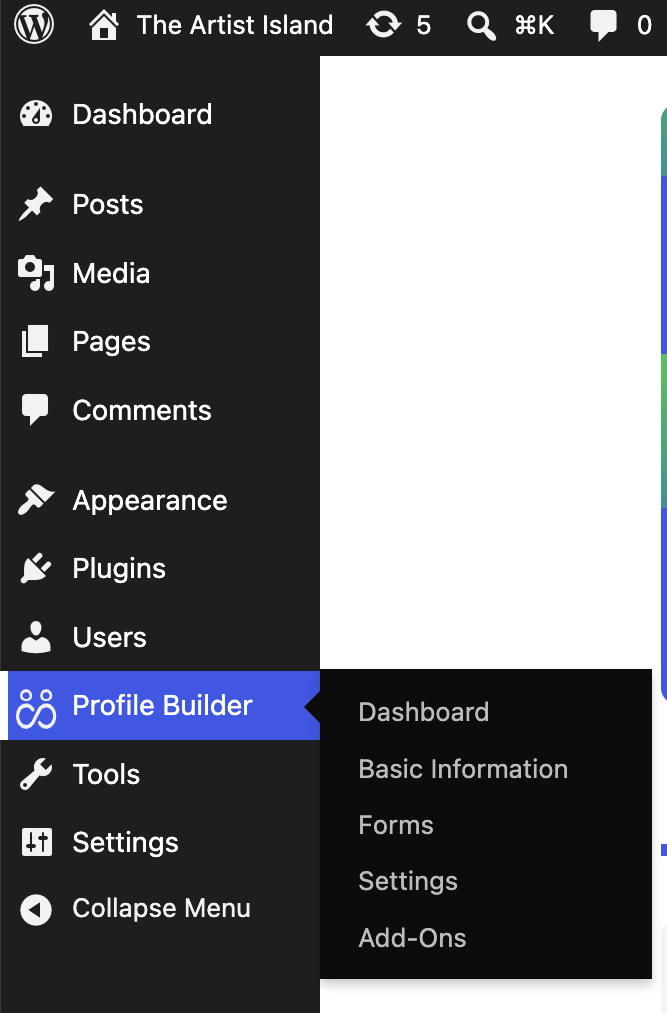
With the plugin installed, you can create front-end forms for user registration, login, and profile editing, without making members interact with the default WordPress login screen.
If this is your first time using it, the Profile Builder installation guide will help you get familiar with the setup.
Note: Profile Builder also has premium versions with additional user management features, but these aren’t required for the passwordless login functionality covered here.
Create a Registration Page
Now, let’s make sure new visitors have somewhere to create their accounts.
In your WordPress dashboard, go to Pages → All Pages and look for an existing registration page created by Profile Builder.
Next, add the Profile Builder Register block to the page. Alternatively, you can add a Shortcode block and insert: [wppb-register].
Once you’re happy with the page, click Publish.
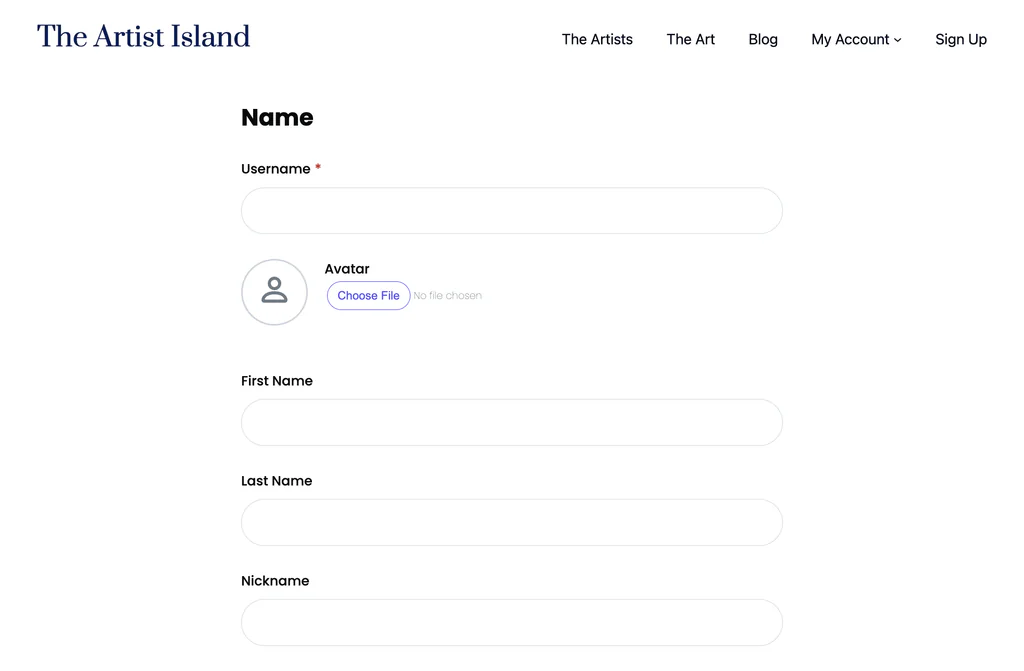
And there you go! You now have a front-end registration form that visitors can use to create their WordPress accounts.
Create a Traditional Login Page
Even though we’re planning to add passwordless login, it’s still a good idea to have a traditional login page.
This gives users another way to access their accounts if they prefer typing their password or can’t access their inbox right away.
With Profile Builder, you can create a front-end login page in much the same way.
Go to Pages → All Pages and edit the existing Login page, if the setup wizard created one.
Otherwise, create a new page and name it Log In, then add the dedicated Login block, or insert the following shortcode into a Shortcode block: [wppb-login].
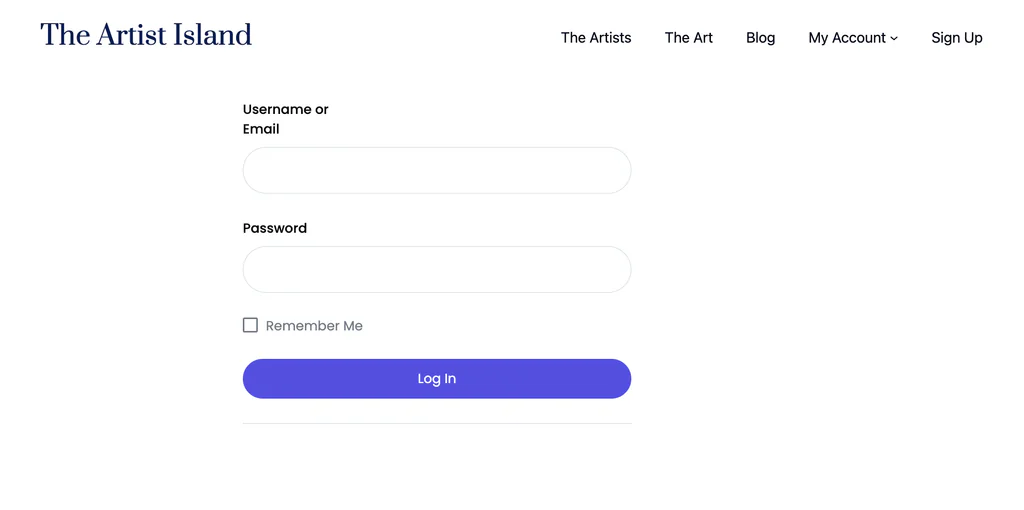
That’s your basic registration and login setup ready!
Now, let’s get to the actual passwordless login functionality.
How to Set Up WordPress Passwordless Login
For this part, we’ll use the free Passwordless Login plugin for WordPress.
It’s a standalone WordPress plugin that works independently of Profile Builder, so you can use it with your existing WordPress user accounts, regardless of how those accounts were registered.
And you don’t need to purchase any premium licenses to follow these steps.
Let’s walk through the setup.
Step 1: Install and Activate the Passwordless Login Plugin
First, we’ll install the plugin that adds the email-based login functionality.
The easiest way is directly through the WordPress plugin repository.
Here’s how to install it:
- Log in to your WordPress dashboard.
- Go to Plugins → Add New Plugin.
- Search for Passwordless Login.
- Locate the Passwordless Login plugin and click Install Now.
- Once the installation finishes, click Activate.
Once it’s activated, you’re ready to create a passwordless login form.
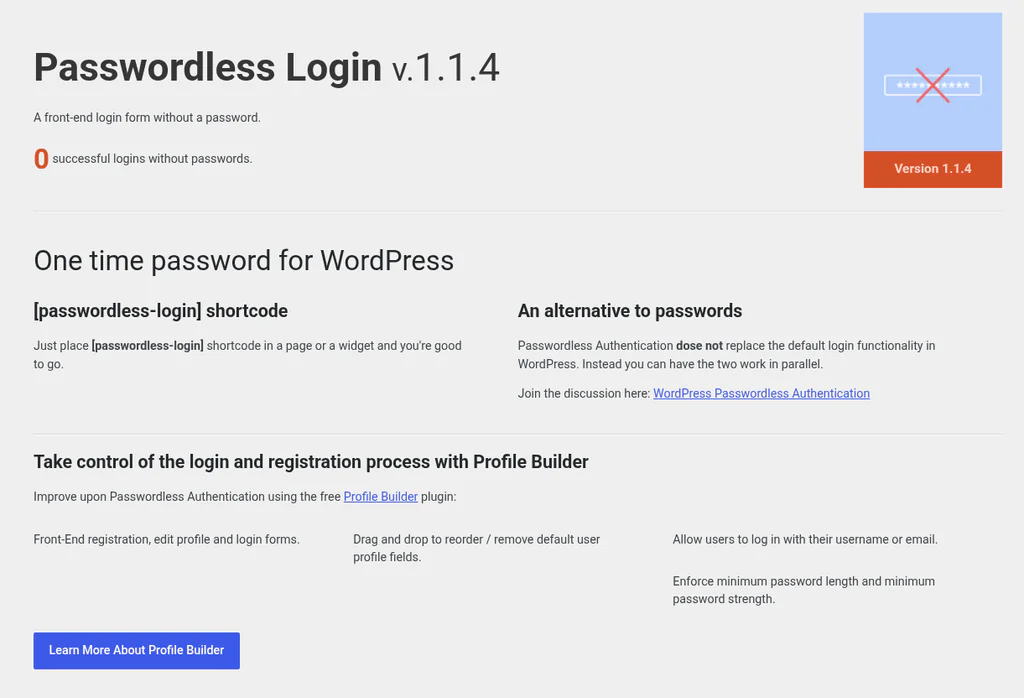
There’s no complicated setup to go through. The plugin uses a shortcode, which makes adding it to a page pretty straightforward.
Step 2: Create Your Passwordless Login Page
Now you’ll need a page where members can request their login links. The Passwordless Login plugin provides a simple shortcode for this: [passwordless-login].
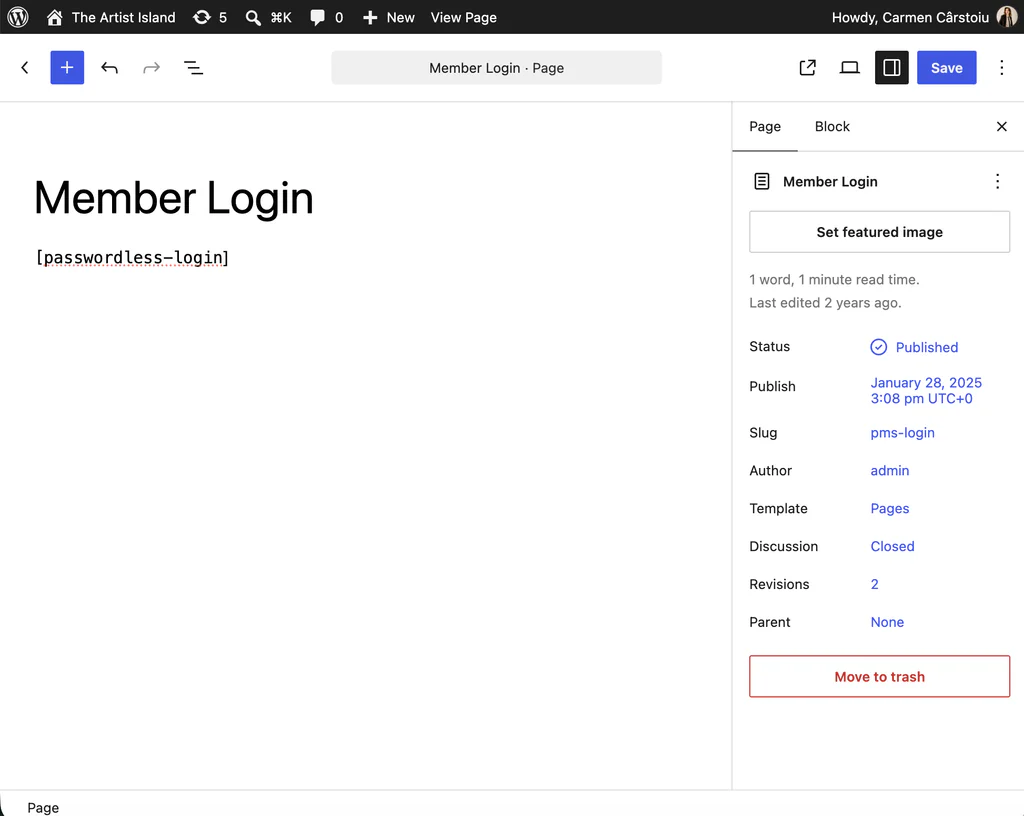
To use it:
- In your WordPress dashboard, navigate to Pages → Add New Page.
- Give the page a name, such as Member Login or Passwordless Login.
- Add a Shortcode block in the WordPress editor.
- Paste
[passwordless-login]into the block. - Click Publish.
And that’s your passwordless login page created! When someone visits the page, they’ll see a login form where they can enter their registered username or email address and request a temporary login link.
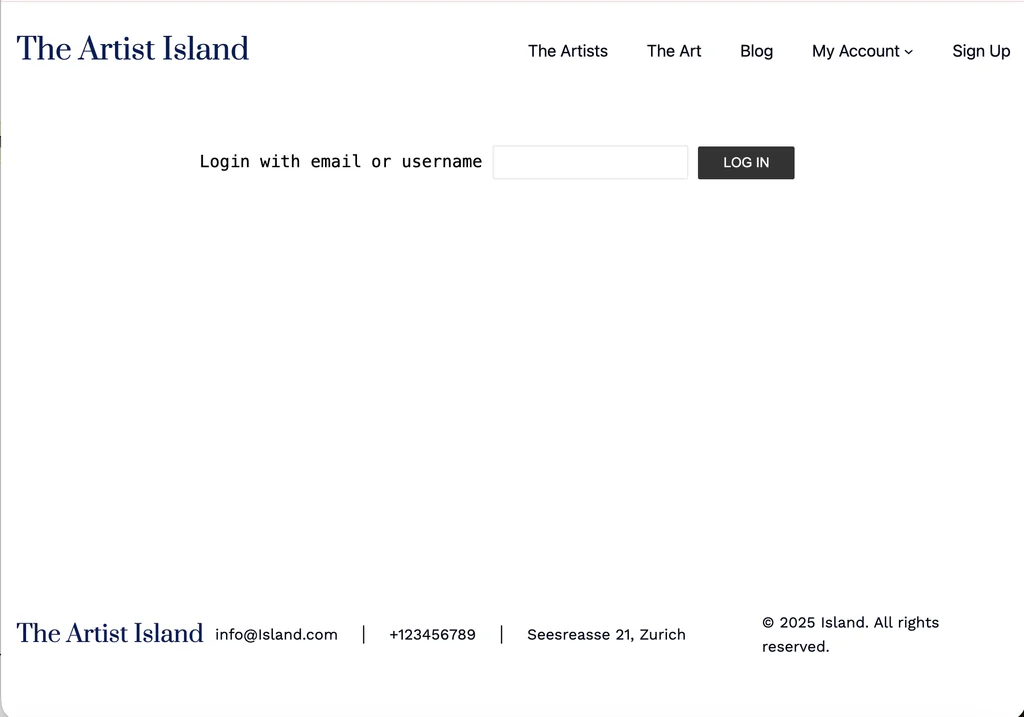
If you want to learn more about the different ways WordPress handles email-based login, take a look at our guide to WordPress email login.
Step 3: Test the Passwordless Login Experience
Before inviting members to use your new login page, it’s worth testing the process yourself.
You’ll need an existing WordPress user account associated with an email address you can access. To avoid accidentally testing with an account that’s already signed in, open the passwordless login page in a private or incognito browser window.
Then:
- Enter the email address associated with your test account.
- Click the Log In button.
- Check your email inbox for the login message.
- Open the email and click the temporary login link.
- You should be taken back to your website and logged into your account.
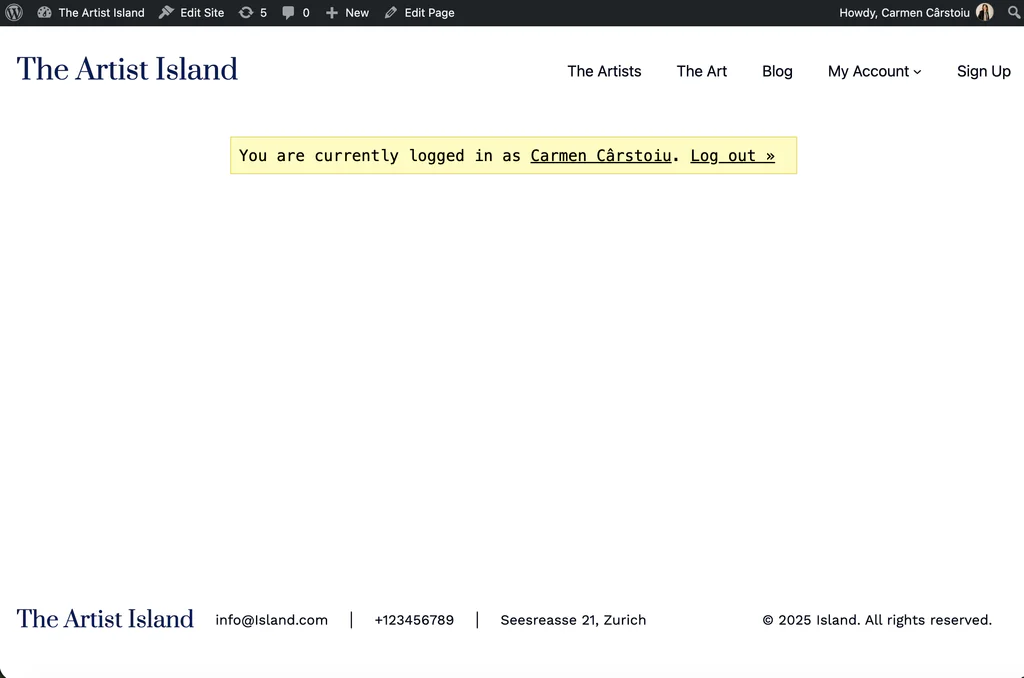
And that’s it! No password to enter, and no password reset process to go through.
Once authenticated, users will have access to the same pages and content normally available to their WordPress account.
The Passwordless Login plugin handles authentication, but it doesn’t change their existing WordPress roles or content permissions.
Step 4: Keep Traditional Password Login Available
You might be wondering whether adding passwordless login means giving up your existing login form.
Well, the answer is no. You can still let members sign in with their username and password if that’s what they prefer.
In fact, keeping both options available is a good approach, especially if you’re introducing passwordless login to a website with an existing membership base.
If you already have a traditional WordPress login page, you can simply keep using it.
Or, if you set up your forms with Profile Builder earlier, you can use the login page previously created.
You can then link the two login pages together using labels such as:
- Login with an email link
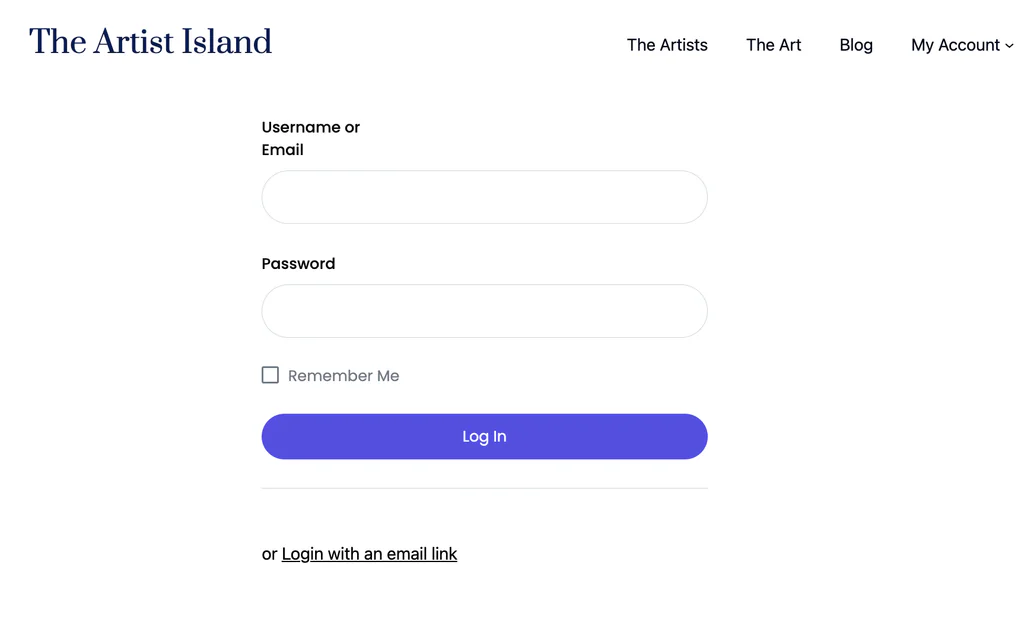
…and Login with email and password.

This gives users some flexibility without making the login experience unnecessarily complicated. And if you’d like to customize the look and feel of your login pages, our guide on creating a custom WordPress login form is a good place to start.
How to Customize Your WordPress Passwordless Login Setup
At this point, your passwordless login form should be working. For many websites, the default setup will be enough. But depending on how your membership site works, there are a few details you might want to adjust.
How Long Do Passwordless Login Links Last?
By default, the Passwordless Login plugin creates temporary login links that expire after 10 minutes.
So, if someone requests a link and doesn’t use it within that time, they’ll need to request another one.
The links are also designed to be used only once. This is important because a login link temporarily grants access to a user’s account. You don’t want unused links remaining valid indefinitely. For most websites, the default 10-minute expiry is a sensible place to start. However, if you need to change it, the plugin provides a filter called wpa_change_link_expiration.
This requires adding custom PHP code, rather than simply changing a setting in the WordPress dashboard. Unless you have a specific reason to extend the expiry period, it’s generally better to keep login links short-lived.
Can You Customize the Passwordless Login Email?
Yes. You can customize the email users receive when they request a login link.
For example, instead of sending a generic notification, you might want the message to feel more familiar to your members.
You could include a short explanation of why they’re receiving the email, remind them that the link expires, or adjust the wording to match your website’s tone. The plugin provides the wpa_email_message filter for customizing the email content. As with link expiry, this requires a little custom PHP rather than a built-in visual editor.
You can find more information and code examples in the official Passwordless Login documentation.
The documentation also explains how to customize the success message shown after someone requests a link, including adding a Send Again option.
That’s worth considering if you want to make the next step especially clear for your members. After all, the last thing you want is someone clicking the login button and wondering what they’re supposed to do next.
What About Registration and User Profiles?
Passwordless login makes signing in easier, but it doesn’t replace the rest of your user management setup. You’ll still need a way for new visitors to register, for existing members to edit their details, and for users to access the right content.
You can continue using whatever registration or profile management solution is already working on your website.
However, if you want to manage these experiences from one place, this is where Profile Builder can come in handy. You can read more about setting up front-end login in WordPress if you’d like to customize the experience further.
Is Passwordless Login Secure?
Email-based passwordless login can be secure enough for most membership websites, but its security depends on the user’s email account rather than on a password, so it works best with HTTPS, short-lived login links, and email accounts protected by multifactor authentication.
This is a fair question, so let me go into more detail. If users can log in without a password, does that make their accounts easier to access? Not necessarily, but it doesn’t automatically make them more secure either.
With email-based passwordless login, the security of the process depends heavily on the user’s email account.
If someone gains unauthorized access to that inbox, they may be able to request a login link and use it to sign in. That’s why passwordless login should be seen as a different way of authenticating users, not as a guarantee of better security.
There are also different types of passwordless authentication, and they don’t all offer the same level of protection.
For example, passkeys use public-key cryptography and are designed to resist phishing attacks. Email magic links, on the other hand, rely on the security of the email account receiving them.
The NIST Digital Identity Guidelines don’t permit email as an out-of-band authentication method for systems following their authentication assurance requirements. That doesn’t mean ordinary membership websites can’t use email magic links, but it’s an important consideration for websites handling sensitive information.
For a typical membership website, passwordless login can still be a practical choice, provided you follow sensible security practices.
Here are a few things worth paying attention to:
- Use HTTPS. Make sure your website has a valid SSL/TLS certificate so authentication data is transmitted over encrypted connections.
- Keep login links short-lived. The default 10-minute expiry limits how long a link remains usable.
- Encourage secure email accounts. Remind members to protect their email accounts, ideally with multifactor authentication.
- Make sure emails are delivered reliably. Users can’t sign in through magic links if the emails never arrive.
- Keep an alternative login method available. This can be especially useful for administrators or anyone who temporarily can’t access their email.
It’s also a good idea to monitor repeated login requests and make sure your website handles invalid or expired links properly.
For additional guidance on secure authentication links, the OWASP Forgot Password Cheat Sheet covers important principles such as token expiration, single use, and preventing account enumeration.
Common Passwordless Login Problems and How to Fix Them
Passwordless login can simplify authentication, but like any login method, it isn’t completely free of potential issues. The good news is that most common problems are fairly easy to understand and troubleshoot.
What if Users Don’t Receive Their Login Emails?
This is probably the most important thing to test before rolling out passwordless login.
If the email doesn’t arrive, users won’t be able to complete the process.
First, ask them to check their spam folder and make sure they’re entering the email address associated with their WordPress account. If emails are consistently missing, the problem may be related to how your WordPress website sends them. Using a properly configured SMTP or transactional email service can help improve delivery reliability.
It’s worth testing the process with different email providers, such as Gmail and Outlook, before making passwordless login your primary authentication option.
What Happens if a Login Link Expires?
If someone doesn’t open their login link within the default 10-minute window, they won’t be able to use it. But there’s no need to worry. They can simply return to the login page and request a fresh link.
To avoid confusion, consider adding a short note near your login form explaining that links are only valid for a limited time. That way, users know what to do if they come back to an old email.
Can Someone Log In Without Having an Account?
No. Passwordless login doesn’t replace user registration.
People still need an existing WordPress account before they can authenticate using a magic link. If your website allows new registrations, make sure there’s a visible Register link near the login form.
A little bit of guidance here can save visitors from wondering why they can’t access a website they haven’t signed up for yet.
What if Members Still Want to Use Passwords?
That’s absolutely fine. Passwordless login doesn’t have to be an all-or-nothing change. You can keep your traditional login form alongside the new passwordless option and let users choose how they’d like to sign in.
This is particularly helpful when you’re introducing the feature to existing members who are already familiar with your website’s login process.
Frequently Asked Questions About WordPress Passwordless Login
Can I Log In to WordPress Without a Password?
Yes. You can use a passwordless login plugin to authenticate registered users through temporary links sent to their email.
The Passwordless Login plugin lets you add this functionality to a page using the [passwordless-login] shortcode.
Is Passwordless Login Free in WordPress?
Yes. The Passwordless Login plugin is free and works on its own, so you don’t need Profile Builder or any premium license to set it up.
It’s also compatible with Profile Builder if you use it for registration and login forms.
Does Passwordless Login Completely Replace WordPress Passwords?
No. It adds another way for users to sign in without removing the existing username-and-password functionality.
You can continue offering a traditional login form, so members can choose whichever method they prefer.
Can Users Really Log In With Just Their Email Address?
Yes, although there’s one extra step involved.
Users enter their registered email address to request a login link. They then open their inbox and click that link to authenticate.
Simply knowing someone’s email address isn’t enough to access their account. The person logging in must also have access to the inbox receiving the link.
Does Passwordless Login Work With WordPress Membership Websites?
Yes. It’s a useful option for membership websites where registered users regularly access protected content, online courses, communities, or account pages.
Passwordless login changes how members authenticate, but it doesn’t change their existing WordPress roles or content access permissions.
What Happens if I Click an Expired Passwordless Login Link?
The link won’t authenticate you if it has already expired. You’ll need to return to the login page and request a new one. With the Passwordless Login plugin, links expire after 10 minutes by default.
Is Passwordless Login the Same as Using a Passkey?
No. Both let users sign in without typing a password, but they work differently.
Email-based passwordless login sends a temporary authentication link to the user’s inbox.
Passkeys use public-key cryptography and an authenticator associated with a device or password manager. They are designed to offer stronger phishing resistance, while email magic links provide a straightforward login experience for users who already have access to their inbox.
Make Logging In One Less Thing Your Members Have to Worry About
Your members come to your website for your content, services, or community, not to spend time recovering forgotten passwords.
And while the login process might seem like a small part of the overall experience, it’s something users have to deal with every time they return.
Passwordless login gives them a simpler option. Instead of remembering another password, they can request a temporary link, check their inbox, and get back to what they came for.
The free Passwordless Login plugin makes it easy to bring that experience to WordPress, whether you already have a user registration system in place or you’re starting from scratch.
You can even keep traditional password login available, so everyone has a way to sign in that works for them.
And if you’re looking to improve more than just the login process, take a look at Profile Builder. It can help you create custom registration forms, front-end login pages, and user profiles that work alongside your new passwordless login option.
Profile Builder Pro
Create beautiful front-end registration and profile forms with custom fields. Setup member directories, custom redirects, cutomize user emails & more using the all in one user management plugin.
Get Profile BuilderRelated Articles

WordPress Profile Builder: a Front-end User Registration, Login and Edit-Profile Plugin
Easily Login, Register and Edit your Profile Directly from the Front-end Profile Builder lets you add front-end forms that give your users a more flexible way to register, log in, and modify their profile information. If you allow public registration on your site, you don't want to force your users to use the backend WordPress […]
Continue Reading
How to Create a Custom Login Page for WordPress
Depending on the type of WordPress site you run, there are several reasons why you might want to create a custom login page for WordPress. And, you can easily do so by using a dedicated plugin. Using a customized login form can help you minimize hacking risks and related security issues as well as improve […]
Continue Reading
How to Customize WordPress Email Login Behavior (+ Registration)
Searching for a WordPress email login feature so that you can customize your site's login process, such as requiring users to use their email address instead of a username? By default, WordPress lets users log in with either their username and password or their email and password via the default login page. But if you […]
Continue Reading