



Table of Contents
Creating a paywall website in WordPress is the easiest way to monetize your knowledge effectively. Be it content creators, publishers, websites selling certain digital products like e-books, coaches, or course creators, a paywall-based business model is one of the most scalable ways to monetize what you know.
What am I talking about? Well, a paywall website is essentially any site that restricts access to premium content until a visitor pays — and WordPress makes it easier than ever to build one from scratch.
In this guide, you’ll learn exactly how to create a paywall website in WordPress — from choosing the right paywall type for your audience to setting up content restrictions step by step using the Paid Member Subscriptions plugin. And it all requires little to no technical skills.
What Exactly Is a Paywall?
A paywall is a content restriction mechanism that requires users to pay before accessing premium material — articles, videos, courses, e-books, or digital tools.
As the name suggests, a paywall is a digital barrier between your premium content or offerings and the user, requiring payment to access what’s on the other side. The term comes from the idea of a literal “wall” between free and paid content. If you have knowledge, skills, or resources that a specific audience values, a paywall lets you monetize that access directly.
As Heath Ledger once said, if you’re good at something, never do it for free!
This is precisely the whole idea of a paywall. You have something in the form of knowledge, tools, videos, e-book, digital product, etc. that a specific audience will find valuable, then you can put it behind a paywall so that the interested people can access it by paying a certain price.
It typically offers great scalability, higher conversion rates, and a very good ROI on your marketing spends and overall efforts compared to other business models.
Let’s understand paywalls in greater detail and then learn how to set one up based on your requirements.
Different Types of Paywalls
Paywalls aren’t a one-size-fits-all thing. Each niche is unique, and so is its audience.
So let me quickly explain the most common types of paywalls so that you can choose the one that fits your niche and your audience perfectly.
Hard Paywall
Hard paywalls simply deny any kind of access to the user whatsoever. No free limits, no limited access, no trials. Either pay to access in full or leave, that kind of approach.
A hard paywall is suitable for smaller, more specialized niches where users don’t expect any free experiences and are willing to pay for the value they expect.
It offers the best conversion rate and allows you to keep expenses at a minimum since you don’t need to support a huge number of free users.
On the downside, this model is hard to scale since you need a lot of trust upfront to convert users directly into paid users, and it doesn’t work for niches with high competition where the other competitors are offering limited free features or free trials.
Entrepreneurship lessons, stock market training videos, no-code app makers, etc. are some examples where hard paywalls could work well.
Soft Paywall
Also known as metered paywalls, a soft paywall generally allows some sort of access. Think some basic functionality, an introduction video, or the first chapter of an e-book – you get the idea!
A soft paywall generally turns out to be the best option for lesser-known content creators or course sellers, since it allows you to gain your users’ trust gradually. It’s also much easier to scale than a hard paywall model, since users are more than willing to pay for something after trying it out to a certain extent.
It has its own drawbacks, though. There will always be some users who will be coming just for the partial access with no intention to turn into paid users. The conversion rate will hence be lower than a hard paywall model, too.
Marketing tools, video streaming services, e-book sites, etc., are good examples of niches where soft paywalls could work best.
Freemium
A freemium model is slightly different in the sense that it doesn’t come with strict restrictions. The goal here is to have a large number of free users so that a lot of them can eventually convert into paid users. Or even monetize them through other means like display advertisements, brand sponsorships, affiliate promotions, and so on.
In this model, you basically have free and paid versions of everything that you offer, with the more advanced features, content, or products being available only to paid user.
Freemium models are typically suitable for “mass” niches. Think AI image generators, online resume makers, invoice generators, file conversion tools, and more.
You need to have a free feature that will attract a huge number of users and stop them just at the point where they need to get to the next level.
It’s at that point where you introduce your advanced features and ask them to become a paid member.
This kind of model is the easiest to scale in terms of users; it’s also the highest converting when it comes to marketing campaigns.
However, it demands a huge amount of resources, as supporting so many users requires a lot of investment on the backend, including the servers, manpower, customer service, etc. A lot of free users will simply find ways to meet their needs with only the free features and will hence never turn into paid users no matter how hard you promote the advanced paid features to them.
Why Use WordPress to Build a Paywall Website?
It’s not that there aren’t any other ways or platforms to build a paywall-based business, but the fact is that nothing comes close to WordPress. The kind of flexibility, scalability, ease of use, and effective user management that WordPress offers is second to none.
You don’t need to know any kind of coding, yet you can build an advanced paywall website from scratch. No matter what feature you need, there’s a plugin for everything.
So with that said, let me walk you through the process of building a paywall website with WordPress.
Using Paid Member Subscriptions for Building a Paywall WordPress Website
Paid Member Subscriptions handles all of this in one place — content restriction, subscription management, and payment processing — without requiring any code. It’s a WordPress membership site plugin that comes as a complete package of creating paywalls, managing members, and handling both one-time and recurring payments through different popular payment gateways.
Here’s what that looks like in practice:
- You can set up a hard paywall, a soft paywall, or a freemium model paywall website;
- For websites selling digital products, Paid Member Subscriptions offers the ability to restrict specific products or create private products that you can market as premium products available only to registered members;
- Fully-fledged payment system using multiple payment gateways, and accepting both one-time and recurring payments;
- Paid Member Subscriptions can also redirect users landing on a restricted page to any page of your liking, which can also be a sales page to help them convert into subscribers or customers;
- You can also restrict entire categories, which you would want to put behind a paywall;
- Generates invoices for your users automatically;
- Integrates perfectly with popular WordPress plugins and features like Elementor, bbPress (when creating a paywall for user forums), Gutenberg blocks, and Divi.
Of course, Paid Member Subscriptions is actually a lot more than what I listed above. You get a whole lot of other supportive features too, but all in all, you can easily set up, manage, and scale up your paywall website in WordPress using Paid Member Subscriptions alone.
With that said, let’s walk you through the process of setting up a paywall system in WordPress using Paid Member Subscriptions.

Paid Member Subscriptions Pro
Accept (recurring) payments, create subscription plans and restrict content on your website. Easily setup a WordPress membership site using Paid Member Subscriptions.
Get Paid Member SubscriptionsHow to Create a Paywall Website in WordPress?
Assuming you have already set up the basics of your WordPress website, you can get right to installing the Paid Member Subscriptions plugin.
There’s a free version of Paid Member Subscriptions that you can download from the WordPress dashboard itself, but a lot of the features I discussed above are only available in the paid pro version. If you’re looking to build a serious business using a paywall as your base, then it’s highly recommended that you purchase the pro version.
Download Paid Member Subscriptions
With that said, start with downloading the Paid Member Subscriptions from the WordPress dashboard. You need to go to Plugins → Add Plugin → Type “Paid Member Subscriptions” in the search bar → Click on Install and then the Activate button.
Now Paid Member Subscriptions is active on your site. If you have also purchased Paid Member Subscriptions Pro from our website, then you download it after logging into your Cozmoslabs account.
Once downloaded, go back to your WordPress dashboard, then follow Plugins → Add Plugin → Upload Plugin → Click on Browse and locate the Paid Member Subscriptions file on your computer → Install Now → Activate.
Next, you need to decide what type of paywall you want to build for your users. To set that up, you need to click on Paid Member Subscriptions → Settings → Content Restriction.
Types of Paywall Restrictions
Now, as explained above, you get a lot of customization options here. You can choose between the following types.
- Message-based restriction: Your users will be shown a customized message set by you about the paywall restriction that asks them to purchase a subscription or a membership to access the content or product they are looking for.
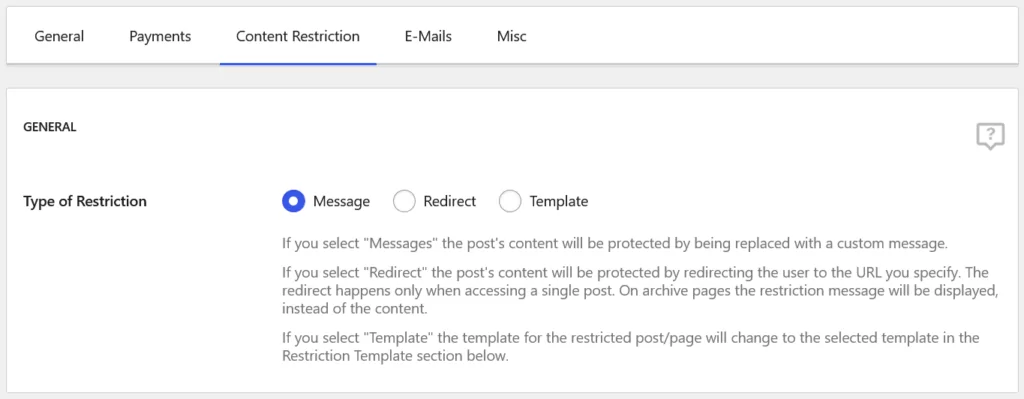
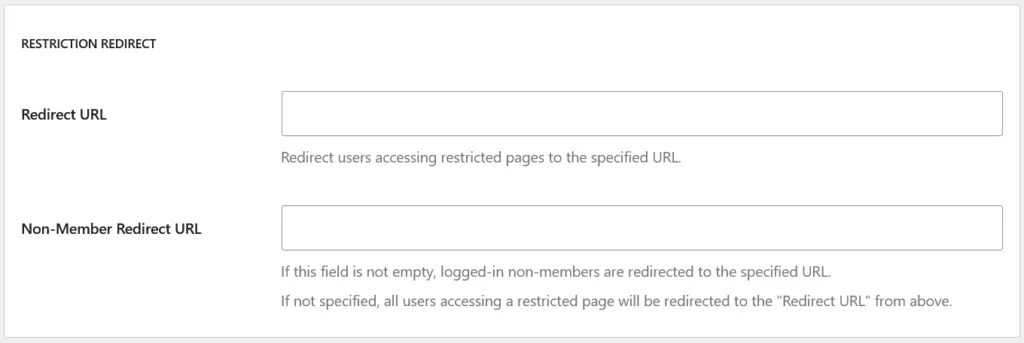
- Redirect: Your users will be redirected to a page of your choice. It could be a sales page or a simple content page asking the users to pay to access the content behind the paywall.
- Template restriction: This is a unique type of restriction that allows you to replace the content the user is trying to access with a predefined template that you can set under the settings page in Paid Member Subscriptions. The Elementor integration comes in handy here, as you can also choose templates created by the Elementor plugin to display the restriction message in whatever form you want.
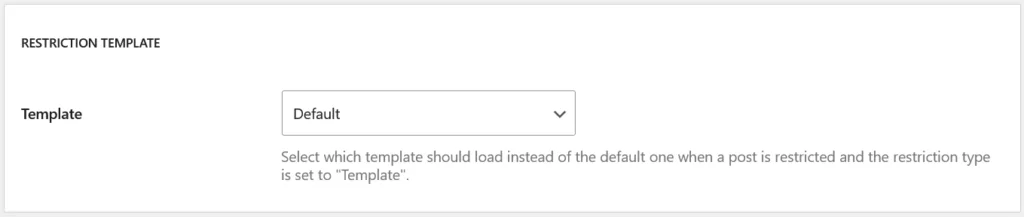
Once you have chosen the type of restriction and any other settings you want, you need to scroll to the end of the page and click on the Save Settings button to make them active on your site.

Restriction for Specific Content and User Status
You can also set the restriction levels depending on the users’ log-in status or for specific premium content you have put behind your paywall. In other words, you can customize these settings for individual content or posts, as well as based on whether the user is logged in or logged out.
To set this type of customized restriction, you can open the post or page you want to restrict in your WordPress dashboard. Scroll down to the bottom of the page.
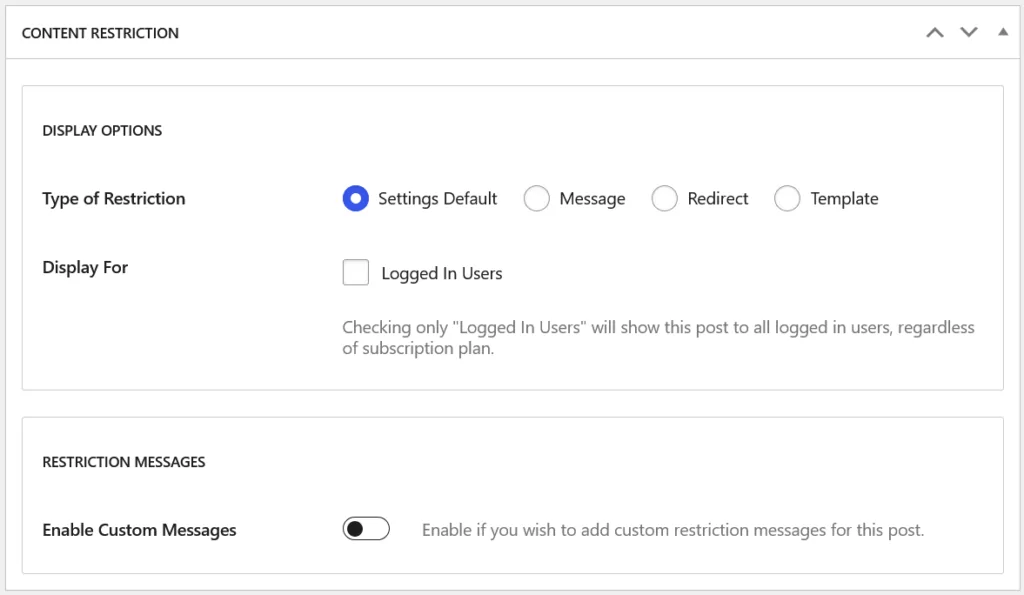
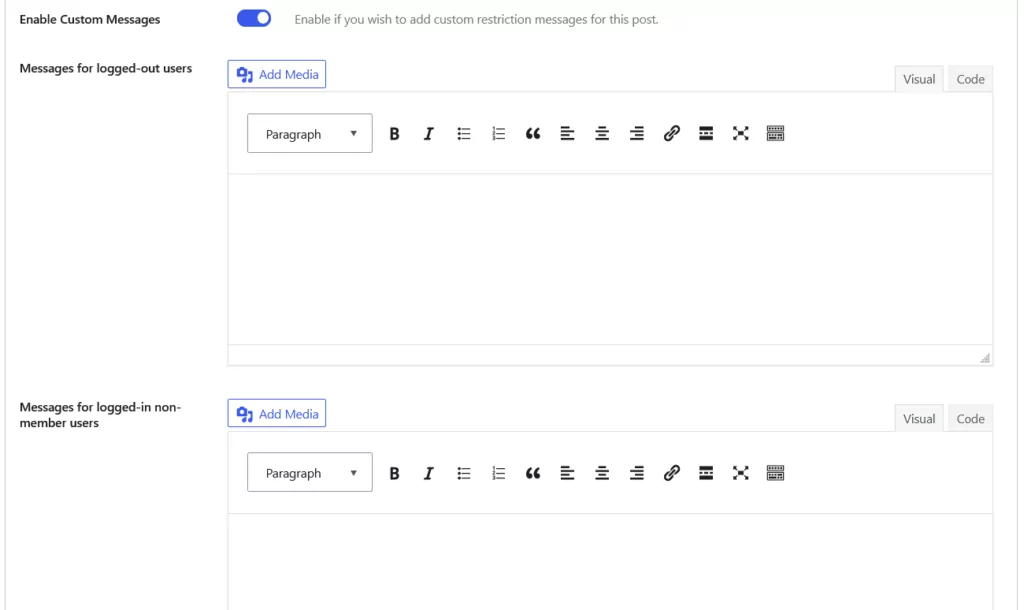
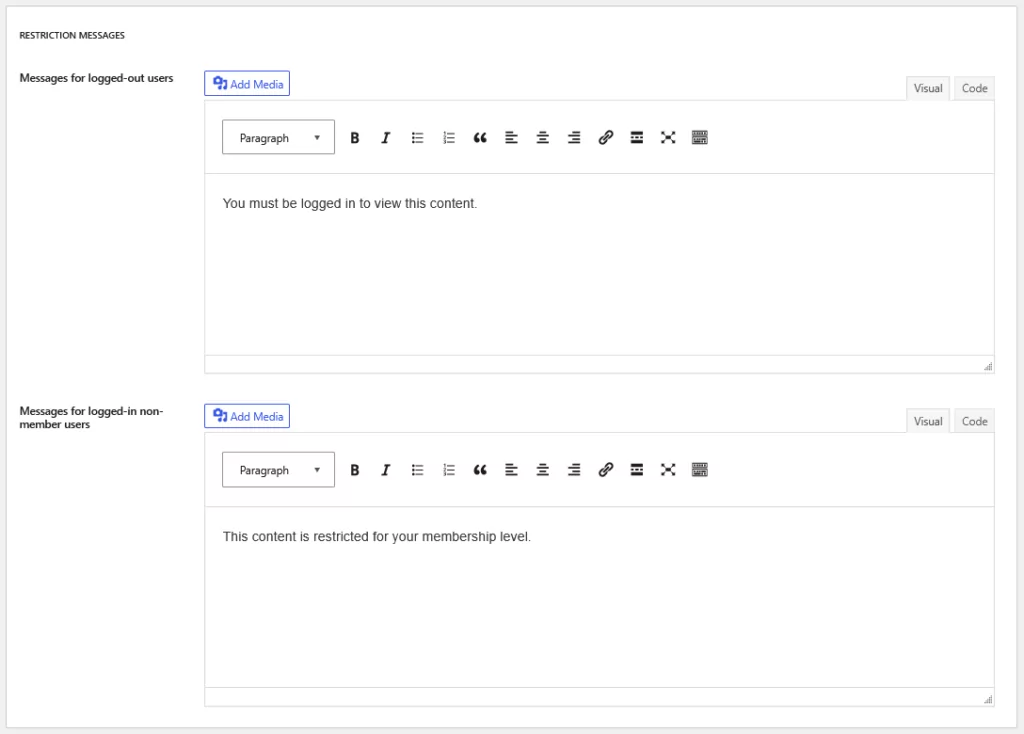
The Settings Default option is chosen by default and puts the settings you have set in the Settings page in Paid Member Subscriptions into action. However, you can customize it and choose between the Message, Redirect, or Template option here. You can also choose to set a customized restriction message different from your default restriction message by enabling the option you can see at the end, like in the image above.
Similarly, if you’re following a simple one-product paywall model, then you can simply allow the logged-in users to access the restricted content while restricting the logged-out users with any of the above types of restrictions.
If you tick the Logged In Users checkbox seen in the image above, the content will be displayed to all the logged-in users irrespective of their subscription plan.
If it’s not ticked on, then the default log-in status-based restrictions will apply that you have set under the Settings in Paid Member Subscriptions.
How to Set Up Each Paywall Type in Paid Member Subscriptions
As I explained above, Paid Member Subscriptions can be used to create all types of paywalls. Here’s a quick explanation below using the settings we just discussed above.
Hard Paywall
The settings I described and explained above are perfectly suitable to create a hard paywall. By setting a redirection to another page, the users get no access to any sample content whatsoever.
The same goes for restricting by setting a message. The users are only going to see the restriction message.
The template method would replace the content behind the paywall with your predefined template, so again, the users would get no kind of access to the premium content.
Soft Paywall
The soft paywall model – as we discussed at the beginning of this post – allows the users to get partial access to the premium content. Paid Member Subscriptions can easily help you display a specific part of the content to your users.
Just go back to the same content restriction settings in Paid Member Subscriptions and scroll down to the end of the page.
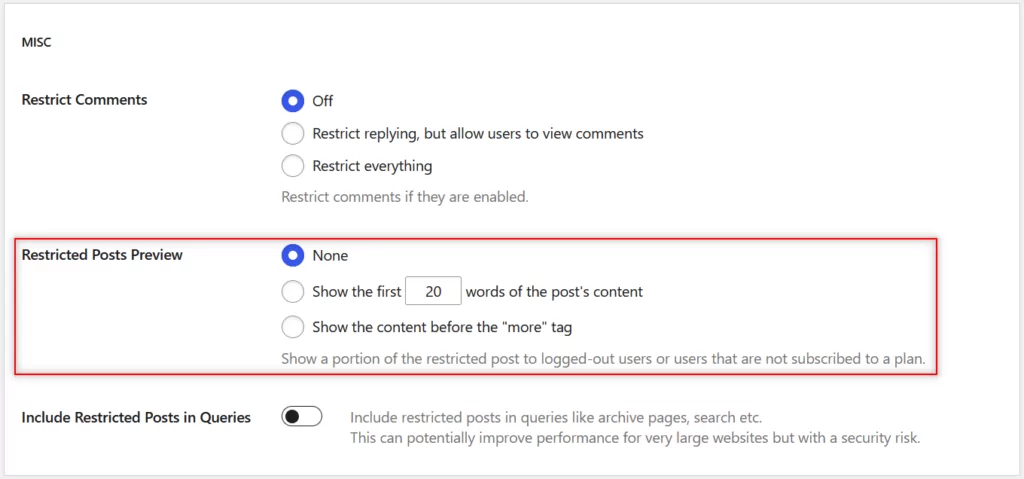
As you can see here, paid Member Subscriptions allows you to show a particular number of words to the restricted users. By default, it’s set to 20. You just need to choose the second option here that allows displaying a specific number of words and then click on the Save Settings button at the end of the page.
Freemium Model
Let me say it again. Paid Member Subscriptions is a full package of paywall creation, payment management, subscription, and membership site features.
So, of course, it allows you to follow the freemium model as well. You can use the free trial option to simply offer a free trial to new users for a specific period of time, or you can use it to have permanently free users who have access to limited content as part of their free plan.
To use this option, go to Paid Member Subscriptions → Subscription Plans → Edit your Subscription plan. Of course, you need to have active subscription plans here. Or you can create one by following the process outlined here.
You’re going to need one anyway before setting up a paywall so that users can pay for that plan and access your premium content.
Now, coming to the free trial, when creating or editing an existing subscription plan, you will find the option to set a free trial and also the duration.
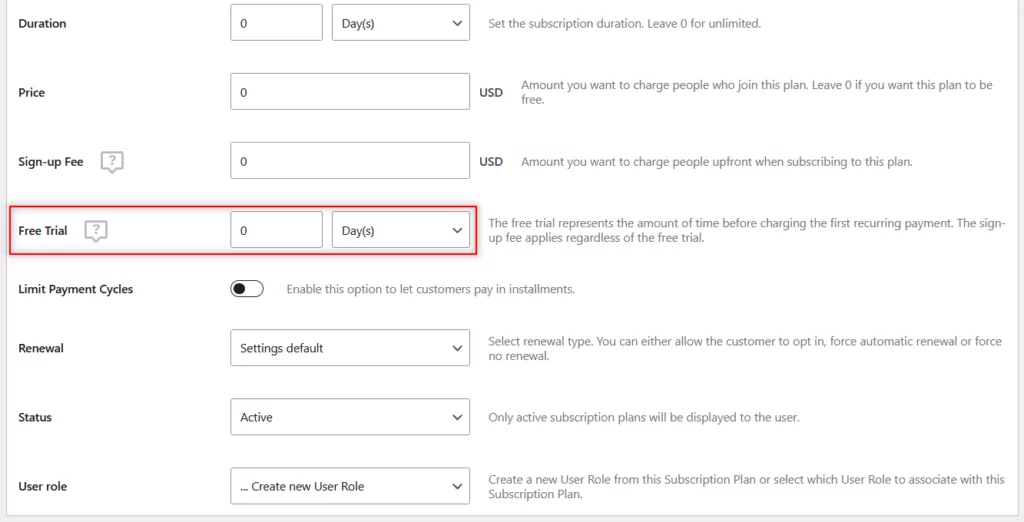
As you can see in the highlighted part of the above image, you can enable the Free Trial here, and if you want to convert it into a permanent freemium model, then you can simply set the duration to several years so that it virtually never ends for the free users.
Of course, you need to save the settings by clicking on the Save Subscription button at the bottom of the page.

FAQs
What is a paywall website?
A paywall website is a site that restricts access to some or all of its content until a visitor pays a fee — either a one-time payment or a recurring subscription. Common examples include news sites, online course platforms, and membership communities.
What’s the difference between a hard paywall and a soft paywall?
A hard paywall gives users no free access at all — they must pay to see any premium content. A soft paywall (also called a metered paywall) allows limited free access, such as a set number of articles or a preview of a course, before requiring payment.
Do I need coding skills to build a paywall in WordPress?
No. With a plugin like Paid Member Subscriptions, you can set up a fully functional paywall website in WordPress without writing a single line of code.
Can I offer a free trial with a WordPress paywall?
Yes. Paid Member Subscriptions lets you add a free trial period to any subscription plan. You can set a specific trial duration or configure it as a permanent free tier for a freemium model.
Get Your Paywall Business Up and Running Today!
Building a paywall website in WordPress doesn’t have to be complicated — with the right plugin, it’s a matter of a few settings and your first subscription plan.
This post can be a playbook for creating an entire paywall WordPress website for your business. You can build everything from scratch with zero technical skills, thanks to the Paid Member Subscriptions plugin, which is a complete package while also being very beginner-friendly and easy to use.
You just need to get your plan right with respect to understanding your audience and choosing the right paywall model based on the information I’ve shared about each of them. Once that’s out of the way, everything is going to be a cakewalk with Paid Member Subscriptions.
So wait no more! Just get Paid Member Subscriptions Pro and get working on your paywall website right away.
Paid Member Subscriptions Pro
Paid Member Subscriptions will help you create all types of paywalls, accept recurring payments, customize subscription plans, and much more!
Get Paid Member SubscriptionsHave any questions? Let me know in the comments below, and I’ll get back to you as soon as I can.
Related Articles

How To Create a Divi Membership Site
If you’re thinking of building a membership site in WordPress, you’ll need a solid theme and a membership plugin that pairs well with it. In this complete guide, we’ll show you how to create a Divi membership site using the popular Divi theme in combination with the Paid Member Subscriptions plugin.
Continue Reading
Membership Blog: Why Start One, Popular Examples and How To
I think you will agree starting a membership blog seems daunting, especially for a first-timer. Talk to just about any beginner who has never created a membership blog (or even a simple website), and they will field questions such as: Why should I start a membership blog? What kind of content, products, or services should […]
Continue Reading
How to Build an Elementor Membership Site with Paid Member Subscriptions
Are you looking to add membership functionality to your Elementor site in WordPress? Perhaps you want to create subscription plans, restrict access to premium content, and accept payments within the popular page builder. The good news is that you can use Paid Member Subscriptions to do all this and more. For example, you can customize restriction […]
Continue Reading