



Table of Contents
- 1 Why Email Marketing Matters So Much for Membership Websites
- 2 The Most Important Emails Membership Sites Should Send
- 3 What’s the Best Way to Handle Email Marketing When You Have a Membership Site?
- 4 How to Send Customized Emails Based on Membership Status or Actions
- 5 Creating an Email Marketing Strategy That Actually Works
If you run a membership website, you already know that getting someone to sign up is only half the job. The real challenge is keeping members engaged, reducing churn, and making sure they continue to see value over time. And that’s exactly where email marketing membership strategies make a real difference.
For membership sites, email isn’t just another promotional channel. It’s how you guide new members, stay connected over time, and quietly reduce churn without constant selling. When used well, email marketing for membership websites becomes part of the member experience itself.
Let’s look at why email matters so much for membership sites, the types of emails that tend to work best, and how WordPress membership plugins can help you automate and personalize everything without turning it into a full-time job.
Why Email Marketing Matters So Much for Membership Websites
Membership businesses are built on ongoing relationships. Your members aren’t just buying a one-off product. They’re buying continued access, support, or content. If they stop seeing value, they cancel.
Email helps bridge that gap between “I signed up” and “I’m glad I’m here”.
Helping new members get started
Those first few days after registration are crucial. A simple welcome email can point new members to their account area, explain where to start, and reassure them they made the right choice. Without that guidance, it’s surprisingly easy for people to forget they even joined.
Encouraging upgrades naturally
When members are already engaged, email is a great way to introduce higher-tier plans, premium features, or exclusive content. Because these messages are based on an existing relationship, they tend to feel helpful rather than salesy.
Preventing accidental cancellations
A lot of churn isn’t intentional. People miss renewal dates, forget which email they signed up with, or don’t realize their membership is about to expire. Well-timed renewal reminders can save subscriptions that would otherwise be lost.
Bringing inactive members back
Every membership site has members who drift away. Email gives you a way to nudge them back with a content update, a reminder of what they have access to, or a simple “here’s what’s new” message.
In short, membership email marketing helps you stay visible without being overwhelming.
The Most Important Emails Membership Sites Should Send
You don’t need a complicated funnel to see results. Most membership websites do best by focusing on a few essential email types and doing them well.
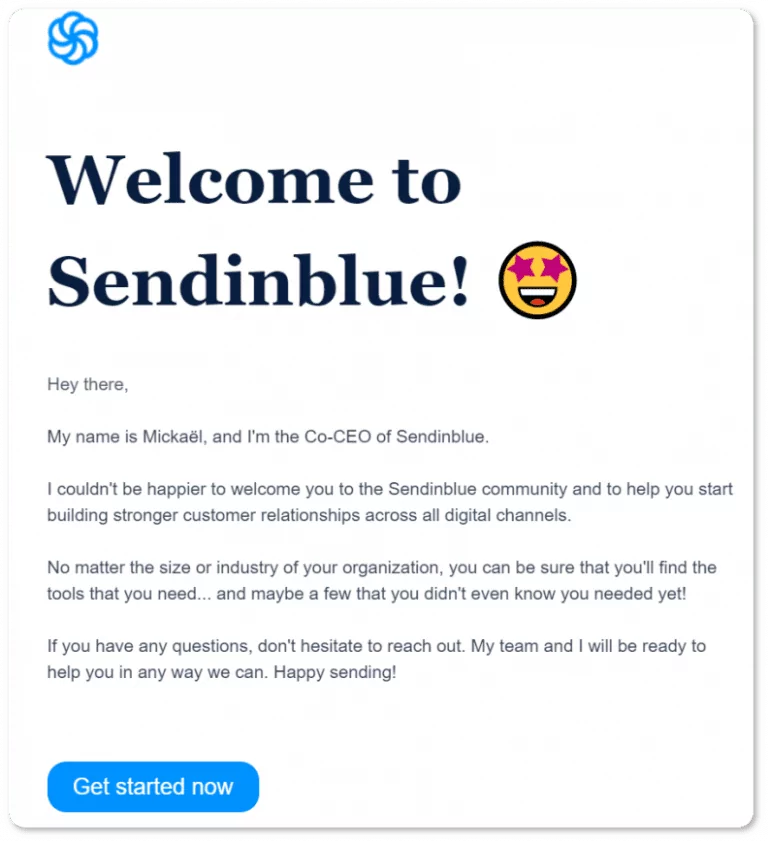
1. Welcome emails and onboarding sequences
This is your chance to set expectations and build trust. Even a short sequence of two or three emails can help members understand how the site works, where the best content lives, and how to manage their subscription.
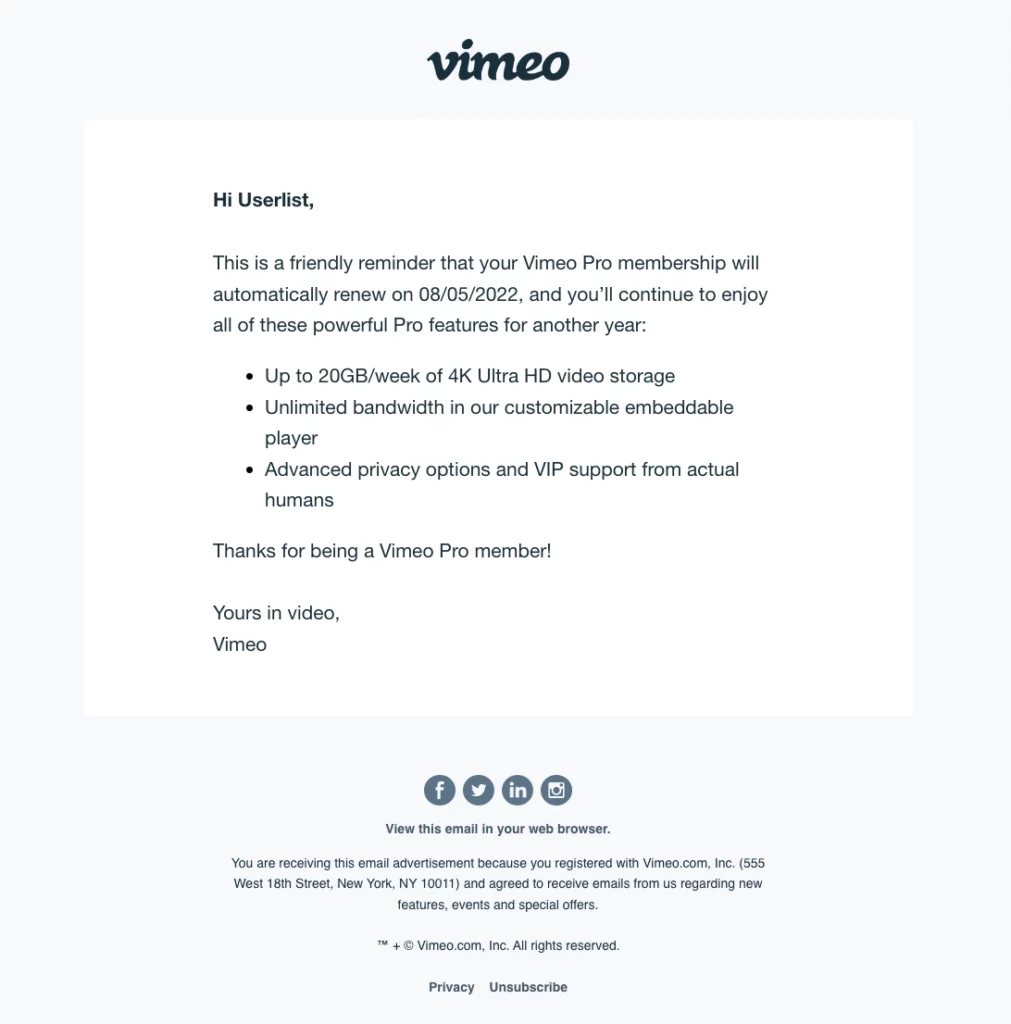
2. Renewal and expiration reminders
Email reminders are practical and incredibly effective. Let members know when a renewal is coming up, what happens if their plan expires, and how to take action if they want to continue.
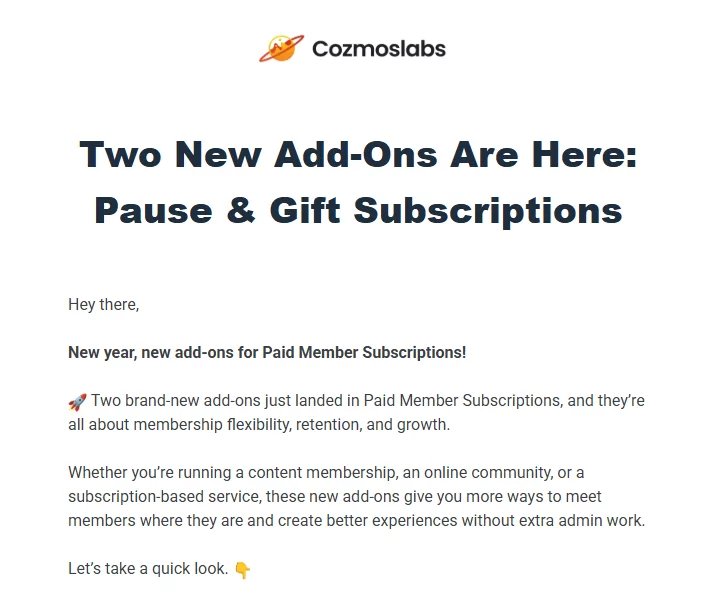
3. Content updates and announcements
Whenever you publish new content, release a feature, or unlock something for members, email is the fastest way to let them know. It also reinforces the feeling that the membership is active and evolving.
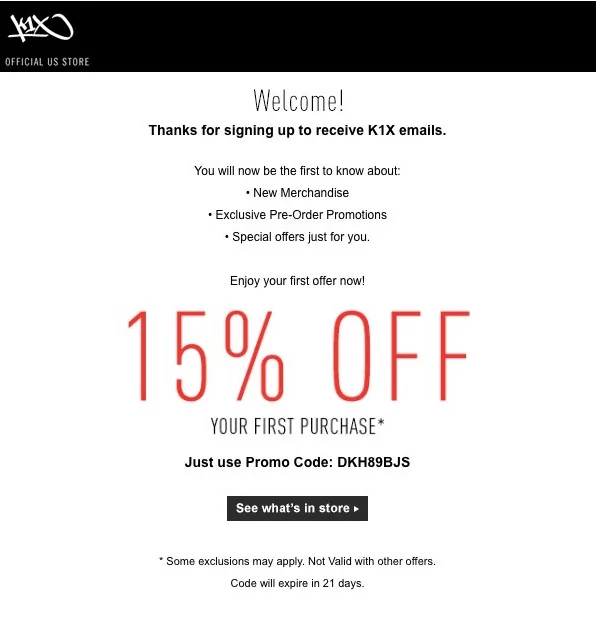
4. Promotions and upgrades
Occasional campaigns for sign-ups, plan upgrades or limited-time offers can work well — especially when they’re targeted to the right membership level instead of sent to everyone.
5. Re-engagement emails
If someone hasn’t logged in or opened an email in a while, a friendly reminder or highlight of recent content can be enough to spark interest again.
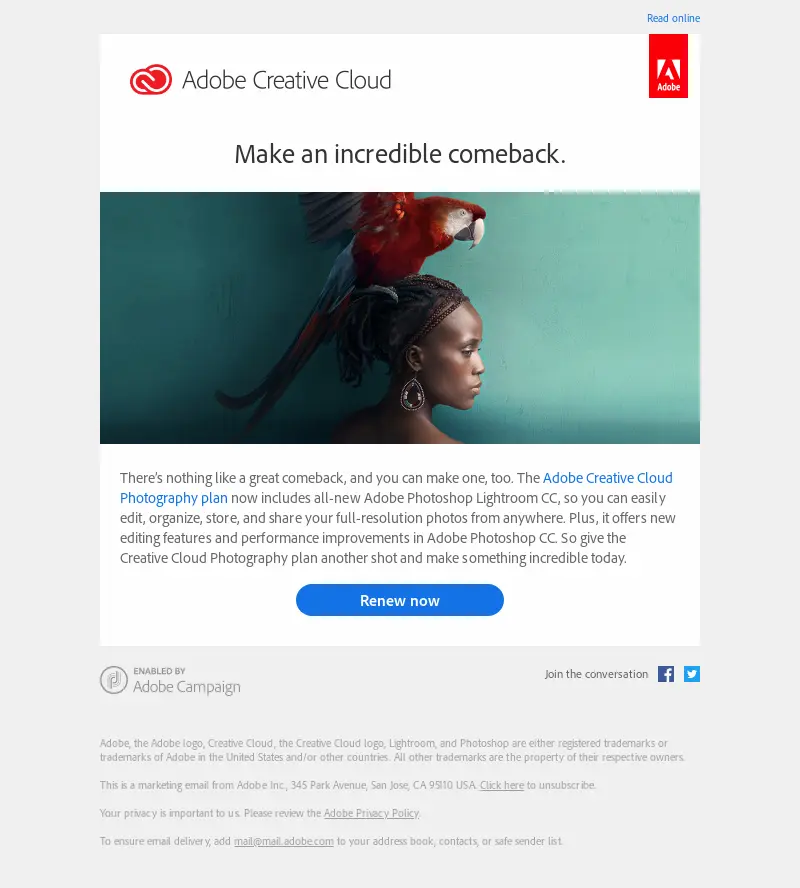
The common thread here is relevance. Membership email marketing works best when messages are tied to what members actually do, not just a fixed newsletter schedule.
What’s the Best Way to Handle Email Marketing When You Have a Membership Site?
Manually managing all of this quickly becomes overwhelming. That’s why your membership plugin plays such an important role.
WordPress membership plugins like Paid Member Subscriptions allow you to connect email marketing directly to what’s happening with each user’s subscription. That means emails can be triggered automatically when someone:
- Registers for the first time
- Upgrades or downgrades their plan
- Approaches a renewal date
- Lets their membership expire
- Belongs to a specific membership level
Instead of sending the same emails to everyone, you can tailor communication based on real member behavior.
How to Send Customized Emails Based on Membership Status or Actions
Once you know which emails you want to send, the next question is how to actually put everything together without turning email marketing into a technical headache.
If you use Mailchimp or Brevo to manage your email marketing efforts for your membership site, Paid Member Subscriptions makes it very easy to keep everything in sync and send dedicated emails based on specific member actions.
Step 1: Connect Your Email Marketing Service
First, pick the email platform you already use or prefer from Mailchimp or Brevo.
Then, install and activate Paid Member Subscriptions and the relevant email add‑on (Mailchimp or Brevo) from Paid Member Subscriptions → Add-ons and then Settings → Email Marketing after activating.
Next, add your API key from your email service so Paid Member Subscriptions can securely sync subscribers. And finally, choose the default list or audience where new members should be added.
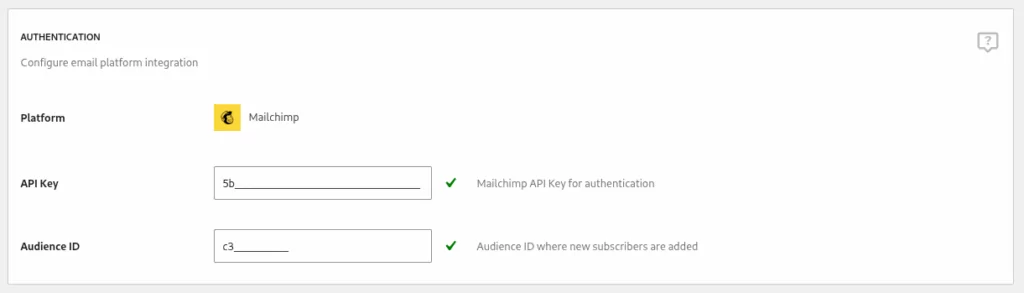
Once this is in place, every new member can land in the right list automatically.
Step 2: Sync Membership Levels With Lists or Segments
After connecting your email marketing service, the first thing you’ll want to configure is field mapping. This ensures that information collected on your website, like a member’s name or subscription details, is correctly passed to your email list.
Inside the Field Mapping settings, you can:
- Pull in the latest available fields from your email marketing platform;
- Map website fields (such as First Name and Last Name) to their corresponding fields in your email list;
- Automatically create subscription-related fields based on your membership plans.
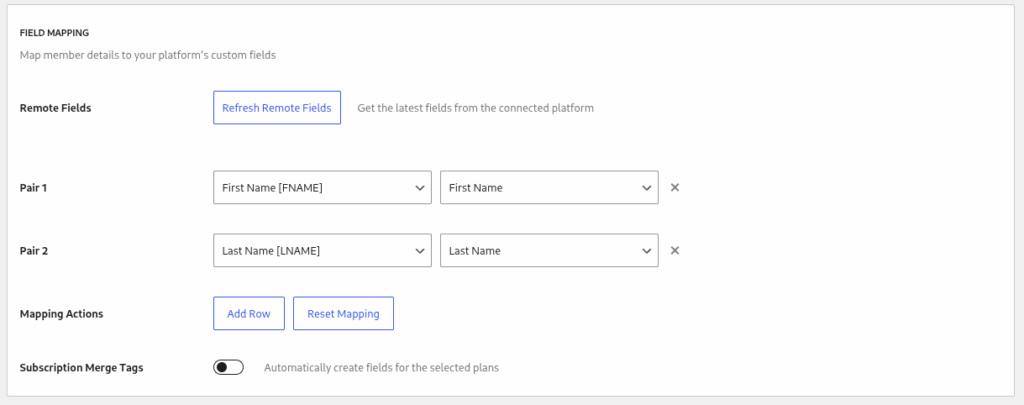
For example, your website’s First Name field can be mapped directly to Mailchimp’s FNAME merge tag. The same applies to last names or any other custom fields you want to keep in sync.
This step alone makes your emails more personal and relevant, without requiring any manual list cleanup later.
Step 3: Use Subscription Data for Better Segmentation
One of the most powerful features for membership sites is the ability to segment emails based on subscription plans.
By enabling Subscription Merge Tags, the plugin automatically creates dedicated fields in your email marketing platform for each membership tier on your site. These fields store information such as:
- The name of the subscription plan;
- The plan ID;
- The current status of that subscription.
This means you can easily target emails to members on specific plans, active subscribers only, or users whose memberships have expired, all without manually tagging users.
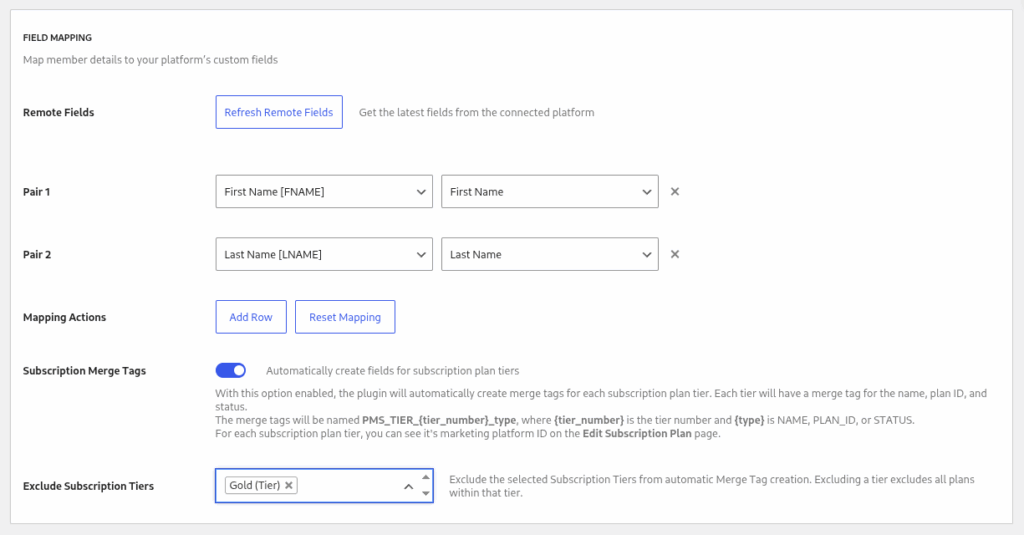
If your site uses multiple subscription tiers or allows users to hold more than one subscription, this setup ensures all relevant data stays in sync and usable for segmentation.
Step 4: Let Users Control Their Newsletter Subscription
Paid Member Subscriptions lets you decide how newsletter subscriptions are handled during registration or checkout. You can either:
- Automatically subscribe users, or
- Show an opt-in checkbox and let users choose.
If you enable the opt-in checkbox, you can customize its label, description, and default state. The checkbox will appear anywhere a user can purchase, renew, or upgrade a subscription.
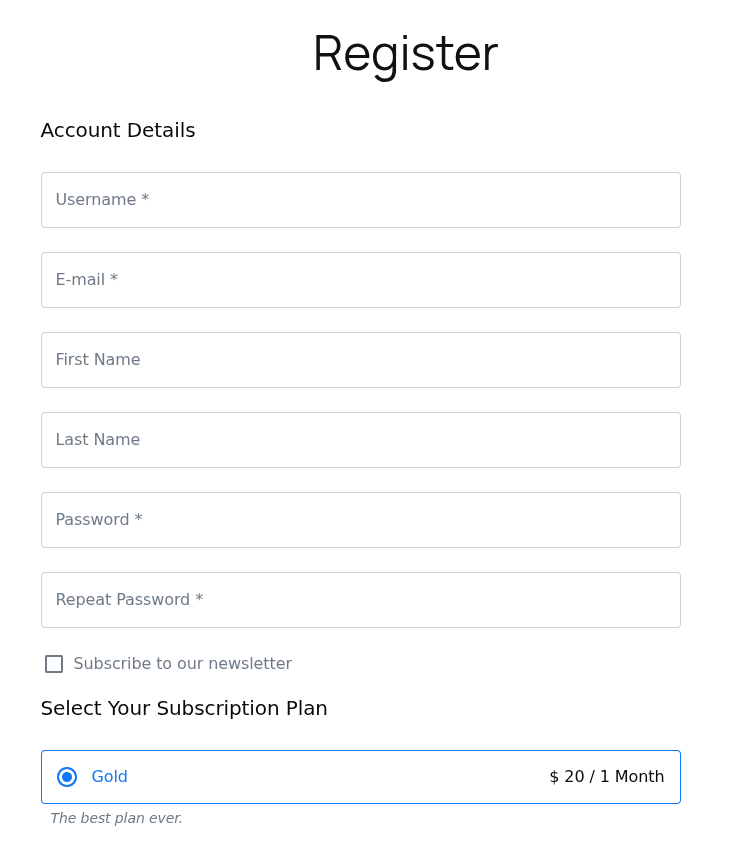
Once subscribed, members can always update their newsletter preference from their account area, under Account → Edit Profile. The option remains visible there regardless of how they initially subscribed, which keeps everything transparent and user-friendly.
Step 5: Manage Subscriptions from the Admin Side
From the admin dashboard, you can always see and manage a member’s newsletter status.
You can:
- View whether a member is subscribed when checking their profile;
- Manually update subscription status if needed;
- Apply bulk subscribe or unsubscribe actions to multiple users at once.
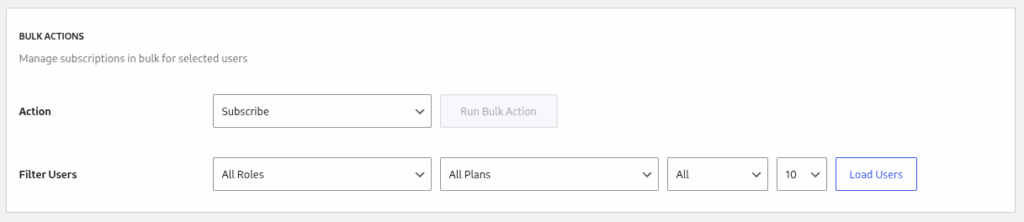
Bulk actions can be filtered by role, subscription plan, or membership status, which is especially useful if you’re cleaning up lists or running targeted campaigns.
Creating an Email Marketing Strategy That Actually Works
The most successful membership sites don’t send more emails. They send more intentional ones.
If you’re just getting started, focus on the basics:
- A clear welcome email
- Simple renewal reminders
- Regular content updates
Once that foundation is in place, you can experiment with segmentation, automation, and targeted promotions. With the right WordPress membership tools, email marketing becomes part of your overall membership experience, not something separate you have to constantly maintain.

Paid Member Subscriptions Pro
Accept (recurring) payments, create subscription plans and restrict content on your website. Easily setup a WordPress membership site using Paid Member Subscriptions.
Get Paid Member SubscriptionsDone right, email isn’t just about marketing. It’s how you build trust, increase lifetime value, and turn casual subscribers into long-term members.
Related Articles
How To Create a Divi Membership Site
If you’re thinking of building a membership site in WordPress, you’ll need a solid theme and a membership plugin that pairs well with it. In this complete guide, we’ll show you how to create a Divi membership site using the popular Divi theme in combination with the Paid Member Subscriptions plugin.
Continue Reading
How to Hide Products by User Roles in WooCommerce?
Do you want to easily hide products by user roles in WooCommerce? Some WooCommerce store owners have a unique requirement where they want to hide certain products from all but a few specific groups of users. There may be many reasons for this, including selling exclusive products only to the more loyal customers, with a […]
Continue Reading
How to Create WordPress Redirects to Another Page, External URLs, or a Subdomain
There are different reasons WordPress site owners want to create WordPress redirects to another page, external URL, or a subdomain. The redirect can be based on an important user action or set up to redirect all users landing on a particular page. Whatever the type or need of your redirect, WordPress offers the flexibility to […]
Continue Reading